
XLOOKUP Basics
Excel’s XLOOKUP function provides a flexible and powerful tool for retrieving data. It removes many of the limitations of older lookup functions (yes, I’m looking at you VLOOKUP).
In this post, we’ll build a foundational understanding of XLOOKUP, walk through practical applications step-by-step, and unlock best practices for common scenarios.
Video
What is XLOOKUP? A Brief Overview
XLOOKUP is Excel’s modern replacement for VLOOKUP, HLOOKUP, and LOOKUP. It allows us to search a range or array for a value and return a corresponding value from another range, regardless of column order. Unlike VLOOKUP, XLOOKUP is not constrained by relative column positions, supports searching from the bottom up, manages errors smoothly, and can return data from multiple columns at once.
Let’s walk through some key examples to get hands-on with XLOOKUP’s capabilities.
Step-by-Step Walkthrough: Mastering the XLOOKUP Function
1. Basic XLOOKUP: Looking Up a Product Name by ID
Consider a simple product table with columns for Product ID, Product Name, Category, and Price.
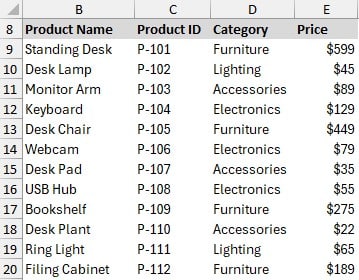
Our goal is to let the user type in a Product ID somewhere in the workbook, and immediately see the product name. In this case, we’ll keep it simple and attempt to pull it into a cell in Column H:
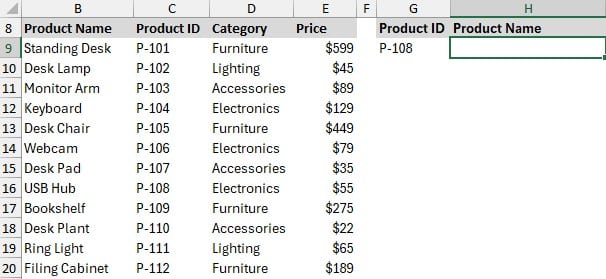
Notice that the value we want returned (the Product Name) lies to the left of the value we want to look up (the Product ID). I’ll call these two key columns the Lookup Column and the Return Column. Traditionally, with VLOOKUP, we’d need the Lookup Column (Product ID) on the left of the Return Column (Product Name). XLOOKUP frees us from this restriction. In other words, column order does not matter with XLOOKUP. Why? Because we define the Lookup and Return Columns independently in their own function arguments.
Formula structure:
=XLOOKUP(lookup_value, lookup_array, return_array)
Let’s assume:
- lookup_value: the value we are trying to find
- lookup_array: where we are trying to find it (the Lookup Column)
- return_array: the related value we want returned (the Return Column)
We can use the following formula in H9:
=XLOOKUP(G9,C9:C20,B9:B20)
Bam:
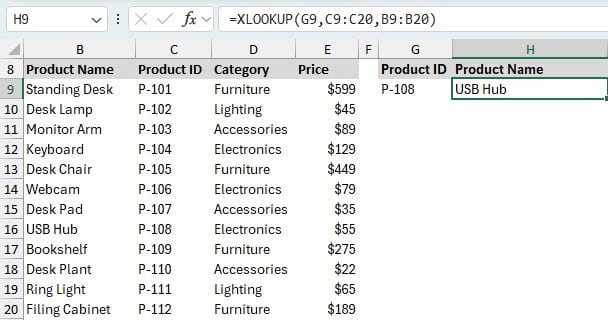
We got it!
2. Handling Missing Values: The “If Not Found” Argument
But what happens if the Product ID isn’t in our list? By default, XLOOKUP returns #N/A, which can cascade errors through dependent formulas.
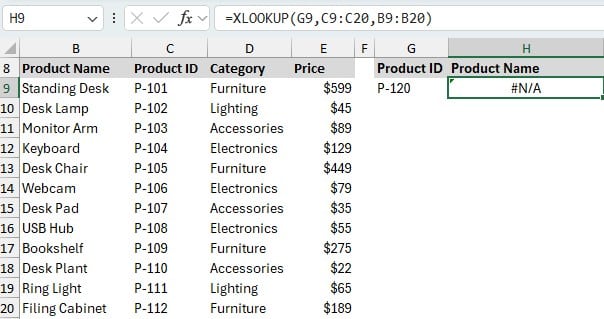
To handle this elegantly, XLOOKUP offers an optional if_not_found argument. We can opt to return a number, text (enclosed in quotes), or expression instead of the error. We can update our formula like this:
=XLOOKUP(G9,C9:C20,B9:B20, "Not Found")
If the ID doesn’t exist, we see “Not Found” instead of an error.
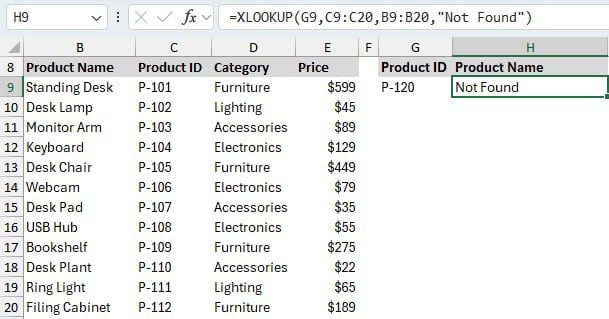
This allows us to control user experience and keep downstream formulas error-free.
3. Returning Multiple Columns with XLOOKUP
With VLOOKUP, to fetch more than one data point, we’d need multiple formulas. XLOOKUP makes this seamless by allowing us to specify a return array that includes multiple columns.
For example, to return Category and Price for the selected Product ID, we can update our formula like this:
=XLOOKUP(G9,C9:C20,D9:E20)
Entering a product ID now returns the category and price side-by-side.

No repetition or extra formulas required!
4. Performing Partial Matches and Using Wildcards
Suppose we want to search for a product name based on a partial value (e.g., “desk” to find “Desk Organizer” or “Standing Desk”). By default, XLOOKUP requires an exact match.
Wildcards such as * are supported, but we need to specify 2 for the match_mode argument.
=XLOOKUP(G9,B9:B20,C9:C20,,2)
Now, the wildcard asterisks in the search value are honored, and XLOOKUP will find partial matches accordingly:

Adjust as needed for your lookup scenario.
5. Changing the Search Direction
XLOOKUP searches from the top-down by default. But sometimes, we may want it to search from the bottom-up. The search_mode argument allows this:
- Set
search_mode = -1to search last-to-first (bottom-up)
=XLOOKUP(G9,B9:B20,C9:C20,,2,-1)
Now, we find the last item containing “desk” in the Product Name column.

This is especially useful for finding the most recent item in a dynamically growing list.
Key Takeaways: Why XLOOKUP is Essential
Whether we’re looking for exact matches, handling errors gracefully, or retrieving multiple columns, XLOOKUP will quickly become a staple in our Excel toolbox.
- Column order doesn’t matter: Lookup and return columns are specified independently so tables can be structured as needed.
- Error handling: Replace errors with clear messages for a better user experience.
- Multiple column returns: Easily fetch and display multiple pieces of related data with one formula.
- Wildcard and partial matches: Find items flexible searches, just by specifying the right argument.
- Custom search direction: Control search order to fit the business context.
With these tools, XLOOKUP unlocks new levels of efficiency for our Excel models, dramatically simplifying data retrieval and analysis.
Ready to streamline your lookup tasks? Dive into XLOOKUP in your next Excel project and experience advanced flexibility and control!
Download Sample Files
Frequently Asked Questions: XLOOKUP in Excel
- What versions of Excel support XLOOKUP?
XLOOKUP is available in Microsoft 365, Excel 2021, Excel Online, and later versions. It is not supported in Excel 2019 or earlier. - What’s the main difference between XLOOKUP and VLOOKUP?
XLOOKUP allows us to specify lookup and return columns independently, supports searches in any direction, error handling, and can return multiple columns—making it much more versatile than VLOOKUP. - How can I use XLOOKUP with multiple criteria?
For multiple criteria, we can concatenate values or use an array formula approach. For complex scenarios, consider using FILTER or a helper column. - Does XLOOKUP support wildcards?
Yes, by setting thematch_modeargument to 2. Use wildcards like*(any string) for flexible matching. - How do I suppress errors with XLOOKUP?
Use the optionalif_not_foundargument to specify a value or message to return when no match is found. - Can XLOOKUP return a range (multiple columns)?
Yes! Set thereturn_arrayargument to include multiple columns. The function will output all matched columns across the formula row. - Is XLOOKUP faster than older functions?
XLOOKUP is optimized for modern Excel and often offers better performance, especially on large modern workbooks in supported versions. - Can XLOOKUP work with vertical and horizontal ranges?
XLOOKUP replaces both VLOOKUP (vertical) and HLOOKUP (horizontal) and works with arrays in either orientation. - What happens if there are duplicate matches?
XLOOKUP will return the first match by default but can be set to return the last match usingsearch_mode = -1. - How can I migrate a file with many VLOOKUP formulas to use XLOOKUP?
Replace=VLOOKUP(lookup, table, col, [range_lookup])with=XLOOKUP(lookup, lookup_column, return_column). Remember to add theif_not_foundargument for error handling, if needed.

Excel is not what it used to be.
You need the Excel Proficiency Roadmap now. Includes 6 steps for a successful journey, 3 things to avoid, and weekly Excel tips.
Want to learn Excel?
Our training programs start at $29 and will help you learn Excel quickly.