
AI Help with Claude
How to Use the Claude Add-in to Supercharge Your Excel Workbook Audits
We love helping users get the most out of Excel. These days, it means leveraging every available tool for efficiency and insight including AI. This post walks through the practical use of the Claude add-in, a powerful, AI-powered assistant for worksheet review, error detection, and even automated corrections within Excel.
Video
Tutorial
We’ll walk through a full, real-world example, provide step-by-step instructions, and share best practices so we can all benefit from smoother, smarter workbook management.
What is the Claude Add-in for Excel?
The Claude add-in is an AI-powered assistant that integrates directly into Excel, allowing us to analyze, review, and even repair workbooks using natural language prompts. It’s available for free from the Excel Add-ins store, although a Claude account (either free or paid) is required for use.
Step-by-Step Guide
Step 1: Install the Claude Add-in
- Open Excel and click on Insert > Get Add-ins.
- In the search bar, type Claude, and install the add-in.
- Once installed, access it from the Home tab or the ribbon area as “Claude.”
- Sign in with your Claude account credentials.

Step 2: Understand Your Workbook Structure
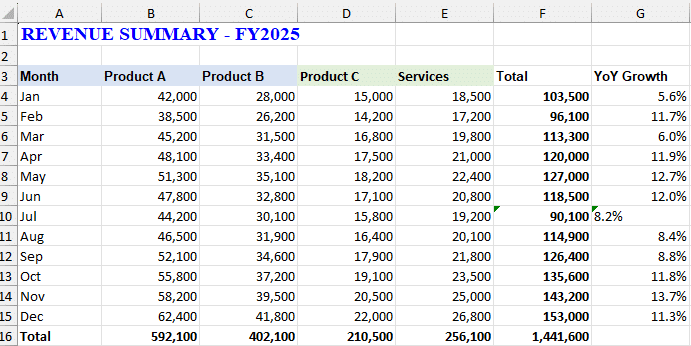
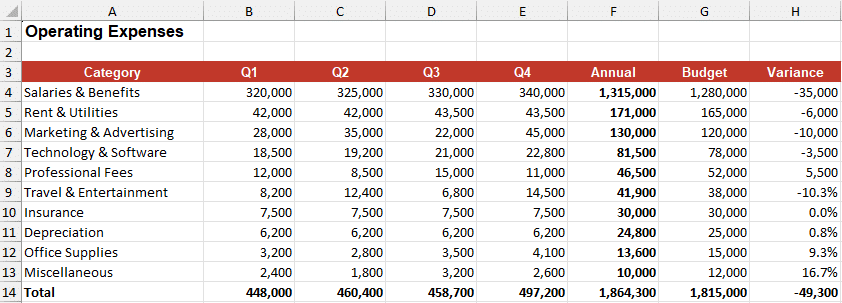
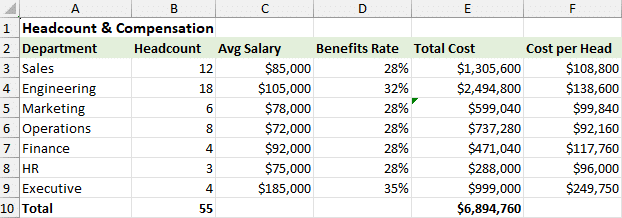
For this demonstration, we’re working with a sample workbook containing four worksheets:
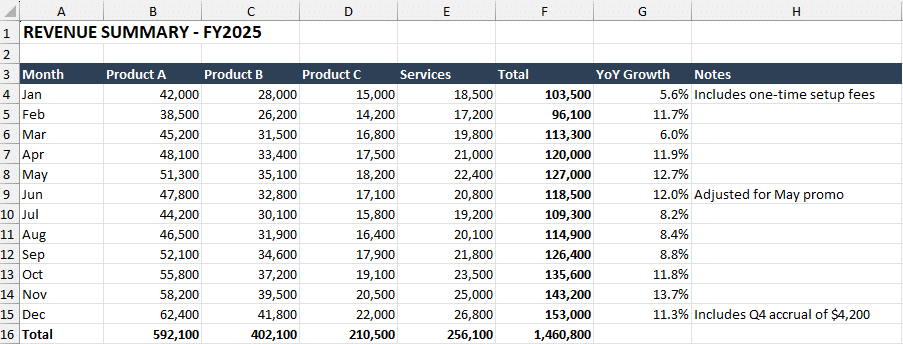
Revenue – Monthly revenue by product line:
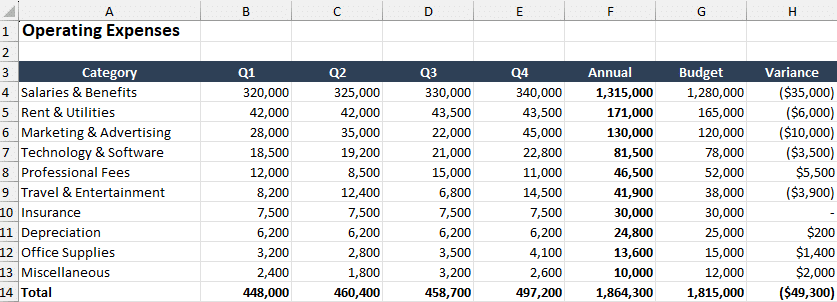
Expenses – Quarterly expenses, budget, and variance:
Staff – Department headcount and compensation:
KPIs – Dashboard that links and summarizes key metrics:
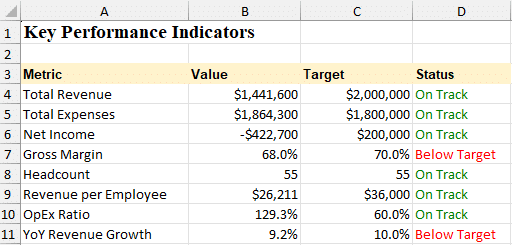
Before running prompts, it helps to orient ourselves to the sheets and their roles. Visualizing these relationships sets the stage for effective review and troubleshooting.
Step 3: Request a Workbook Audit
From the Claude task pane, run a review prompt like this:
Review the entire workbook and all sheets: revenue, expenses, staff, and KPIs. Explain the structure, what each does, and how they connect. Summarize the key financial picture.
Click the Submit button and wait as Claude reviews all worksheets.

Claude’s analysis will describe each worksheet and how they link, spotlighting crucial calculations and relationships. For instance, it may note that the KPIs dashboard pulls together metrics from the other sheets, or that there’s a mismatch between staff costs and expenses.
Step 4: Let Claude Find Specific Issues
Prompt Claude to undertake a more focused audit. Example prompt:
List all problems and inconsistencies in this workbook by severity, including formula errors, hardcoded values, incorrect links, and formatting inconsistencies.
Claude generates a categorized checklist including categories such as Critical, Serious, and Minor issues. It helps to identify root causes like hardcoded values, inconsistent formulas, or incorrect KPI indicators.
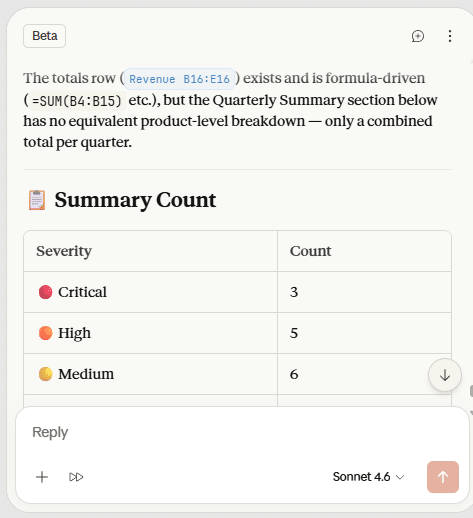
As you can see, Claude found many issues ranging from formula errors (such as totals that excluded service revenue) to formatting mismatches and inconsistent status flags.
Step 5: Approve Automated Fixes
Typically, Claude will offer to fix detected issues directly within the workbook. Confirm with “Yes” to allow the assistant to proceed.
When the process is done, Claude will summarize the changes made to each sheet and may leave explanatory notes for outstanding issues.

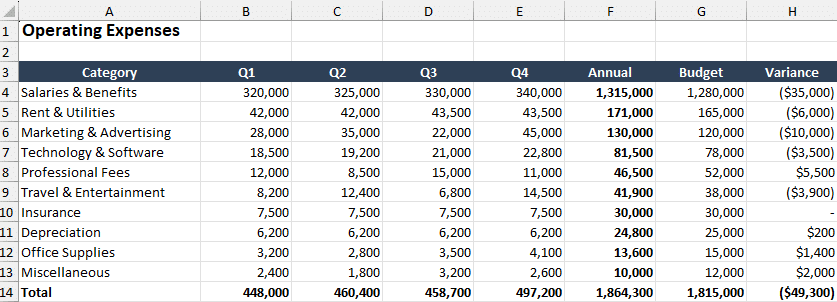
Here are the after shots of the worksheets, and notice that in addition to updating the formulas, it also looked at formatting (notice it is consistent between sheets now):
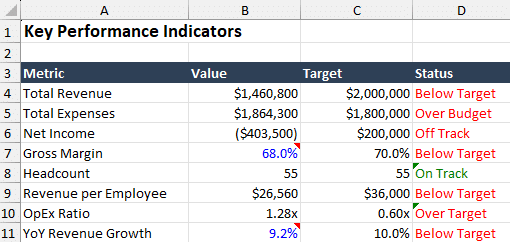
It even left cell notes:
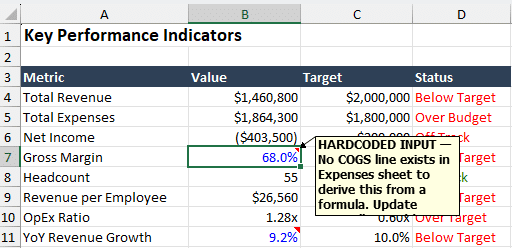
Note: the first time I ran Claude on this workbook, it did correctly call out the issue of the headcount total not agreeing to the expenses sheet. That was on Opus 4.6 model. This time, on the Sonnet 4.6 model, it didn’t specifically call that out.
Step 6: Review and Refine
Always check Claude’s changes. Compare before-and-after results:
- Formula consistency – Totals calculated from live data, not static entries
- Status flags – Logic corrected for KPI signals (e.g., revenue above target is good, expenses above target is bad)
- Documentation – Claude may insert helpful comments for unresolved conflicts (e.g., staff compensation gap explanations)
Although Claude efficiently highlights critical and subtle problems, do a final manual review to validate all suggestions.
>>> Never ever blindly trust AI. Review the workbook and formulas manually!
Summary: Claude’s Place in the Excel Workflow
The Claude add-in for Excel is a remarkable tool for accelerating audits, catching errors, and saving time in workbook management. By leveraging natural language prompts, it helps us perform comprehensive reviews, isolate inconsistencies, and even automate repairs.
While not a replacement for expert oversight, Claude acts as a second set of eyes, surfacing hidden mistakes or lapses in logic at speeds traditional reviews can’t match.
As always, use AI-powered suggestions as an addition to (rather than a substitute for) your own critical review. Combining Claude’s efficiency with our own understanding and scrutiny leads to rock-solid, reliable spreadsheets.
Download the Example File
Frequently Asked Questions (FAQs)
- What is the Claude add-in for Excel?
- The Claude Excel add-in integrates AI-powered analysis within Excel to review, analyze, and suggest fixes for workbook issues, from errors and formulas to formatting and links.
- Is the Claude add-in free?
- Yes, the add-in itself is free from Microsoft’s Office Add-ins store, but requires a free or paid Claude account to use its features.
- Can Claude identify formula errors and hardcoded values?
- Yes, Claude is especially good at spotting formula mistakes, hardcoded calculations, broken links, and inconsistencies, even across multiple worksheets.
- Does Claude automatically fix every issue in my workbook?
- No, Claude suggests and can fix many issues, but it may require your input for complex or ambiguous cases, and always leaves some fixes for manual review.
- How do I know which changes Claude made?
- Claude summarizes all changes made sheet-by-sheet and may leave comments for unresolved problems or areas requiring further explanation.
- Is Claude safe to use on sensitive data?
- Claude processes your data through its AI engine. For confidential workbooks, review your company’s policy on AI/cloud integrations before using Claude.
- Can Claude help with formatting inconsistencies?
- Yes, Claude can find and suggest corrections for formatting issues, such as inconsistent fonts, headers, titles, and data organization across sheets.
- What types of workbooks benefit most from Claude?
- Claude shines with complex or inherited workbooks—including financial models, HR dashboards, operating statements, and any multi-sheet file where consistency is critical.
- Should I still do a manual review after using Claude?
- Absolutely! While Claude saves time and highlights hidden issues, a thorough review by an experienced user is always recommended for critical spreadsheets.
- Where can I learn more about advanced Excel features?
- Explore the Excel University Blog for more tutorials, tips, and deep dives into all things Excel.

Excel is not what it used to be.
You need the Excel Proficiency Roadmap now. Includes 6 steps for a successful journey, 3 things to avoid, and weekly Excel tips.
Want to learn Excel?
Our training programs start at $29 and will help you learn Excel quickly.