
SUMIFS Between Two Dates
SUMIFS Between Two Dates: The Excel Pro’s Complete Guide
Video
Tutorial
Whether we’re preparing financial reports, analyzing sales over selected periods, or tracking budgets, mastering SUMIFS between two dates unlocks a new level of Excel efficiency. In this tutorial, we’ll break down this versatile function step by step, making it accessible for all learners, and provide helpful visuals and downloadable resources to accelerate your journey.
Understanding the SUMIFS Function in Excel
SUMIFS is a multiple-condition summing function that adds values in a range, but only those that meet all specified criteria. This function is distinct from SUMIF, which only handles a single condition. SUMIFS handles one or more conditions and thrives in various reporting formats, making it perfect for custom report layouts like income statements and cash flows.
The structure of the SUMIFS function is:=SUMIFS(sum_range, criteria_range1, criteria1, [criteria_range2, criteria2], ...)
- sum_range: The cells to sum.
- criteria_range1, criteria_range2, …: The ranges to test against our criteria.
- criteria1, criteria2, …: The conditions each corresponding range must meet.
Here is what a single condition sum would operate.
We have data stored in a Table, like this:
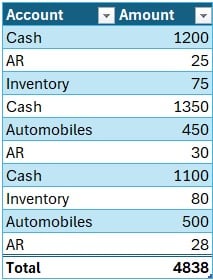
If we just wanted to sum the total of all Cash transactions, we could use the following formula:
=SUMIFS(Table1[Amount],Table1[Account],"Cash")
It returns the sum of all Cash transactions in Table1:

Now that we are warmed up with a single condition, let’s move to two date conditions.
Using SUMIFS Between Two Dates
1. Setting Up the Data
For our example, let’s say we have a table with Date and Sales columns:

To sum sales between two specific dates, we’ll need to reference:
- The column with amounts (e.g., Table3[Sales]) to sum
- A column with dates (e.g., Table3[Date])
- Two cells, one for our Start Date and one for our End Date
Then, we’ll plan to write the formulas into an adjacent column, such as D below:

2. Writing the SUMIFS Formula
Here’s the general structure of the SUMIFS formula for summing between two dates:
=SUMIFS(Table3[Sales],Table3[Date],">="&B7,Table3[Date],"<="&C7)
Let’s break this down:
- Table3[Sales]: This is our sum range (the sales amount column).
- Table3[Date]: This is our date column, referenced twice (once for each condition).
- “>=”&B7: Includes only rows where the date is on or after our start date.
- “<=”&C7: Includes only rows where the date is on or before our end date.
The & operator concatenates the logical test (e.g., “>=”) with the date values.

Practical tip: The reference to the date range appears twice, because each criterion applies to the same set of data but checks a different condition, beginning and end of period.
3. Dynamic Ranges and Table References
We recommend using Excel Tables and structured table references for dynamic ranges (Insert > Table) because Table range expand automatically as data grows.
Summary
SUMIFS is a flexible, dynamic function for summing values that meet multiple criteria. By leveraging logical operators and referencing multiple rows or the same column with different criteria, we can sum values precisely between two dates (or based on any other set of rules). This empowers us to build robust, formula-based reports when the report structure doesn’t fit within a typical PivotTable layout. As our needs grow more complex, SUMIFS adapts right along with us.
Download the Example Excel File
Use this file to follow along, experiment, and master this crucial Excel skill.
Frequently Asked Questions – SUMIFS Between Dates
- Q: Does SUMIFS work with dates stored as text?
A: SUMIFS requires date values to be serial dates, not text. Convert text to date format first for accurate results. - Q: Can I use SUMIFS with just one date condition (e.g., dates after a certain day)?
A: Absolutely. Use only one pair of arguments (one condition), e.g.:=SUMIFS(B2:B100, A2:A100, ">="&F1) - Q: How do I sum for a rolling window, such as “last 7 days”?
A: Set your start and end dates dynamically using TODAY() or similar formulas, e.g.,=TODAY()-6and=TODAY() - Q: Why is my SUMIFS returning zero when data exists?
A: Double-check date formats and criteria. Excel must interpret both ranges and criteria as dates. - Q: Can SUMIFS sum using multiple conditions across other fields?
A: Yes! Add more pairs of criteria_range and criteria as needed. - Q: Does SUMIFS require my data to be sorted by date?
A: No, SUMIFS does not require sorted data when using date ranges, it checks each row independently. - Q: Will SUMIFS update automatically if I change the start/end dates?
A: Yes, the formula is fully dynamic with cell references for start and end dates. - Q: How do I use SUMIFS in Google Sheets?
A: The syntax is the same in Google Sheets, so all steps apply! - Q: What if I need to return the dates themselves, not the sum?
A: Use the FILTER or INDEX/MATCH functions to return the matching dates, not SUMIFS.

Excel is not what it used to be.
You need the Excel Proficiency Roadmap now. Includes 6 steps for a successful journey, 3 things to avoid, and weekly Excel tips.
Want to learn Excel?
Our training programs start at $29 and will help you learn Excel quickly.
It’s all about the syntax!