
How to Use TEXTSPLIT
Breaking apart long strings of data into separate cells is a common task in Excel—and with the TEXTSPLIT function, we have an incredibly powerful and flexible tool to do just that. In this post, we’ll explore how TEXTSPLIT can help us split data into columns, rows, or both—all from a single cell entry!
Video
What is the TEXTSPLIT Function?
Whether we’re dealing with messy imports, copied values, or pasted data dumps, TEXTSPLIT helps us clean and organize our spreadsheets quickly and efficiently. Let’s walk through several real-world examples that show exactly how to use this function to its fullest potential.
TEXTSPLIT is an Excel function that allows us to split text by specific delimiters into separate cells. It includes multiple arguments to help define how the data is separated: by column, by row—or both at once. Here’s the basic syntax:
=TEXTSPLIT(text, col_delimiter, [row_delimiter], [ignore_empty], [match_mode], [pad_with])Now, let’s walk through three practical scenarios that demonstrate how TEXTSPLIT can be used:
Example 1: Split Data Into Columns
Scenario:
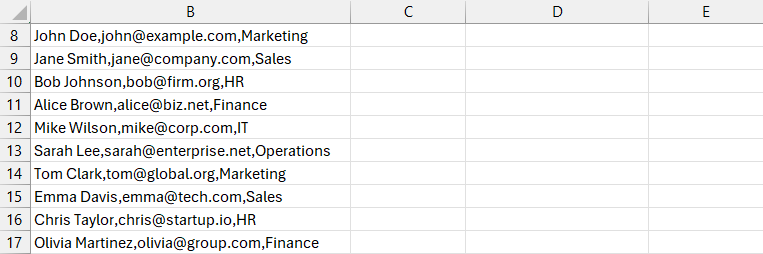
We receive a single column of pasted text containing names, email addresses, and departments separated by commas. Our goal is to organize this information into distinct columns.
Step-by-Step:
In cell C8, enter the formula:
=TEXTSPLIT(B8,",")
Press Enter. Excel will split the values from cell B8 into three columns wherever it finds a comma.
Drag the fill handle down to copy the formula to the rest of the rows. Now the full list is structured into Name, Email, Department columns.

As you can see, we have split the cell into columns. Can we split into rows? Well, that leads us to the next exercise.
Example 2: Split Data Into Rows
Scenario:
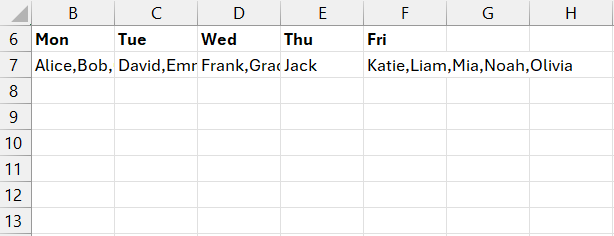
We have a list of volunteer names separated by commas, all pasted into one cell across multiple days. We want to separate each name into a new row.
Step-by-Step:
In cell B9, enter:
=TEXTSPLIT(B7,,",")
Note: we leave the col_delimiter argument empty.
Copy the formula horizontally for similar columns to process the rest of the data.

Now we have split the cell values into rows! Can we split into both rows and columns? Well, let’s head to the next exercise.
Example 3: Split Data Into Columns and Rows
Scenario:
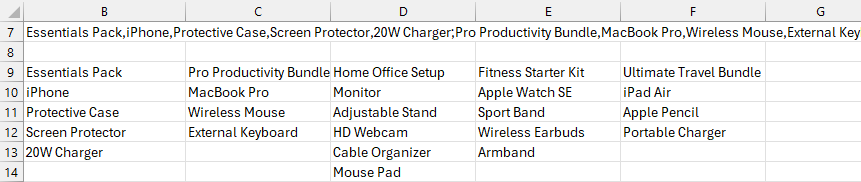
We have a list of product bundles in one cell B7. Each bundle contains multiple items separated with commas, and the bundles themselves are separated with semicolons.

We notice there is a comma between bundle items and a semicolon between bundles.
We want each bundle on a new row, and each item in its own column.
Step-by-Step:
In cell B9, use:
=TEXTSPLIT(B7, ",", ";")Press Enter. The bundles are now organized into rows, and individual items appear in the columns.

If errors like #N/A appear due to varying bundle sizes, add the pad_with argument to insert an empty string in place of the error:
=TEXTSPLIT(B7, ",", ";", , , "")
Bonus Tip: Want the bundles displayed as columns with the items underneath? Wrap the formula in TRANSPOSE:
=TRANSPOSE(TEXTSPLIT(B7, ",", ";", , , ""))Now bundle names are headers with products listed vertically.
Yay, we did it!
Summary of the Process
- TEXTSPLIT can split text into both rows and columns depending on the delimiters.
- The function accepts optional parameters for ignoring blanks, case sensitivity, and padding empty cells.
- Combining with
TRANSPOSEoffers layout flexibility.
With TEXTSPLIT, we can turn messy text into clean, organized tables—no more manual copy/pasting or using Text to Columns wizards!
We hope this walkthrough helps simplify your text manipulation tasks in Excel! If you’d like to explore more advanced formula techniques, stay tuned for our next post.
Download the Practice File
Frequently Asked Questions
- What versions of Excel support TEXTSPLIT?
- TEXTSPLIT is available in Excel 365 and Excel 2021 or later. It’s not available in earlier versions like Excel 2016.
- How is TEXTSPLIT different from Text to Columns?
- Unlike Text to Columns, TEXTSPLIT is a formula-based solution that dynamically updates when the source data changes.
- Can I use multiple delimiters in TEXTSPLIT?
- No, each delimiter parameter only accepts one value. But you can use nested SUBSTITUTE functions or LET to handle more complex cases.
- How do I remove extra spaces after splitting?
- Wrap your reference in a
TRIMfunction, like so:TRIM(TEXTSPLIT(...)) - Can TEXTSPLIT handle multiline (line break) text?
- Yes! Use
CHAR(10)as the delimiter for line breaks. - What does the pad_with argument do?
- It fills in empty cells caused by uneven arrays using a custom value (like
"", 0, or"-"). - How do I split a sentence into separate words?
- Use
=TEXTSPLIT(A1, " ")where the delimiter is a space. - Can I split by both row and column delimiters?
- Absolutely. Simply define both arguments:
TEXTSPLIT(text, ",", ";"). - Does TEXTSPLIT work with dynamic arrays?
- Yes, it returns a dynamic spill range that adjusts automatically as input data changes.
- Is TEXTSPLIT case-sensitive?
- Only if you set the
match_modeargument to 1 (case-sensitive match).

Excel is not what it used to be.
You need the Excel Proficiency Roadmap now. Includes 6 steps for a successful journey, 3 things to avoid, and weekly Excel tips.
Want to learn Excel?
Our training programs start at $29 and will help you learn Excel quickly.