
The TEXTJOIN Function
Combining text data from different cells is a common task in Excel, especially when dealing with employee directories, codes, or summarized reports. While we’ve often relied on functions like CONCATENATE or the ampersand (&) to accomplish this, Excel’s TEXTJOIN function provides a more flexible, powerful, and streamlined approach.
Video
What is the TEXTJOIN Function?
In this article, we’ll methodically walk through three practical applications of the TEXTJOIN function. Whether we’re joining first and last names, combining financial codes, or listing unique departments, TEXTJOIN makes it quick and easy.
TEXTJOIN is an Excel function that lets us combine values from multiple cells into one, using a specific delimiter. What sets it apart is its ability to:
- Specify a delimiter between values
- Include or ignore blank cells
- Accept ranges instead of individual cells
Function Syntax:
=TEXTJOIN(delimiter, ignore_empty, text1, [text2], …)delimiter: The character(s) used to separate text values (e.g., “,” or “ – ”)
ignore_empty: TRUE to skip empty cells, FALSE to include them
text1, text2, …: The values or ranges to join
Step-by-Step Examples
Example 1: Combining First and Last Names
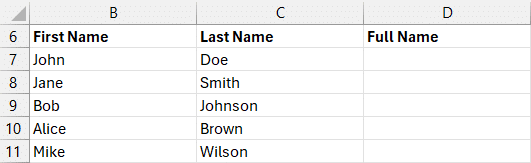
Let’s start simple. We have a list of first and last names in columns B and C, and we want to combine them into a full name in column D.
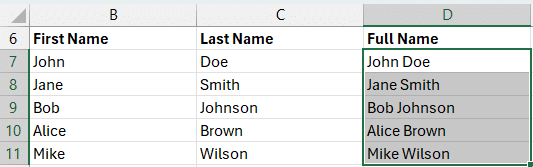
We can write the following formula in D7:
=TEXTJOIN(" ", TRUE, B7:C7)This formula does the following:
- Uses a space as the delimiter
- Ignores empty cells with
TRUE - Joins both columns in the range
B2:C2
Tip: Instead of referencing each cell individually, we can use entire ranges as shown above. That makes this faster to write and easier to manage.
Example 2: Merging Financial Codes with Optional Fields
In this case, we’re managing financial transaction data with several codes: company code, cost center, GL account, sub-account, and project code. Some of these fields are optional and might be blank.
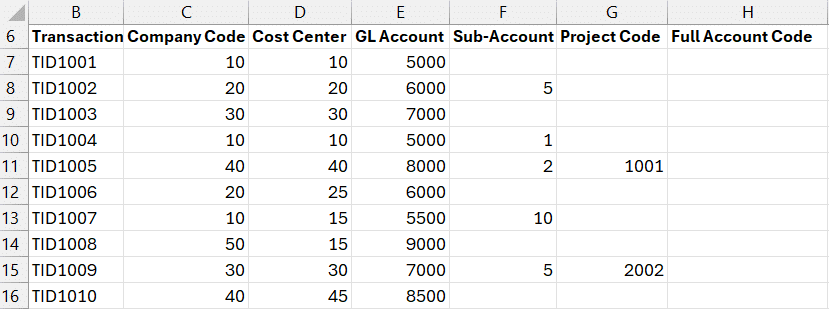
We want to combine all these codes into a single string, separated by colons. Here’s how we can manage both approaches (ignore empty or include them):
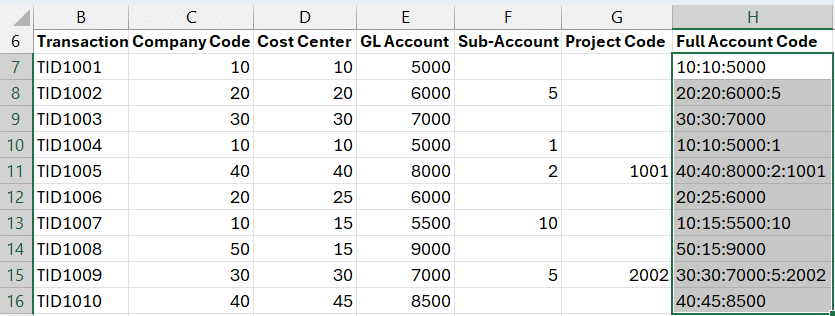
Option 1: Ignore Empty Cells (Default)
=TEXTJOIN(":", TRUE, C7:G7)This will skip over any blanks without adding extra colons:
Option 2: Include Empty Cells
=TEXTJOIN(":", FALSE, C7:G7)This version includes the colons regardless of whether the cell is blank:
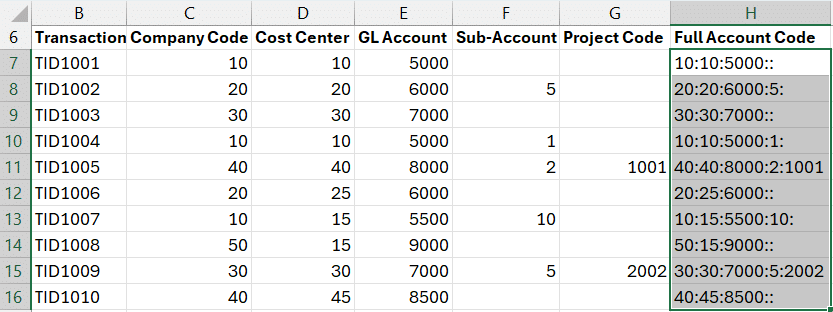
This might be useful when we want a visual placeholder that distinguishes between missing data and actual values.
Example 3: Creating a Unique List of Departments
Now let’s say we have a list of employees, with department names in one column.
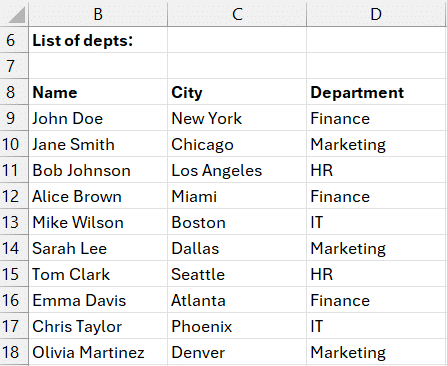
We want to create a single comma-separated string that lists all unique departments. Here’s where nesting UNIQUE inside TEXTJOIN comes in handy.
=TEXTJOIN(", ", TRUE, UNIQUE(D9:D18))What’s happening here?
- UNIQUE(D9:D18) returns a list of distinct department names
- TEXTJOIN then combines them into one string, separated by commas
The results are shown in C6:
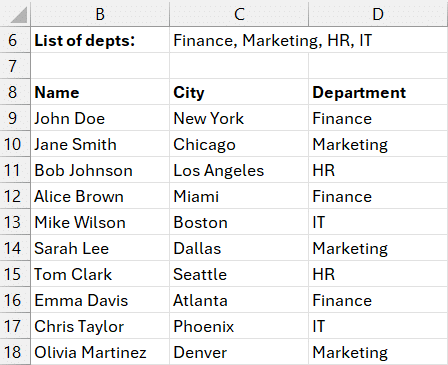
This combination is a great way to produce summaries for dashboards or reports.
Wrapping Up
The TEXTJOIN function is one of Excel’s most versatile tools for text manipulation. It simplifies what used to require complicated formulas or helper columns. Whether we’re compiling names, combining accounting codes, or generating summary tags, TEXTJOIN delivers clean, concise results with just one formula.
If we want to go even further, TEXTJOIN pairs beautifully with functions like UNIQUE, FILTER, or IF to create intelligent and dynamic strings tailored to real-world needs.
Remember: the choice between ignoring blanks and including them makes TEXTJOIN adaptable to a variety of scenarios, especially when data completeness matters.
Download Practice File
Frequently Asked Questions (FAQs)
1. What is the difference between CONCAT and TEXTJOIN?
While both functions merge text, TEXTJOIN operates on ranges of cells, allows you to specify the delimiter once, and can ignore empty cells, making it more versatile than CONCAT.
2. Can TEXTJOIN combine values from multiple rows?
Yes, it works on both horizontal and vertical ranges.
3. What delimiters can I use in TEXTJOIN?
Any character or string such as commas, spaces, slashes, or colons.
4. How do I remove duplicates when using TEXTJOIN?
Nest the UNIQUE function inside TEXTJOIN, like this: =TEXTJOIN(", ", TRUE, UNIQUE(range))
5. What happens with blank cells when using TEXTJOIN?
If ignore_empty is TRUE, they’re skipped. If FALSE, the delimiter is added for them.
6. Is TEXTJOIN available in all Excel versions?
TEXTJOIN is available in Excel 2019 and later, and Microsoft 365. It’s not available in Excel 2016 or earlier versions.
7. Can I combine numbers with TEXTJOIN?
Yes! TEXTJOIN automatically converts numbers to text when combining them.

Excel is not what it used to be.
You need the Excel Proficiency Roadmap now. Includes 6 steps for a successful journey, 3 things to avoid, and weekly Excel tips.
Want to learn Excel?
Our training programs start at $29 and will help you learn Excel quickly.