
Build a Free Trivia Game
Have you ever wanted to turn Excel into a fun, interactive trivia game? In this tutorial, we’ll walk through how to use Excel’s Power Query to pull trivia questions from an online API, randomize the answers, and display the correct answer with a reveal feature — all without using VBA.
By the end, you’ll be able to refresh your workbook and instantly get a new trivia question with shuffled multiple-choice options. It’s a great way to explore Power Query, data transformation, and a little Excel magic!
Video
Overview of the Trivia Game
This project is built in three exercises:
- Exercise 1 – Connects to a trivia API and pulls data into Power Query.
- Exercise 2 – Displays the question and multiple-choice answers.
- Exercise 3 – Reveals the correct answer using a checkbox and applies conditional formatting.
Let’s walk through the setup step-by-step.
Step 1: Create a Dynamic Trivia API URL
We start by building a dynamic URL that points to the Open Trivia Database API.
A sample URL would provide the number of questions, category, and level, like this:
This API returns trivia questions in JSON format, which is easy for Power Query to read and transform.
Set Up Drop-Down Lists for Category and Difficulty
Using Data Validation, we create drop-down lists so users can pick a category (like General Knowledge, Science, etc.) and difficulty level (easy, medium, hard). Use the specific categories and difficulty levels recognized by the api. Full api docs here:
To create a drop-down list:
- Select the input cell (e.g.,
C10for category). - Go to Data > Data Validation.
- Choose List and type in your options, separated by commas.

Combine the API URL Using CONCAT
To assemble the full API URL, we use the CONCAT function to piece together:
- The base API URL
- The selected category and difficulty
- A few fixed parameters (like limiting the response to one question)
Function: CONCAT
What it returns: Joins multiple text strings into one continuous string.
Signature:
CONCAT(text1, [text2], ...)
Arguments:
text1, text2, ...– The strings or cell references to join
Formula used in the file:
=CONCAT(C8,C10,"&difficulty=",C11)This results in a complete URL like:
https://the-trivia-api.com/api/questions?limit=1&categories=history&difficulty=medium
We name this cell trivia_url for easy reference later in Power Query with the name box.
Step 2: Bring the URL into Power Query
With our URL ready, we bring it into Power Query:
- Select the
trivia_urlcell. - Go to Data > From Table/Range (even though it’s just one cell).
- In Power Query, right-click the cell and choose Drill Down to get just the URL string.
- Close and Load to Connection Only.
This creates a reusable query that stores the current URL selection.
Step 3: Connect to the API Using Power Query
Next, we pull in the trivia data itself.
- Copy the dynamic URL to your clipboard.
- Go to Data > Get Data > From Web, paste the URL, and connect.
- In the Power Query editor, rename the query to
question. - Navigate through the JSON structure:
- Click into the
record - Convert to Table
- Transpose the table so fields become columns
- Use First Row as Headers
- Click into the
Now you’ll see several fields like:
questioncorrect_answerincorrect_answers- etc.
We only need the question, correct_answer, and incorrect_answers.
Step 4: Transform the Answers
Step 4.1: Flatten Incorrect Answers
The incorrect_answers field is a list, so we extract it as a delimited string using Extract Values and a semicolon (;) as the separator.
Step 4.2: Merge with Correct Answer
Next, we merge the correct_answer and incorrect_answers into a single column:
- Select both columns
- Go to Add Column > Merge Columns
- Use
;as the separator - Name the new column
choices
This gives us a single text field with all answer options, with the correct one always first.
Step 4.3: Shuffle the Answers
To prevent savvy users from always picking the first option, we randomize the choices:
- Split the
choicescolumn by the;delimiter into rows - Sort the rows alphabetically
- This effectively shuffles the answer order
Finally, we load this transformed data into an Excel table on the worksheet:
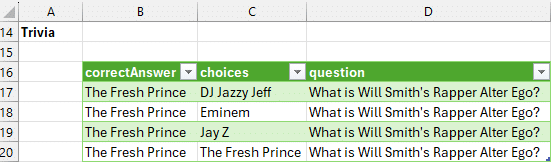
Step 5: Make the API Call Dynamic
Right now, the API URL is hardcoded in Power Query. To make it dynamic:
- In the
questionquery, go to the Source step - Replace the static URL with:
trivia_url - If you get a Formula Firewall error:
- Go to File > Options and Settings > Query Options
- Under This Workbook > Privacy, choose Ignore
- This setting only affects the current workbook
Now, when you change the dropdowns and click Refresh, a new trivia question and randomized answers appear.
Step 6: Display the Trivia Game
In Exercise 2, we use simple formulas to display the pulled data:
- For the question, point the formula to the a cell that contains the question, like:
=D17 - For the choices, point the formula to the choices column, like:
=Question[@choices]

Step 7: Reveal the Answer with a Checkbox
In Exercise 3, we create a toggle to show/hide the answer.
- Insert a checkbox from Insert > Checkbox
- Use an
IFfunction to conditionally show the answer:
Function: IF
What it returns: Returns one value if a condition is TRUE, another if FALSE.
Signature:
IF(logical_test, value_if_true, value_if_false)
Example used:
=IF(B10, correct_answer_cell, "Check to reveal")
When the checkbox is selected, the answer appears:
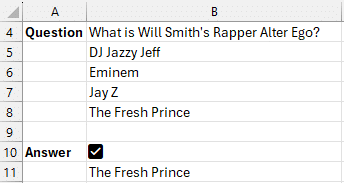
Otherwise, it shows a prompt:
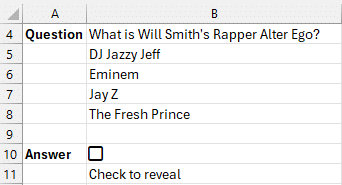
Step 8: Highlight the Correct Answer
Add some flair using Conditional Formatting:
- Select the choice cells
- Go to Home > Conditional Formatting > Highlight Cells Rules > Equal To
- Reference the answer cell
- Format with a green fill to highlight the correct choice
Now, when you reveal the answer, the correct option is visually marked:
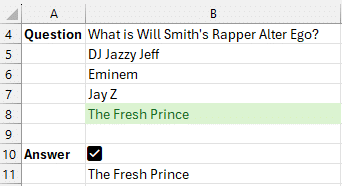
Try It Out!
Each time you click Data > Refresh All, Excel fetches a brand new trivia question from the API, pulls in the correct and incorrect answers, shuffles them, and displays everything beautifully.
You can enhance this even further as desired, but this is a great instructional tutorial for retrieving internet data and building interactive tools in Excel.
Let’s Wrap Up
Using Excel and Power Query, we’ve created a fully functioning trivia game that pulls live data from the web, formats it dynamically, and adds interactivity with checkboxes and conditional formatting. This is a great way to learn more about Power Query and data manipulation while having a bit of fun.
If you have any questions, ideas, or want to share your own version of this game, drop a comment below!
Thanks for reading, and happy querying!
Sample File
Want to skip the setup and jump right in?
FAQ
Q1: Do I need Power BI or Excel 365 to do this?
Nope! As long as you have a recent version of Excel with Power Query (Excel 2016 or newer), this will work just fine.
Q2: What is the trivia API used in this tutorial?
We’re using the The Trivia API, a free and open API that delivers trivia questions in JSON format.
Q3: Can I add more than one question at a time?
Yes! Just change the questions=1 parameter in the URL to however many questions you want. You’ll need to adjust your Power Query steps to handle multiple rows.
Q4: What if I want to limit the categories available in the dropdown?
You can modify the Data Validation list in cell C10 to include only the desired category.
Q5: How do I know which choice is correct after shuffling?
The correct answer is conditionally formatted in green and optionally revealed via a checkbox on the Answer sheet.
Q6: Can I track user scores or answers?
That would be a great enhancement! You could set up a form where users select their answer and use formulas to compare it to the correct one.
Q7: Why am I seeing a “Formula Firewall” error in Power Query?
This happens when queries pull data from different privacy levels. In this workbook, we fix it by setting the Privacy Level to Ignore for This Workbook.

Excel is not what it used to be.
You need the Excel Proficiency Roadmap now. Includes 6 steps for a successful journey, 3 things to avoid, and weekly Excel tips.
Want to learn Excel?
Our training programs start at $29 and will help you learn Excel quickly.