
Copilot Personalization in Excel: Global and Workbook-Specific Rules
One of the most powerful things we can do with Copilot in Excel is teach it our preferences once and have it follow them every time. Rather than spelling out formatting rules in every single prompt, we can set up standing personalization instructions that Copilot applies automatically. In this tutorial, we cover two approaches: global personalization rules that apply across all workbooks, and workbook-specific rules stored in a table right inside the file. By the end, our prompts get shorter, our results get more consistent, and Copilot starts working the way we actually want it to.
Exercise 1: Setting Up Global Personalization Rules
Let’s say we have office expense data that needs to be formatted, and we want Copilot to follow the same formatting rules every time we use it, no matter which workbook we are in. That is exactly what global personalization rules are for.
Consider the following worksheet:
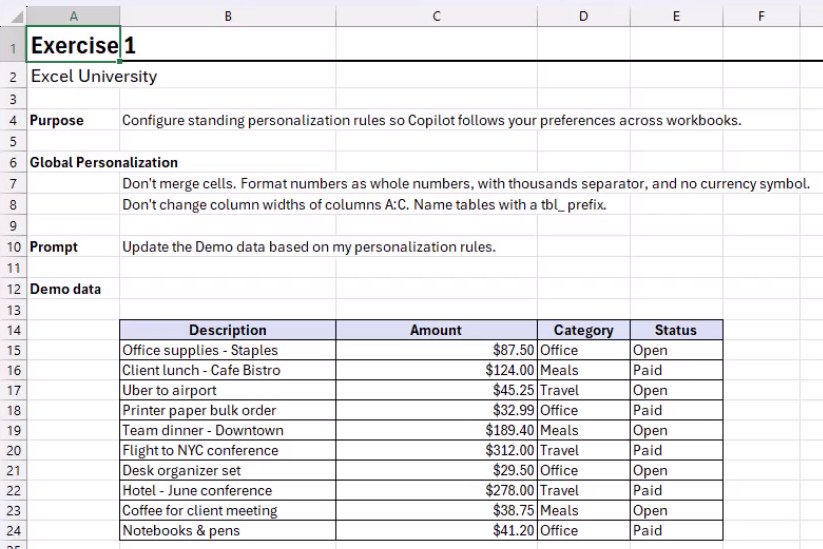
To set up global rules, we open the Copilot pane, click the Settings icon, and choose Personalization. This opens the Customize Copilot dialog. Here we can type our standing instructions, things like: don’t merge cells, format numbers as whole numbers with a thousands separator and no currency symbol, don’t change column widths of columns A through C, and name tables with a tbl_ prefix.
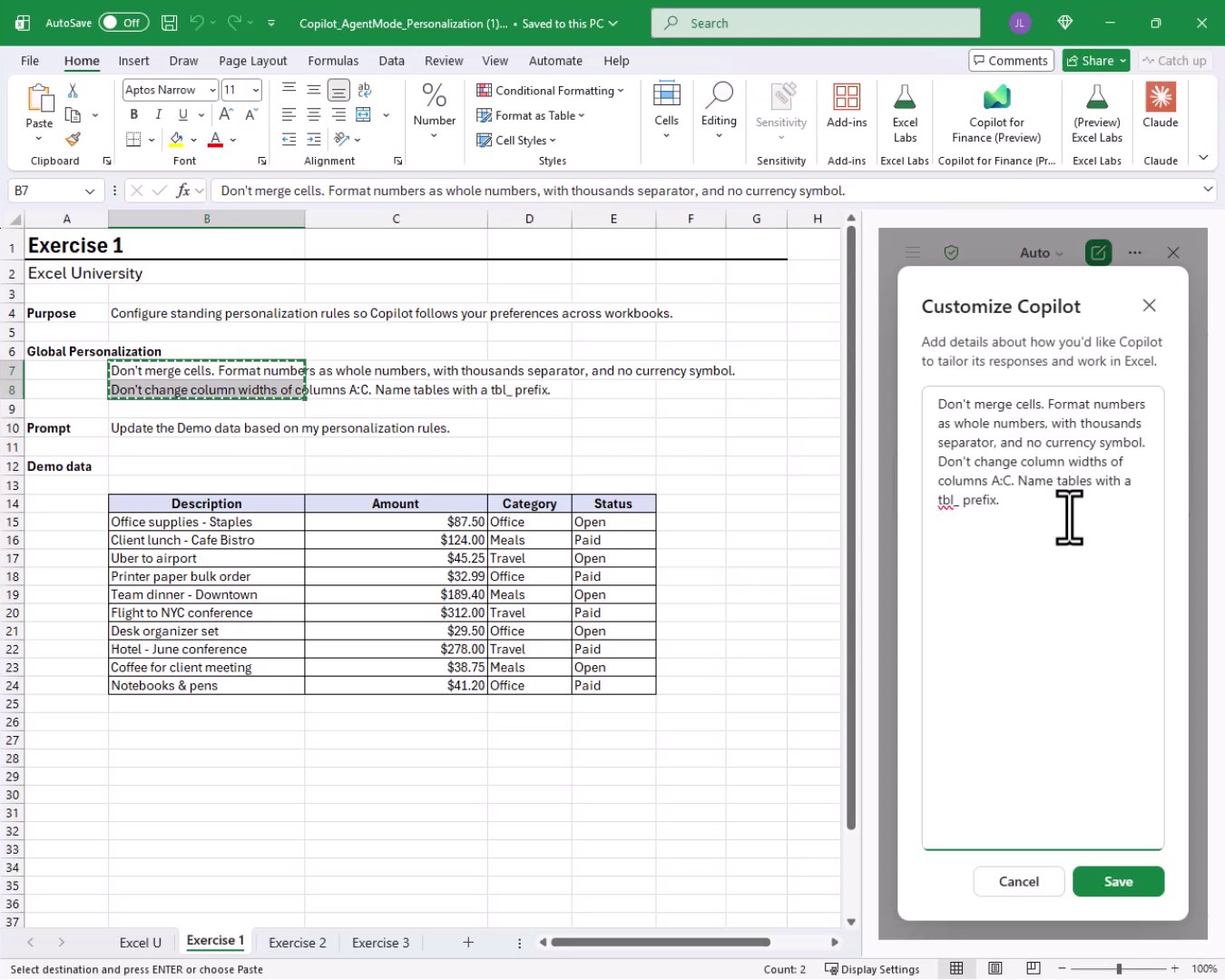
Once we click Save, these rules are stored. Now we can give Copilot a simple prompt and it will follow our preferences automatically. We type the following into the Copilot pane:
Update the Demo data based on my personalization rules.
We hit Enter, and bam:
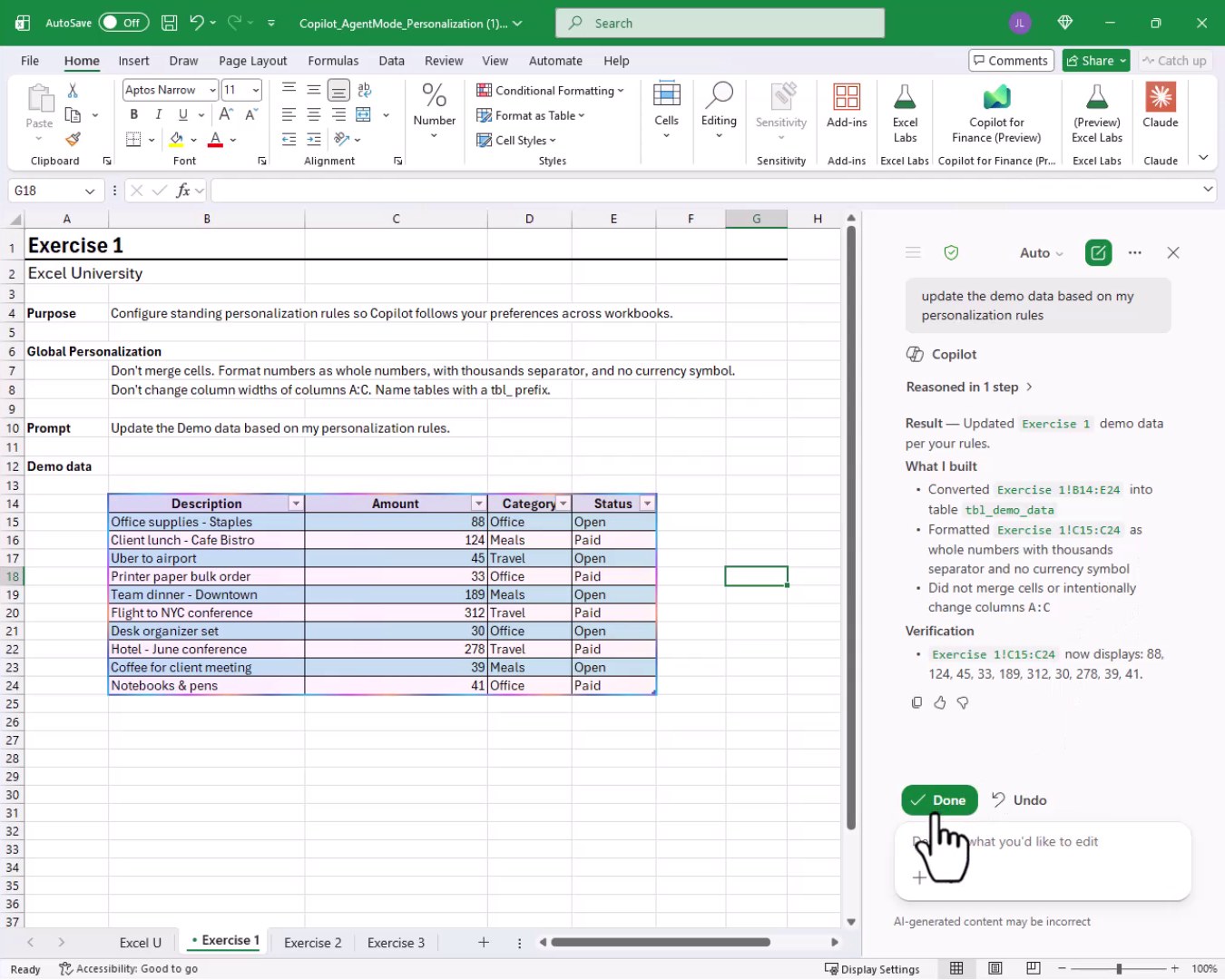
Copilot converted the range to a table, formatted the Amount column as whole numbers, skipped merging cells, and left columns A through C widths alone. Mission accomplished! These global rules will now apply any time we use Copilot in Excel.
Exercise 2: Workbook-Specific Rules Using a Rules Table
Global rules are great, but sometimes we need rules that are specific to a particular workbook. One excellent approach is to create a rules table right inside the file. We name it tbl_rules and populate it with Type, Rule, and Applies To columns.
Let’s take a look at our rules table:
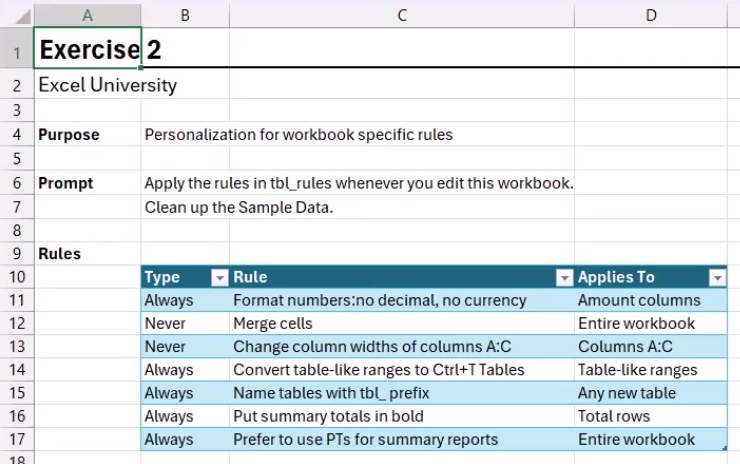
The table includes rules like: always format numbers with no decimal and no currency, never merge cells, never change column widths of columns A through C, always convert table-like ranges to Ctrl+T Tables, always name tables with a tbl_ prefix, always put summary totals in bold, and always prefer to use PivotTables for summary reports. This gives Copilot a clear, structured reference it can read and act on.
Now we open Copilot and type the following prompt:
Apply the rules in tbl_rules whenever you edit this workbook. Clean up the Sample Data.
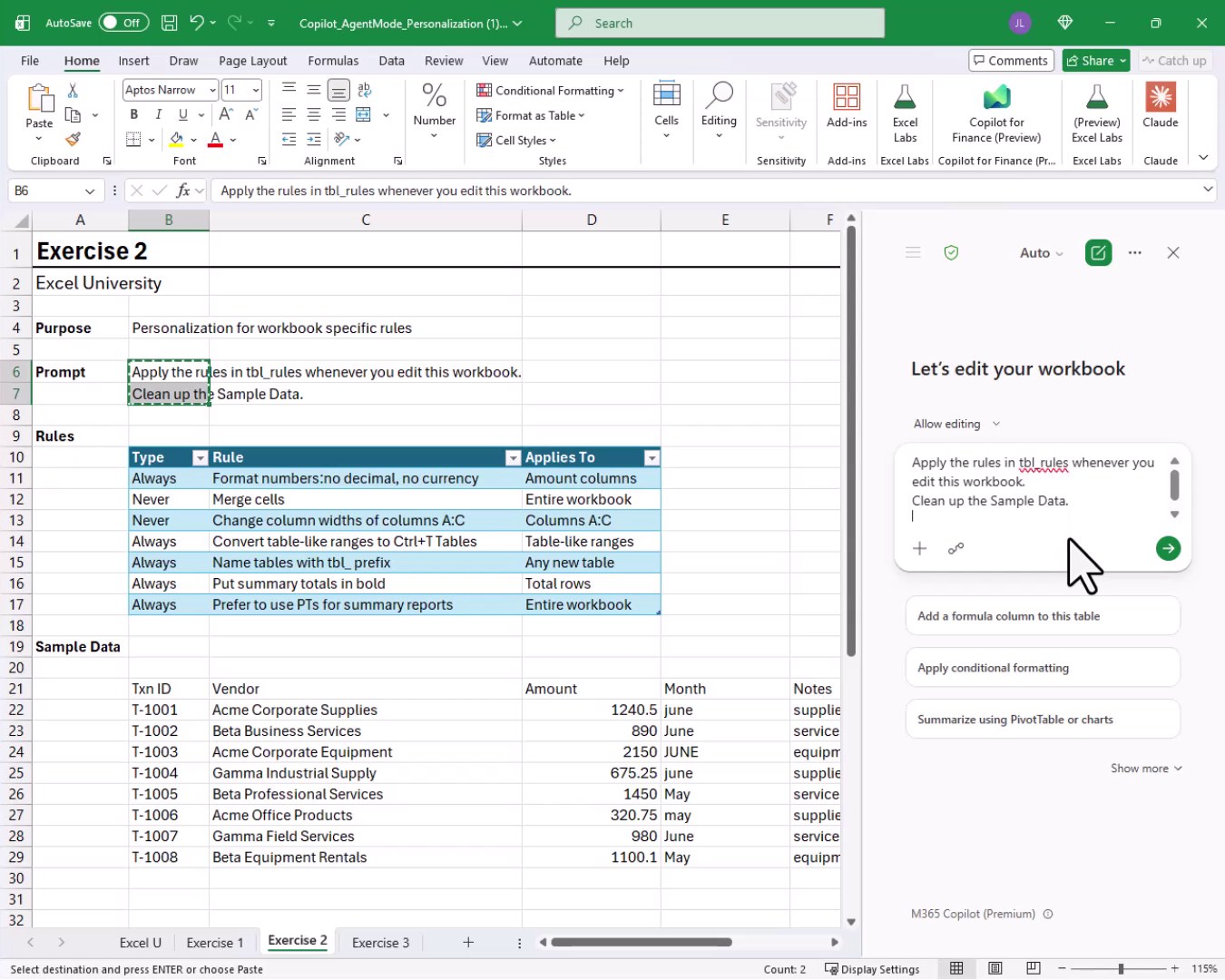
We submit the prompt, and bam:
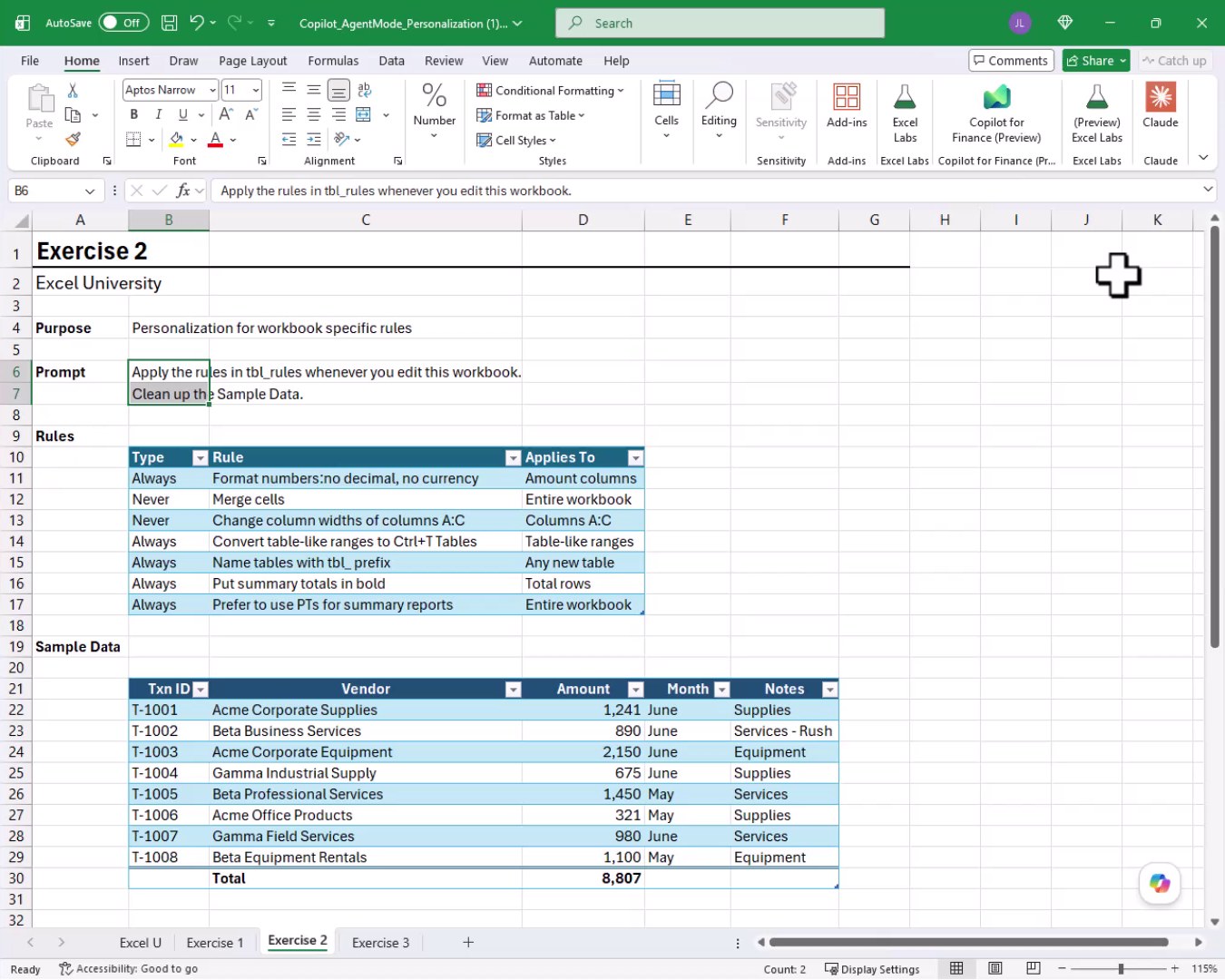
Copilot standardized the Month and Notes capitalization, formatted the Amount column correctly, converted the range to a table, and added a bold Total row. Everything we asked for, handled in one prompt. This is a big deal for recurring projects because we specify the rules once and our prompts stay short from that point forward.
Exercise 3: Using a Rules Table Across Worksheets
Now, it is time to make things more interesting. What if our tbl_rules table lives on one worksheet but we are working on a completely different sheet? Can Copilot still reference it? Let’s find out.
We have a list that looks like this on the Exercise 3 tab:
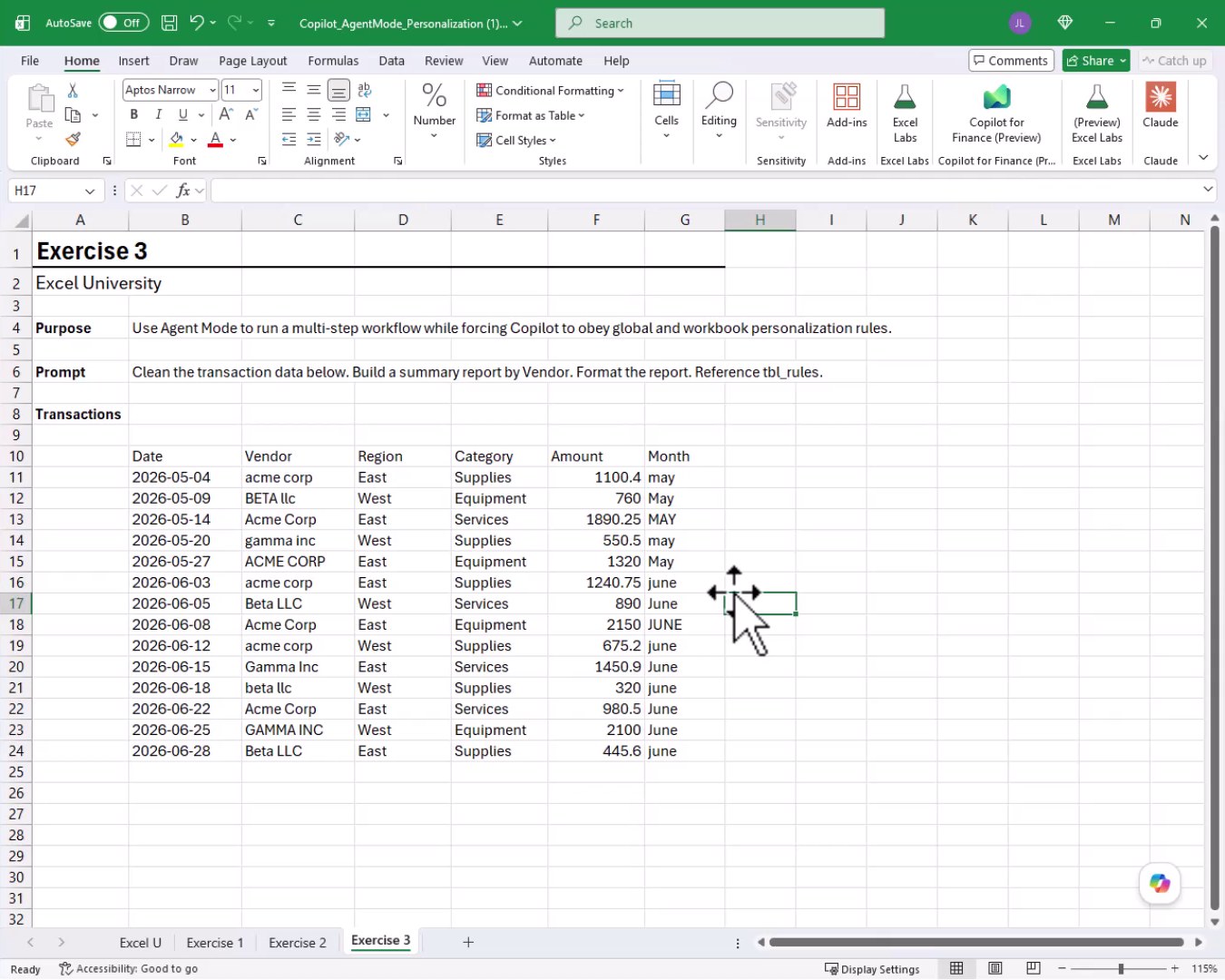
The tbl_rules table is sitting on a separate worksheet. We want Copilot to clean this transaction data AND build a vendor summary report, all while following those rules. We enter the following prompt:
Clean the transaction data below. Build a summary report by Vendor. Format the report. Reference tbl_rules.
After the first attempt, Copilot cleaned the data correctly but built the summary as a regular table instead of a PivotTable. Not a problem. We head back to our rules table and make the instructions more explicit. We simply update the rules table as desired, including adding a new rule: “Always put summary reports below the data it summarizes.”
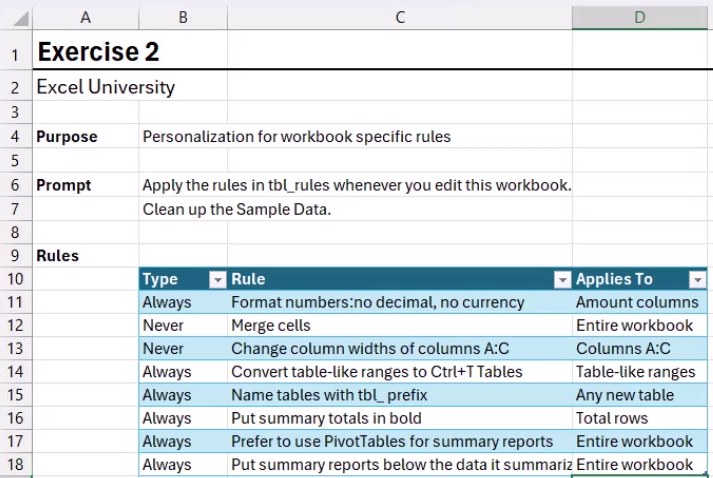
With the rules updated, we go back to the Exercise 3 tab, open Copilot again, and submit the same prompt:
Clean the transaction data below. Build a summary report by Vendor. Format the report. Reference tbl_rules.
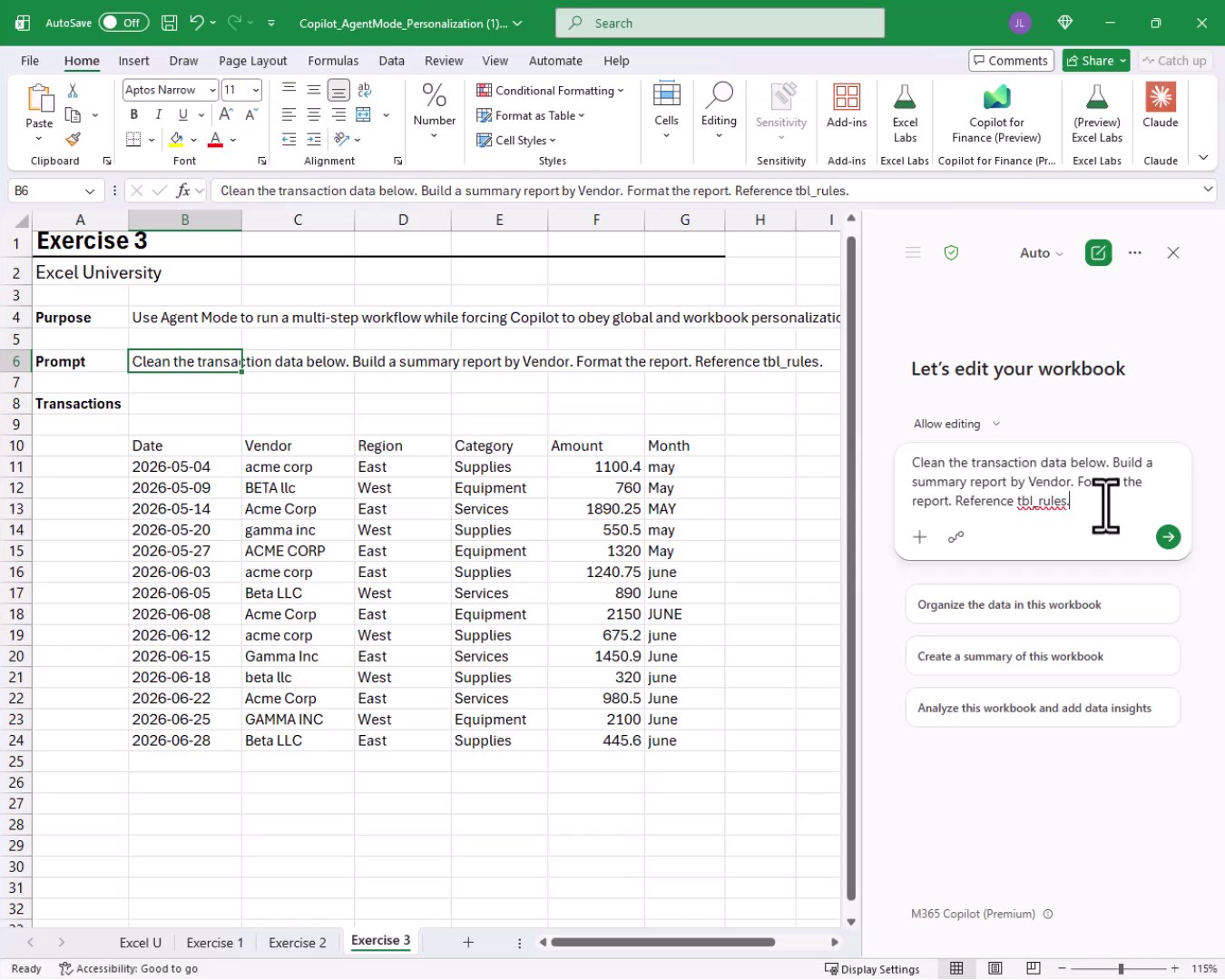
We hit Enter, and bam:
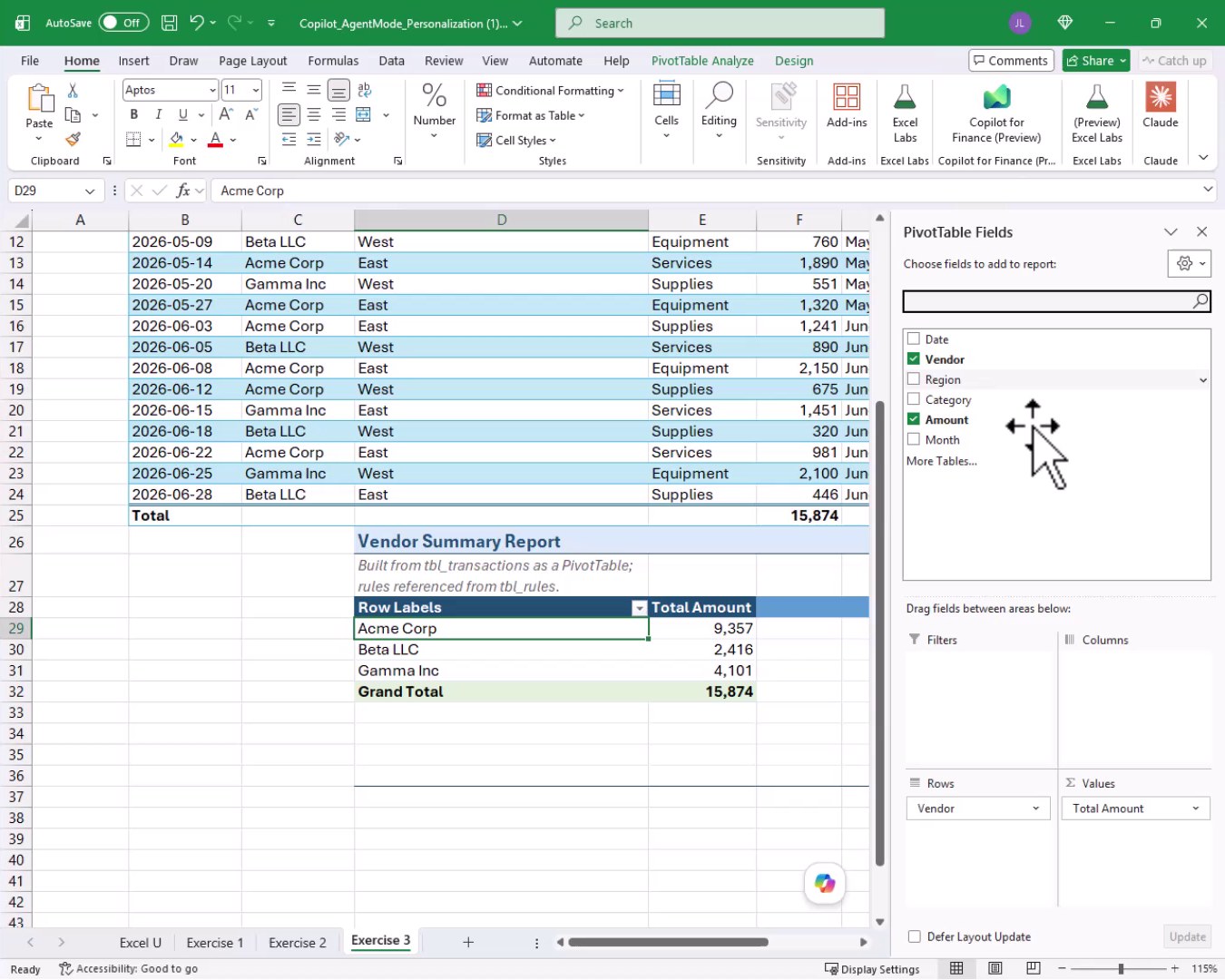
This time Copilot used an ACTUAL PivotTable, placed it below the data, and the totals match perfectly. The grand total in the PivotTable is 15,874 and the total in the data table is 15,874. We are good to go. The key takeaway: Copilot CAN read a rules table from a different worksheet, as long as we tell it to reference that table by name in the prompt.
Summary
In this tutorial, we explored two powerful ways to personalize Copilot in Excel. First, we used the built-in Customize Copilot dialog to set global standing rules that apply across all workbooks. Second, we created a workbook-specific rules table named tbl_rules and referenced it directly in our prompts. We also confirmed that Copilot can read a rules table from a different worksheet as long as we include the table name in the prompt. For recurring projects, this approach is a game changer. We define the rules once, keep prompts short and concise, and get consistent results every time.
If you have any suggestions, improvements, alternatives, or questions, please share by posting a comment below … thanks!
Sample File
FAQs
What is the Customize Copilot dialog in Excel?
The Customize Copilot dialog is a built-in settings panel inside the Copilot pane in Excel. We access it by clicking the Settings icon at the top of the Copilot pane and selecting Personalization. It lets us type standing instructions that Copilot follows across all workbooks whenever it responds.
Do global personalization rules apply to every workbook?
Yes. Rules entered in the Customize Copilot dialog are global, meaning they apply any time we use Copilot in Excel, regardless of which file we have open. They travel with our Microsoft 365 account settings.
What is a workbook-specific rules table and how do we set one up?
A workbook-specific rules table is a regular Excel Table we create inside a workbook to store formatting and behavior rules. We recommend naming it tbl_rules and giving it three columns: Type (Always or Never), Rule (the instruction), and Applies To (the scope). Then we reference it in our Copilot prompts by name.
Can Copilot read a rules table that is on a different worksheet?
Yes, it can. As we saw in Exercise 3, Copilot can reference a named table like tbl_rules even when that table lives on a separate worksheet from the data we are working with. The key is to include the table name explicitly in the prompt.
Why did Copilot ignore the PivotTable rule at first?
The original rule said “prefer to use PivotTables,” which gave Copilot room to interpret it loosely. When we changed the language to “Always use PivotTables to create summary reports,” the instruction became unambiguous and Copilot followed it correctly. Stronger, more directive language produces more reliable results.
What naming convention should we use for tables?
In the exercises, we used a tbl_ prefix for all tables, for example tbl_rules, tbl_demo_data, and tbl_transactions. This is a common best practice that makes tables easy to identify in formulas, named ranges, and Copilot prompts. We can add this as a rule in both our global settings and our workbook rules table.
Do we need to repeat our personalization rules in every Copilot prompt?
No, that is the whole point of personalization. Once we set up global rules in the Customize Copilot dialog, they are always active. For workbook-specific rules, we just need to tell Copilot to reference tbl_rules one time in the session or include it as a brief instruction at the start of each prompt. Our prompts stay short while our results stay consistent.
Can we mix global rules and workbook-specific rules?
Absolutely. In fact, that is the recommended approach. We use global rules for universal preferences like number formatting and table naming conventions, then layer in workbook-specific rules for project-level requirements like where to place summary reports or which data ranges apply.
Does Copilot personalization require a specific Microsoft 365 subscription?
Copilot in Excel is part of Microsoft 365 Copilot, which requires a Microsoft 365 Copilot license (sometimes called M365 Copilot Premium). As shown in the video, this feature is available in the desktop version of Excel with that license active. The availability of specific features like the Customize Copilot dialog may vary as Microsoft continues to roll out updates.
What are some good examples of rules to include in a workbook rules table?
Great candidates for a rules table include: always format numbers with no decimal places and no currency symbol, never merge cells, always name new tables with a tbl_ prefix, always convert range-based data to Excel Tables, always put summary totals in bold, always use PivotTables for summary reports, and always place summary reports below the data they summarize. Starting with these and refining over time works really well for recurring projects.

Excel is not what it used to be.
You need the Excel Proficiency Roadmap now. Includes 6 steps for a successful journey, 3 things to avoid, and weekly Excel tips.
Want to learn Excel?
Our training programs start at $29 and will help you learn Excel quickly.