
Automatic Public Holidays Calendar
Wouldn’t it be great if Excel could automatically generate a list of public holidays based on a single year input? And even better, have that holiday table update all related formulas and schedules across your workbook? Well, that’s exactly what we’re going to build in this post—an automatic calendar in Excel with public holidays, dynamically updated with user input using Power Query and a free API.
Video
Overview of Our Solution
By the end of this methodical walkthrough, we’ll have a robust Excel setup that pulls holidays for a given year and country, formats them nicely, and leverages them in formulas like NETWORKDAYS for accurate workday calculations.
This project will use:
- A free public API to fetch holidays in JSON format
- The Power Query Editor to convert, transform, and filter that data
- A named cell for user input to drive automatic updates
- The
NETWORKDAYSfunction to demonstrate practical application
Let’s walk through it step by step.
Step 1: Accessing a Free Public Holidays API
The basic API URL is:
https://date.nager.at/api/v3/PublicHolidays/2026/US
You can replace 2026 with any year and US with another country code. In your browser, you’ll see some structured data known as JSON. It looks a bit like this:
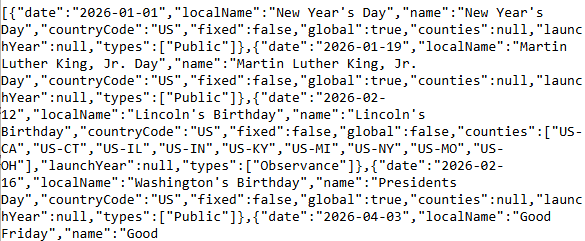
We’ll bring that data into Excel using Power Query.
Step 2: Hardcoding the API in Power Query
- Go to the Data tab.
- Select From Web in the Get & Transform Data group.
- Paste the API URL like this:
https://date.nager.at/api/v3/PublicHolidays/2026/US. - Click OK, and then Connect.
This will open the Power Query editor:

Let’s clean up the data:
- Click Convert to Table and confirm default settings.
- Click the Expand button to the right of the column header.
- Only select date, name, and types and click OK.
- Expand the
typescolumn: Expand to new rows (click the expand button in the types header). - Filter the types column to only include rows where
type = public. - Remove the types column (select the column and hit Delete on your keyboard).
- Convert the date column to Date type (click the type icon on the left side of the date column header)
Once these transformations are complete:
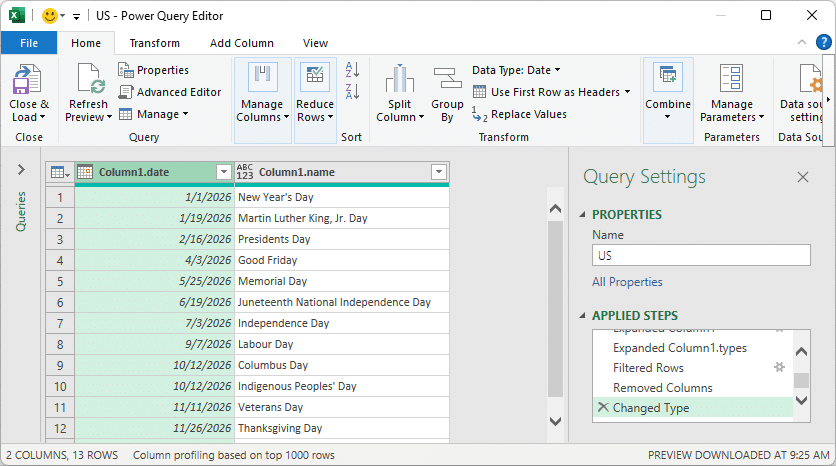
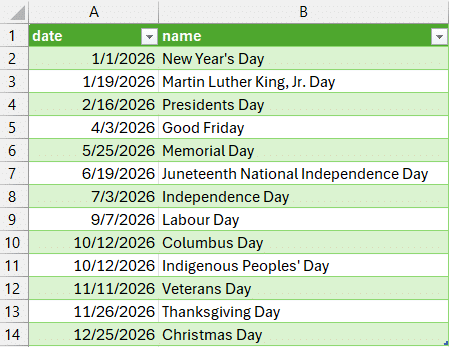
Once done, click Close & Load To and select Table in an existing worksheet:
Step 3: Make It Dynamic With a Year Input
We want the holiday list to update based on the year we type. Here’s how:
- Enter the year (e.g., 2026) in a cell like
B1and give it the nameyearvia the Name Box. - Select that cell and choose Data > From Table/Range.
- In Power Query, right-click the value and choose Drill Down.
- Go to Home > Close & Load To and choose Only Create Connection.
Now go back into your main holidays query:
- Open Power Query editor again (double-click the query name).
- Click the Source step, and in the formula bar, change the hardcoded year:
= Json.Document(Web.Contents("https://date.nager.at/api/v3/PublicHolidays/"
& Text.From(year) &
"/US"))
Note: to toggle on/off the display of the formula bar in Power Query, View > Formula Bar.
If prompted with a privacy error, go to File > Options and Settings > Query Options > Privacy and set it to Ignore under the Current Workbook section.
Once applied, click Close & Load. Now, whenever we change the value in the year cell and click Data > Refresh All, our table updates!
Step 4: Use Holidays in NETWORKDAYS Calculations
Now that we’ve got dynamic holidays, let’s apply them.
Create a list of month start and end dates, like this:
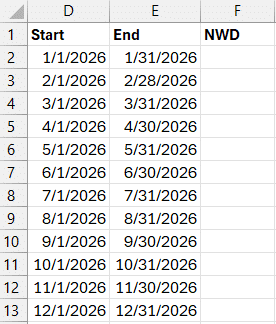
Note: to compute the first day of January, you could use DATE(year, 1, 1). To populate the column of end dates, you could use the EOMONTH(date, 0) function.
To populate the Net Workdays column, you could use:
NETWORKDAYS(start, end, holidays)Where start is the month start date in column D, end is the month end date in column E, and holidays is the table column US[date] in our case.
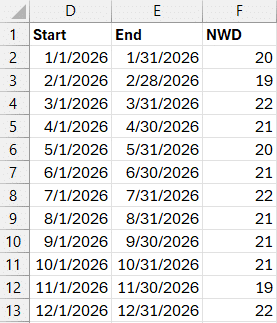
Now when we change the year and refresh, everything updates automatically—no manual edits required!
Summary
We just created an automatic public holiday system in Excel using:
- A named input cell for the year
- A public API for fetching JSON holiday data
- Power Query for transformation
NETWORKDAYSto dynamically include holidays in calculations
This system is scalable, accurate, and updates with just one click. A perfect solution for planners, HR teams, or anyone managing calendars or schedules in Excel.
Have more questions? Let us know in the comments.
Download the Example File
FAQs
- 1. What is the API used in this example?
- The free API from Nager.Date provides public holidays by country and year in JSON format.
- 2. Do I need to install anything to use Power Query?
- No, Power Query is built into Excel 2016 and newer.
- 3. What if I want a different country’s holidays?
- Just change the country code in the URL, e.g.,
/GBfor the UK or/CAfor Canada. - 4. Can I also show observance holidays?
- Yes, instead of filtering the
typescolumn to “public,” you can include all or specific additional values. - 5. How do I update the calendar for a new year?
- Type a new year into the named year cell, click Refresh All, and everything updates automatically.
- 6. How can I customize weekends?
- Use
NETWORKDAYS.INTLfor more control over weekend definitions. - 7. Does this work in Excel Online?
- Power Query may be limited in Excel Online. Use the desktop version for full functionality.
- 8. What happens if the API service is down?
- Excel will return a connection or JSON error. You can cache your last known holiday list as backup.
- 9. Can I create charts from this?
- Yes! Once holidays and workdays are calculated, you can graph working days per month or highlight peak holiday seasons easily.
- 10. Is this secure to use within company workbooks?
- The API fetches public data; however, API access rules vary by organization. Always check internal policies first.

Excel is not what it used to be.
You need the Excel Proficiency Roadmap now. Includes 6 steps for a successful journey, 3 things to avoid, and weekly Excel tips.
Want to learn Excel?
Our training programs start at $29 and will help you learn Excel quickly.