
Weather 1
How to Retrieve Latitude and Longitude in Excel from City and State
This is the first post in a larger 3-part weather forecasting series we’ll build together. Along the way, we’ll sharpen our skills with the WEBSERVICE and FILTERXML functions, as well as utilize Power Query in upcoming tutorials.
In this initial post, we’ll take a city and state and translate that into precise geographic coordinates. Whether we’re pulling weather data, mapping data, or using location-based analysis, latitude and longitude provide a foundation for many Excel projects. In this tutorial, we’re diving into two powerful methods in Excel for retrieving those exact coordinates: using the Geography Data Type and leveraging a free web API with Excel formulas.
Video
Step-by-Step: Get Latitude and Longitude from City and State in Excel
Option 1: Use the Excel Geography Data Type
If we’re using the latest version of Excel 365 or Excel 2019, we can take advantage of Excel’s linked data types. Here’s how:
- Type the city and state into a single cell, e.g.,
Reno, Nevada. - Select the cell, go to the Data tab, and select Geography from the Data Types group.
- Excel converts your entry into a rich data type. Click the small icon in the cell to view details (latitude, longitude, population, etc.).
- Click the Insert Data button (appears next to the cell). Select Latitude and then repeat for Longitude.
Now, any time we update the cell with a new city and state (e.g., “Boise, Idaho”), Excel automatically updates the coordinates. If multiple locations exist (like “New York”), Excel will prompt us to select the correct one.

Option 2: Use a Web API and Excel Functions
If the Geography data type isn’t available or we want more control, we can fetch latitude and longitude using a free external API and Excel’s built-in functions.
Step 1: Build the API URL
The API we’re using accepts a URL in this format:
https://nominatim.openstreetmap.org/search?format=json&city=reno&state=nvWe can create this URL dynamically in Excel using the CONCAT function in a cell such as C2:
=CONCAT("https://nominatim.openstreetmap.org/search?format=xml&city=", A2, "&state=", B2)Where:
A2= city (e.g., Reno)B2= state abbreviation (e.g., NV)
Step 2: Retrieve API Results in Excel
Then, use the WEBSERVICE function to fetch the API response in a cell such as D2:
=WEBSERVICE(C2)Where C2 contains the dynamically constructed URL. This function pulls back the raw XML data into the worksheet.
Step 3: Extract Latitude and Longitude Using FILTERXML
Now we need to extract the actual coordinates from the XML response. Here’s how to pull the latitude:
=FILTERXML(D2, "/searchresults/place/@lat")To get the longitude:
=FILTERXML(D2, "/searchresults/place/@lon")Note: Depending on the structure of the XML returned, the XPath expressions may vary slightly. In our actual XML, the latitude location data is found under /searchresults/place/@lat.
If the API fails to find the location or returns malformed XML, Excel shows a #VALUE! error. We can handle this with the IFERROR function to proactively display a friendly message:
=IFERROR(FILTERXML(D2, "/geodata/longt"), "Place not found")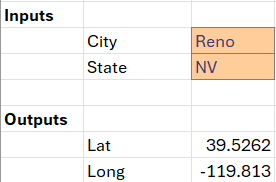
Summary
In this post, we explored two solid methods to retrieve latitude and longitude coordinates from a basic city and state in Excel:
- Geography Data Type — super easy if available, but limited to supported versions of Excel.
- Web API Method — gives us more control, and can be used in any version of Excel that supports web functions.
These approaches simplify the process of integrating location-based data directly into our workbooks. What’s more, we now have a foundation to build dynamic forecasting and data analysis tools using live geographic coordinates.
In our next blog post, we’ll feed these coordinates into a weather API and display real-time weather forecasts within Excel.
Download Sample File
Frequently Asked Questions
- 1. What versions of Excel support the Geography data type?
- Excel 365 and Excel 2019 support the Geography data type under the Data tab.
- 2. What if Excel doesn’t recognize my city or shows a question mark?
- When Excel can’t identify a location, it prompts you to select from a list of possible matches in the data selector pane.
- 3. Can I automate this process for multiple cities?
- Yes. Use a table and fill the formulas down. Excel will convert each row independently and return its respective coordinates.
- 4. Why does WEBSERVICE sometimes return blank or #VALUE?
- If the URL is malformed, the site returns an error, or the data format changes, WEBSERVICE can fail to return results. Always test URLs in the browser first.
- 5. Can I use Power Query to automate this?
- Absolutely. Power Query makes the process more robust and easier to refresh in bulk—something we’ll explore in upcoming posts.
- 6. What is XPath and how does it work in FILTERXML?
- XPath is a way of navigating through elements in an XML document. In Excel, it tells FILTERXML which part of the response to extract.
- 7. What happens if the city/state isn’t found by the API?
- The API usually returns an error or incomplete XML. Use IFERROR to catch and handle these gracefully in Excel.
- 8. Is this method secure?
- Since we’re not sending sensitive data, using APIs like this is generally fine. However, avoid using these services with private information unless you’re familiar with their privacy policies.

Excel is not what it used to be.
You need the Excel Proficiency Roadmap now. Includes 6 steps for a successful journey, 3 things to avoid, and weekly Excel tips.
Want to learn Excel?
Our training programs start at $29 and will help you learn Excel quickly.