
AI Models with Claude
As you know, we’re always searching for ways to help streamline complex financial workbooks in Excel. Today, we’ll dive into the Claude add-in, a powerful AI tool that can automate formula writing and scenario analysis, saving hours when building robust financial models.
Video
Tutorial
In this walkthrough, we’ll demonstrate how to leverage Claude for an end-to-end financial model, including scenario modeling, built entirely within Excel. Whether you’re new to Claude or considering AI support for your models, this guide will help develop confidence and skills in using these advanced Excel features.
What Is the Claude Add-In?
Claude is an AI-powered Excel add-in designed to interpret your spreadsheet structure and help generate or update formulas based on prompts. With this tool, we can shift our focus from manual formula entry to higher-level decision making, documentation, and analysis. Since the add-in is free to install (but requiring a Claude account to use) it’s accessible for both professionals and students.
The Example Model Structure
For this post, we’ll work through an illustration. We will use a SaaS (Software as a Service) revenue forecast model. Our workbook contains these key sheets:
Inputs: Where we define all assumptions, such as historical numbers and growth rates.
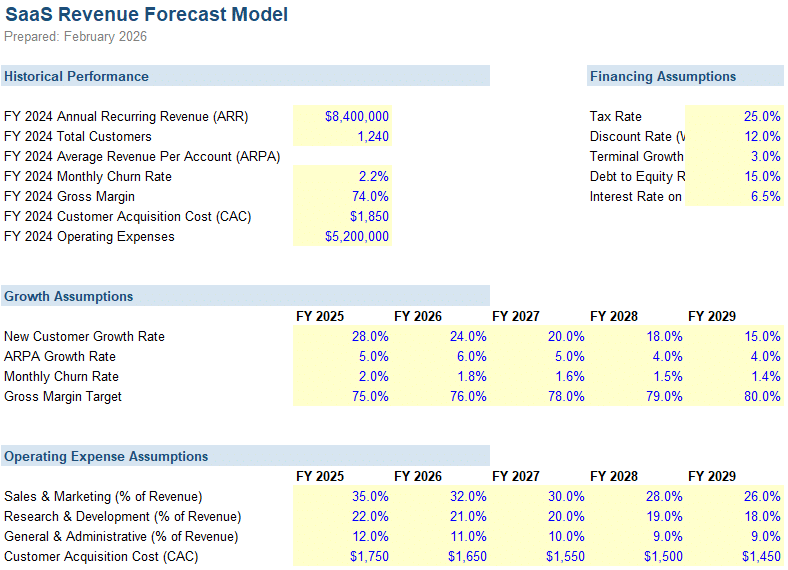
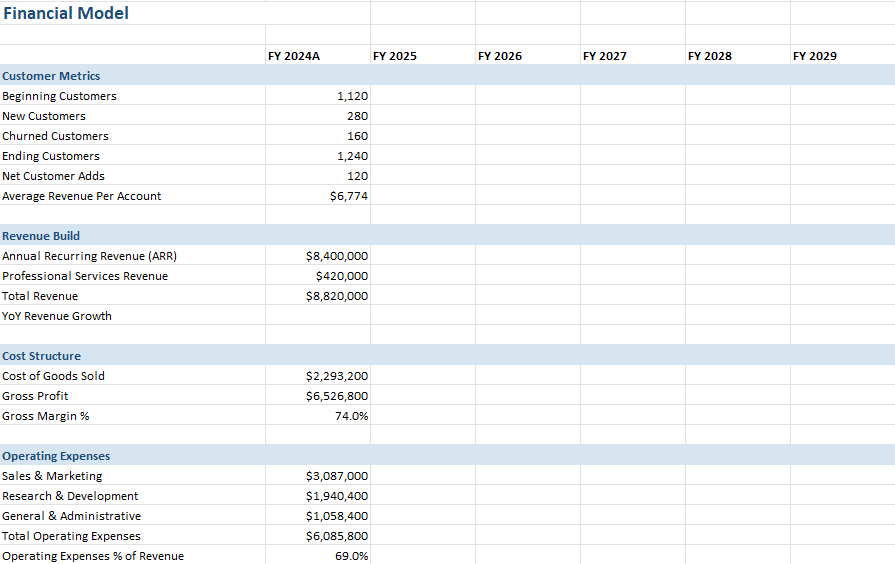
Model: Where formulas process those inputs into customer and revenue metrics.
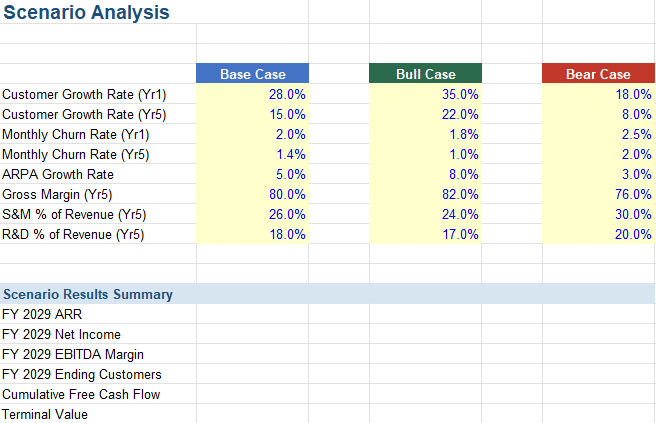
Scenarios: Where we run base, bull, and bear case analyses with alternative assumptions.
We want Claude to write all of the required formulas.
Step 1: Installing and Launching the Claude Add-In
Getting started with Claude is simple:
- Go to the Add-ins tab in Excel.
- Search for Claude and click Install.
- Log in with your Claude account credentials.

Once installed and logged in, opening Claude brings up a pane where we can type or paste prompts.

This is where its AI capabilities shine.
Step 2: Automating Customer Metrics and Revenue Builds
We begin by ensuring the Inputs sheet is complete with all key historical data and assumptions (growth rate, churn, etc.). Next, we shift to the Model sheet, where we want Claude to build out formulas for sections such as Customer Metrics and Revenue Build.
Open the Claude side panel, and use a prompt like this (customize as needed):
Review the input sheet and the model sheet. Build the formulas for the model, pulling assumptions from the input sheet. Project fiscal year 2025 through 2029.
Run the prompt and let Claude write the formulas. As we can see, Claude has written the formulas:
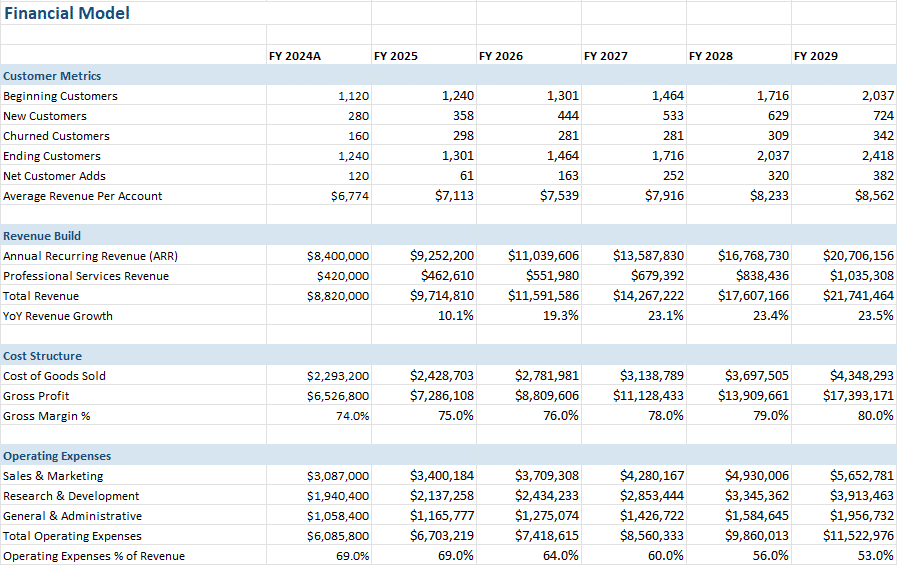
Claude analyzed both sheets, generated the formulas, and documented its logic in the side panel.
>>> Never blindly trust AI! It is crucial that we always spot-check these formulas for accuracy!
Auditing the Results
We review all of the output formulas:
- Beginning Customers: We confirm the formula references the prior year’s ending customers, confirming rollover logic.
- New Customers: We review the formula multiplies prior year by (1 + growth rate) from the Input sheet, dynamically pulling assumptions.
- Churned Customers: We confirm this formula calculates beginning customers × churn rate (annualized or monthly, as needed).
- Ending Customers: We confirm this is the sum of beginning plus new, minus churned.
- And on down the list reviewing each formula.
Since each formula links back to the Inputs sheet, future updates to assumptions automatically flow through the model.
Step 3: Adding Scenario Analysis for Base, Bull, and Bear Cases
Scenario planning is crucial for actionable forecasting. Here’s how we use Claude to automate scenario analysis:
- Complete a Scenarios worksheet, defining alternative sets of assumptions (e.g., best case, worst case).
- In the Claude pane, prompt it to build out scenario logic and result summaries.
- Check the scenario engine for each case, confirming calculations pull the right inputs per scenario.
We confirm the formula are written, and we then spot check each formula.
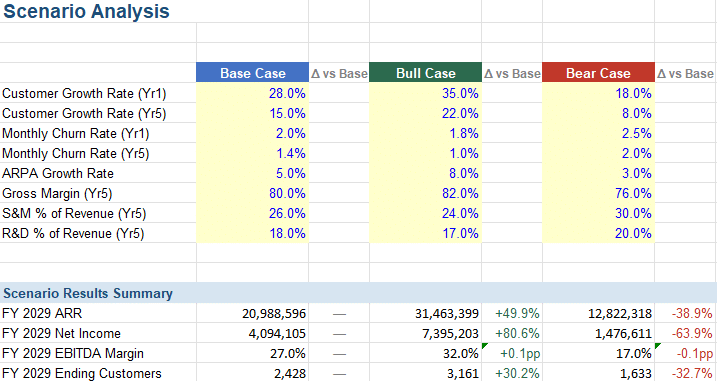
Claude’s automation here saves substantial manual effort and helps us quickly visualize the financial impact of multiple business outcomes.
Best Practices: Always Audit Claude’s Work
While Claude significantly accelerates model building, we should never blindly trust any AI-generated formula. Always review and spot-check critical formulas and outputs. Use Claude for rapid first drafts, then verify logic and formatting to ensure absolute confidence in your results.
Also, it is important that you understand the flow of the data, confirm all formulas are accurate, verify the formatting and presentation is clear, and that the overall model is representative and valid. While AI gets us to an initial first draft quickly, we still need to manually get it to the finish line … carefully and thoughtfully.
Summary of the Process
Leveraging the Claude add-in, we’ve demonstrated how to:
- Set up input, modeling, and scenario sheets in Excel
- Automate formula generation and documentation with Claude prompts
- Quickly iterate on sections such as cost structure and profitability
- Build robust scenario analysis modules with minimal manual overhead
- Efficiently audit results for accuracy and completeness
By following these steps, we can reduce the time it takes to generate an initial model draft. We will still do a thorough review of inputs, formulas, outputs, presentation, and data flow to ensure the model is valid.
Download Example Workbook
Looking to practice? Download the sample model workbook with Claude-generated formulas here.
Frequently Asked Questions
- What is the Claude add-in for Excel?
- Claude is an AI-powered add-in for Excel that can interpret your sheet structure, automate formula writing, and support scenario modeling among other advanced features.
- Is Claude free to use?
- The add-in is free to install, but using it requires a Claude account. Some advanced Claude features may require a paid plan.
- Can Claude replace manual modeling in Excel?
- Claude accelerates formula drafting and modeling setup, but we should always audit results to ensure accuracy. AI doesn’t eliminate the need for responsible review.
- How does Claude ‘understand’ my inputs and goals?
- Claude reads sheet labels and prompt text to build context, mapping assumptions and output requirements for each modeling section.
- How do I verify Claude-generated formulas?
- Spot-check formulas by cross-referencing with the Inputs sheet and confirming all references and logic match expected calculations.
- Does Claude support scenario analysis in Excel?
- Yes, Claude can automate the creation of scenario engines and result summaries for base, bull, and bear case analyses.
- Can I customize Claude prompts for unique business needs?
- Absolutely—prompts can be adjusted for any type of model, output, or formula logic required for your business or industry.
- How secure is my data with the Claude add-in?
- Always review Claude’s privacy and data security policies before using it with confidential information. We recommend using anonymized data in sensitive environments.
- Do I still need to know Excel formulas to use Claude?
- A foundational understanding of Excel logic helps in auditing and fine-tuning Claude’s outputs, even if the tool generates the first draft for you.
- Where can I learn more about Excel AI modeling?
- Explore more tutorials and expert tips on our blog, YouTube channel, or subscribe to our free weekly newsletter to receive updates on new Excel AI tools.

Excel is not what it used to be.
You need the Excel Proficiency Roadmap now. Includes 6 steps for a successful journey, 3 things to avoid, and weekly Excel tips.
Want to learn Excel?
Our training programs start at $29 and will help you learn Excel quickly.