
Weather 3
Using Power Query to Get AM/PM Temperatures by Day in Excel
Let’s be honest—weather data inside a spreadsheet might seem like magic. With Excel’s built-in tools like Power Query and the Geography Data Type, we can pull live weather forecasts, break them down by day, and split them into AM and PM temperatures. In this post, we’ll walk through a practical, step-by-step approach to create a dynamic, refreshable weather dashboard. We’ll even visualize those temperature trends with sparklines right inside Excel.
Video
Overview: What We’ll Build
We’ll use Excel and Power Query to create a dynamic table that displays 7-day forecasts with AM and PM temperature splits for any location in the United States. The workflow automatically fetches geographic coordinates for a city/state, builds the proper API URL, extracts forecast data from the National Weather Service, and presents it in a readable, refreshable format.

This tutorial includes:
- Geography Data Type for latitude and longitude
- Creating a dynamic URL
- Importing JSON weather data using Power Query
- Transforming and pivoting data into columns by day
- Adding sparklines for a visual touch
Step-by-Step Walkthrough
Step 1: Get Latitude and Longitude with Geography Data Type
Start with a cell where we enter a location, such as “Seattle, WA”. From the Data tab, select Geography from the data types. Excel will automatically recognize it and allow us to extract values like Latitude and Longitude.
Step 2: Generate the Weather API URL
Use Excel’s CONCAT function to combine the base URL with our extracted coordinates. The base URL we’ll use is (replace [Latitude] and [Longitude] with the cell references to the cells that store the values):
=CONCAT("https://api.weather.gov/points/",[Latitude],",",[Longitude])This gives us a dynamic link to retrieve that location’s specific forecast endpoint.
Step 3: Create a Dynamic Query for the Forecast URL
Now we switch to Power Query:
- Click Data > Get Data > From Web.
- Paste the dynamic URL we just created (we’ll replace this with the fully dynamic version shortly).
- Open the JSON data and drill down through properties to forecast.
- Right-click the forecast URL value and choose Drill Down.
Rename this query to forecastURL. This creates our dynamic link that updates when the user changes the location in the workbook. Fix potential privacy errors by setting Ignore Privacy Levels under File > Options > Query Options > Privacy.
Step 4: Use That URL to Grab the Forecast Data
Back in Power Query:
- Choose Get Data > From Web again.
- Enter a placeholder URL first, then edit it to refer to
forecastURL. - Drill into
properties > periods, then convert to a table. - Click the Expand icon to flatten the nested values.
From here, we’ll clean the data:
- Remove unnecessary columns (we only need
startTime,isDaytime, andtemperature). - Transform
startTimeinto dates (using Transform > Date > Parse). - Add a conditional column called AMPM:
If isDaytime = true then "AM" else "PM" - Delete
isDaytime.
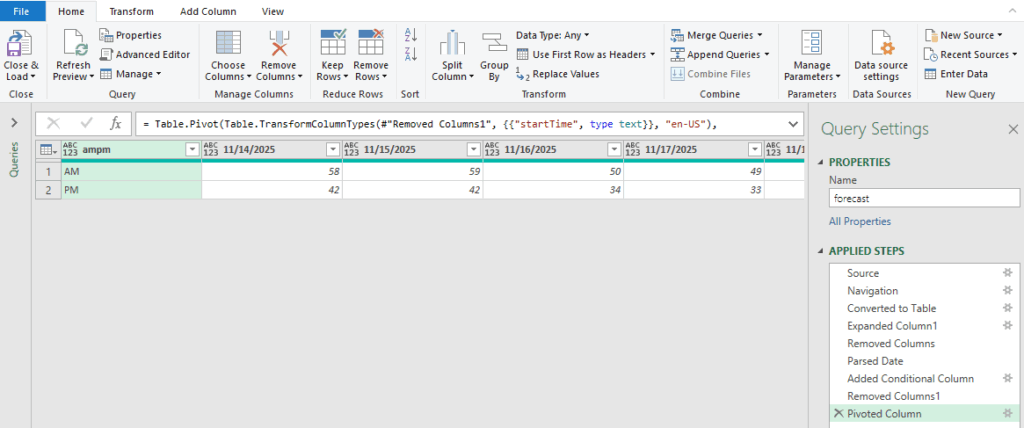
Step 5: Pivot the Temperature Data
Now we want dates as columns and AM/PM as rows. In Power Query:
- Select the
startTimecolumn. - Click Transform > Pivot Column.
- Use
temperatureas the value. - Set Advanced Options to Don’t Aggregate.
Now we have one column per day, with AM and PM temperatures as rows. Click Close & Load To and output to a table in an existing worksheet.
Step 6: Add A Sparkline Chart
To help visualize trends at a glance, let’s add sparklines in Excel (not Power Query):
- Insert a new column called “Sparkline.”
- Select the cells and choose Insert > Sparklines > Line.
- Select the temperature range as data and choose location for the sparklines.
- Enhance visibility with High Point and Low Point options.
Optional: move the Sparkline column to the beginning of the table to improve visibility.
Step 7: Make the Query Fully Dynamic
Finally, return to Power Query, and for the forecast query, edit the Source step to replace the static URL with simply:
= forecastURLThis dynamically updates the forecast data anytime the city/state input changes.
Summary of the Process
Let’s recap what we built:
- Enter a city and state.
- Excel uses the Geography Data Type to get coordinates.
- A dynamic URL is created to fetch that location’s forecast API.
- Forecast data is loaded and transformed via Power Query.
- Temperature data is organized by day and AM/PM.
- Sparklines provide a visual cue of temperature trends.
- Updating the forecast is as easy as clicking Refresh All.
Download Example File
To save time and jump straight into testing, download the completed Excel workbook here:
FAQs
1. Can this work with cities outside the U.S.?
No. The API used (api.weather.gov) is for U.S. National Weather Service data, so it only supports U.S. locations.
2. What if my geography data type doesn’t work?
Check that your region and language settings in Excel support geography data types and that you’re connected to the internet.
3. Will this work in Excel Online?
Parts of this solution, like Power Query and Geography Data Types, require the desktop version of Excel (Microsoft 365).
4. What happens if the forecast API is unavailable?
The query will return an error. Simply try again later or verify that the constructed URL is valid.
5. Can I add more metrics like wind speed or precipitation?
Yes! Just adjust the Power Query steps to include more fields from the JSON structure, and pivot or transform them as needed.
6. How often is the forecast data updated?
Data from the National Weather Service is generally updated every 3 hours, but this can vary by location.
7. Can I automate the refresh process?
Yes, you can use VBA or Power Automate to refresh this workbook on a schedule.
8. Does this use any paid API?
No, this uses the freely available U.S. National Weather Service API.
9. Can I track temperature trends over time?
Currently, this provides a snapshot of the upcoming 7-day forecast. For trend analysis, you’d need to log daily data externally.

Excel is not what it used to be.
You need the Excel Proficiency Roadmap now. Includes 6 steps for a successful journey, 3 things to avoid, and weekly Excel tips.
Want to learn Excel?
Our training programs start at $29 and will help you learn Excel quickly.