
How to Automatically Log QuickBooks Journal Entries into Excel Using Zapier
What if every new journal entry posted in QuickBooks Online landed in an Excel table automatically, no copy-paste required? In this tutorial we walk through exactly that workflow. We use Zapier to connect QuickBooks Online to an Excel workbook stored in OneDrive, loop through each journal entry line so it lands on its own row, and then wrap everything up with a PivotTable that instantly confirms debits equal credits. If month-end close is on your calendar, this one is worth your time.
Exercise 1: Set Up the Excel Table in OneDrive
Zapier needs to reach our Excel file over the internet, so the workbook must be saved to Microsoft OneDrive. The good news: even though the file lives in the cloud, we can still open and edit it in the Windows desktop app. Nothing changes about how we use Excel day to day.
Once the file is saved online, we need to create an Excel Table to hold the journal entry data. Zapier looks for a Table object when it appends rows, so a plain cell range will not work. Let’s take a look at the headers we need:

We want these columns: JE Num, Acct Num, Acct Name, Type, and Amount. We enter a couple of sample rows so we have data to work with, then we select the range, go to Insert, Table, and click OK. Excel converts the range into a proper Table with filter drop-downs on every header.

With the Table in place and the workbook saved to OneDrive, the Excel side of our setup is done. Now it is time to move over to Zapier and wire up the automation.
Exercise 2: Build the Zap in Zapier
Zapier is a hub that connects online apps. Think of it as an always-on assistant that watches one app for an event and then takes an action in another app. They offer a free plan, so it is easy to try out. Here we will build a Zap manually rather than using the AI assistant.
Step 1: Configure the QuickBooks Online Trigger
We start by creating a new Zap and selecting the trigger app. We search for QuickBooks Online and select it. For the trigger event we choose New Journal Entry. Now, any time someone posts a new journal entry in QuickBooks, this Zap will fire. We select our connected account and click Continue.

Zapier then runs a test and pulls in recent journal entries. We pick one of the sample records and click Continue with Selected Record. That gives Zapier real data to preview as we configure the rest of the Zap.
Step 2: Configure the Microsoft Excel Action
Now we add the action step. We search for Microsoft Excel and select it. The action event is Add Row to Table. We connect our Microsoft account, then point Zapier at the right workbook, worksheet, and table. Zapier reads the Table headers and shows us a field for each column.

We map each column to the matching field from the QuickBooks step. JE Num maps to Doc Number. Acct Num maps to the line account reference value. Acct Name maps to the line account name. Type maps to the line posting type. Amount maps to Line Amount. We click Continue and run a quick test.

Here is what the Excel table looks like just before we run that first test:

We run the test, switch back to Excel, and bam:

A new row appeared, which is exciting. But all the line detail values are crammed into a single row, separated by commas. Account numbers, account names, types, and amounts are all smashed together. That is not what we need. No worries, we can fix this with a Looping step.
Step 3: Add a Looping Step to Split Lines into Separate Rows
We insert a new step between the QuickBooks trigger and the Excel action. We search for Loop and select Looping by Zapier. The action event is Create Loop From Text. This tells Zapier to take a comma-separated list and iterate over each value individually.

In the loop configuration we add four value sets, one for each column we want to split: Acct Num, Acct Name, Type, and Amount. Each value set points to the corresponding comma-separated field from the QuickBooks step. The text delimiter is a comma. We click Continue and test the step. Zapier now shows two separate row objects, one for each journal entry line. Perfect.
Now we update the Excel mapping to use the loop output instead of the raw QuickBooks fields. JE Num still comes from QuickBooks directly. Acct Num, Acct Name, Type, and Amount now each pull from the matching loop field. We save, then run a full test run so both rows are written.
We switch back to Excel, and bam:

Each journal entry line now lands on its own row. JE 20260402 has a Credit row and a Debit row, each with the correct account number, account name, type, and amount. That is exactly what we need. Once we are satisfied the Zap works, we give it a name and click Publish. From that moment on, every new journal entry posted in QuickBooks flows into this Excel table automatically AND hands-free.
Exercise 3: Build a PivotTable to Verify Debits Equal Credits
With the log filling up automatically, we can build a summary report. The classic accounting check is confirming that debits equal credits for every journal entry. A PivotTable makes this easy. Let’s take a look at the Exercise 3 worksheet:

One important note: the file is saved online, but we open it in the Excel desktop app. That is required because we need to create a Calculated Item inside the PivotTable, and that feature is only available in the desktop version. We select the journal entry table, go to Insert, PivotTable, and place it on the Exercise 3 worksheet.
We drag JE Num to Rows, Type to Columns, and Amount to Values. That gives us a debit column and a credit column for each journal entry number. We then go to Design, Grand Totals, and choose On for Columns Only so the row totals show a meaningful sum.

Now we add the Diff check. We go to PivotTable Analyze, Fields Items and Sets, Calculated Item. We name it Diff and enter the formula:
=Debit-Credit
We click OK, and bam:
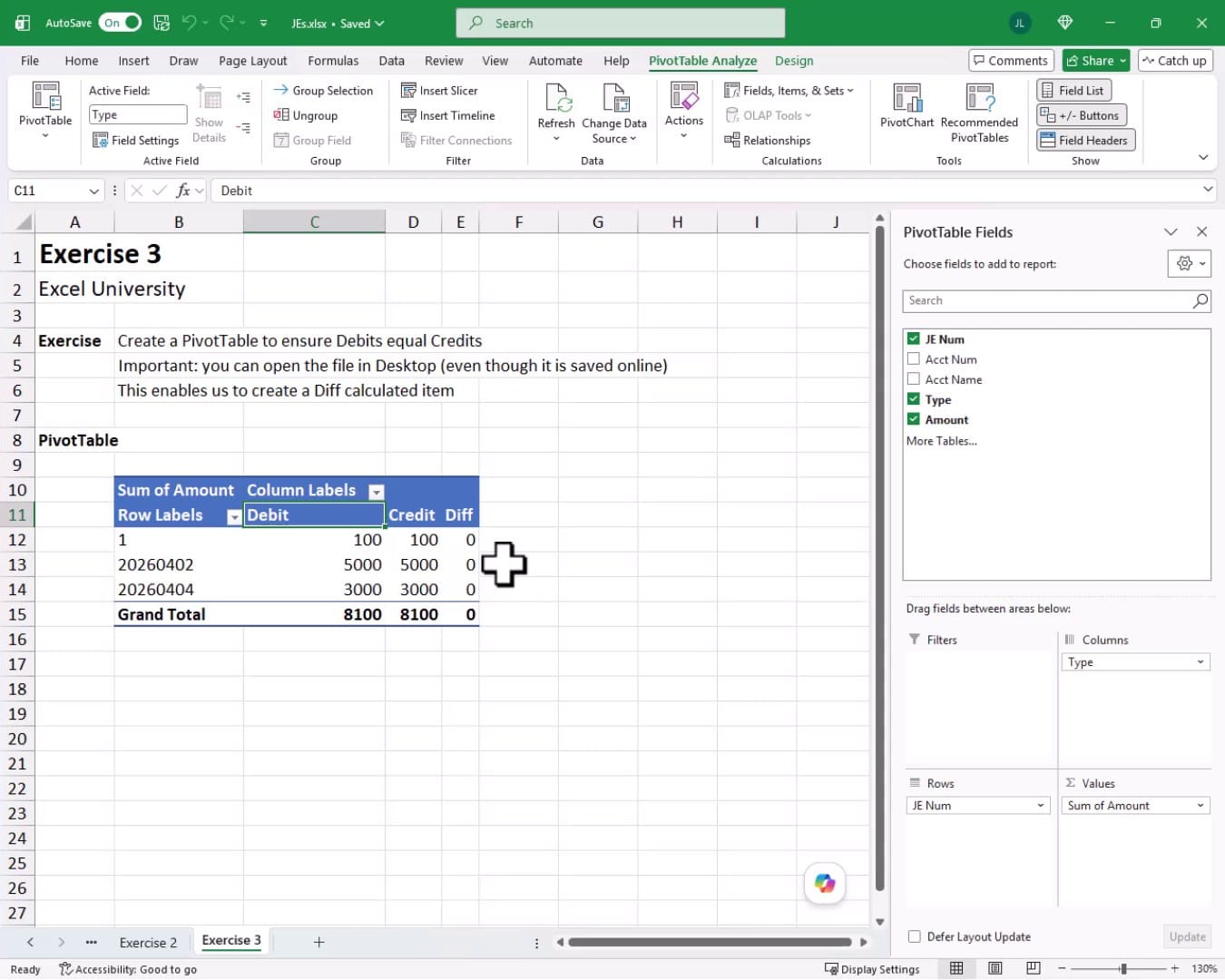
The Diff column shows zero for every journal entry. Debits equal credits across the board. Any time new entries come in through Zapier, we right-click the PivotTable and choose Refresh to update the report instantly. Mission accomplished!
Summary
In this tutorial we walked through three exercises. In Exercise 1 we saved an Excel workbook to OneDrive and created a Table to receive journal entry data. In Exercise 2 we built a Zapier workflow that triggers on a new QuickBooks journal entry, uses a Looping step to split each line into its own row, and appends those rows to the Excel Table automatically. In Exercise 3 we created a PivotTable with a Diff calculated item to confirm debits equal credits with a single refresh click. It is a straightforward setup that saves real time every month-end close.
If you have any suggestions, improvements, alternatives, or questions, please share by posting a comment below … thanks!
Sample File
FAQs
Does the Excel workbook have to be stored in OneDrive specifically?
Zapier’s Microsoft Excel integration works with files stored in OneDrive or SharePoint. The file must be accessible through a Microsoft 365 account. A local file saved only to a hard drive will not be visible to Zapier.
Can we still edit the workbook in the Excel desktop app even though it is saved online?
Yes. OneDrive files open and save normally in the desktop app. AutoSave keeps the cloud copy in sync. We can work in the desktop app just as we always have, and Zapier can still access the file.
Why do we need an Excel Table instead of a plain range?
Zapier’s Add Row to Table action specifically targets an Excel Table object. It uses the Table’s name and structure to identify where to append new rows. A plain range does not have a defined name or boundary that Zapier can reference.
What is the Looping by Zapier step and why do we need it?
QuickBooks sends all journal entry lines as comma-separated values inside a single field. Without a loop, Zapier writes all of those values into one Excel row. The Looping by Zapier step iterates over each comma-separated value so that each journal entry line becomes its own distinct row in the Excel table.
Does Zapier offer a free plan?
Yes, Zapier has a free tier that supports a limited number of Zaps and tasks per month. It is a good way to test the workflow before committing to a paid plan. The Looping by Zapier feature is an advanced action and may require a paid plan depending on current Zapier pricing.
How quickly does a new journal entry appear in Excel after it is saved in QuickBooks?
The timing depends on the Zapier plan. On paid plans, Zaps can trigger in close to real time, typically within one to two minutes. Free plans check for new data on a longer polling interval, which can be up to fifteen minutes.
Can we capture journal entries from accounting software other than QuickBooks Online?
Zapier integrates with many accounting platforms including Xero, FreshBooks, and Wave. The overall Zap structure would be the same. We would swap out the QuickBooks trigger for the appropriate trigger from the other platform and remap the fields accordingly.
Why do we open the file in the desktop app to create the Calculated Item?
Calculated Items in PivotTables are a feature of the full Excel desktop application. Currently, Excel for the web does not support creating Calculated Items. Since the file is saved to OneDrive, we can open it in the desktop app at any time to access the full feature set.
What happens if a journal entry has more than two lines?
The Looping step handles any number of lines. It splits every value in the comma-separated list, regardless of how many there are. So a five-line journal entry would produce five separate rows in the Excel table, all sharing the same JE Num.
How do we refresh the PivotTable when new journal entries arrive?
We right-click anywhere inside the PivotTable and select Refresh. Excel re-reads the underlying Table, picks up any rows that Zapier has appended since the last refresh, and updates all the PivotTable values including the Diff column. We can also set up automatic refresh on file open if preferred.

Excel is not what it used to be.
You need the Excel Proficiency Roadmap now. Includes 6 steps for a successful journey, 3 things to avoid, and weekly Excel tips.
Want to learn Excel?
Our training programs start at $29 and will help you learn Excel quickly.