
Month-End Reconciliations with Power Query
Month-end reconciliations are a fact of life for anyone managing financial data. Whether we are comparing Shopify orders against QuickBooks invoices, matching a bank statement to a check register, or verifying inventory counts, the core task is always the same: take two lists and find what does not match. In this tutorial, we walk through a workflow that uses Power Query to merge those two lists, calculate the difference between amounts, and surface every discrepancy in a single refreshable table. Set it up once, and every future month just takes a single right-click to refresh.
Video
Exercise 1: Load the Shopify Data into Power Query
Let’s say we have Shopify order data sitting in an Excel Table on the Exercise 1 worksheet. The table contains Order ID, Customer, Product, and Amount columns. Our goal in this first exercise is simply to get that data into Power Query as a connection.

With any cell in the table selected, we head to the Data tab and click Get Data. From there, we can see just how many source types Power Query supports, from Text/CSV files to JSON to entire folders of files.

Since our Shopify data is already in a table in this workbook, we click From Table/Range. That launches the Power Query Editor and provides a preview of the data. Our data is already clean, so no transformations are needed here.

Now we click Close & Load To. In the Import Data dialog, we select Only Create Connection and click OK. This stores the Shopify data inside Power Query without writing a duplicate table onto any worksheet.

Exercise 2: Load the QuickBooks Data into Power Query
Now we move to the Exercise 2 tab. Consider the following worksheet:

This is the QuickBooks invoice table. Notice the Ref column, which stores the originating Shopify Order ID. That shared key is what we will use to match the two tables in Exercise 3. We follow the exact same steps as before: click inside the table, go to Data, From Table/Range, and when the Power Query Editor opens, click Close & Load To and choose Only Create Connection.
After clicking OK, both connections appear in the Queries & Connections pane. We now have tbl_Shopify and tbl_QuickBooks, both listed as Connection only. Bam:

Exercise 3: Merge, Calculate the Difference, and Load the Recon Table
Now that we have both data sources loaded into Power Query, it is time to compare them. We head to Data, Get Data, Combine Queries, Merge. This opens the Merge dialog.
Configuring the Merge
In the Merge dialog, we select tbl_Shopify as the first table and tbl_QuickBooks as the second table. Next, we need to identify the matching key column in each table. We click Order ID in the Shopify preview and Ref in the QuickBooks preview. The Join Kind is Left Outer, which means every Shopify row will appear in the result, and any QuickBooks row that matches will be pulled in alongside it. If a Shopify order has no matching QuickBooks invoice, the row will still appear but with null values in the QuickBooks columns. That is exactly what we want to catch.

We click OK, and Power Query returns a query named Merge1. The result shows all Shopify rows plus a new tbl_QuickBooks column that holds a nested table for each matched row. We click the expand icon on that column header to bring in the specific columns we need.
Expanding the Nested Table
In the expand panel, we uncheck Customer, Product, and Ref since we already have those fields from the Shopify side. We keep Invoice # and Total checked. We also uncheck Use original column name as prefix to keep the column names tidy. We click OK.
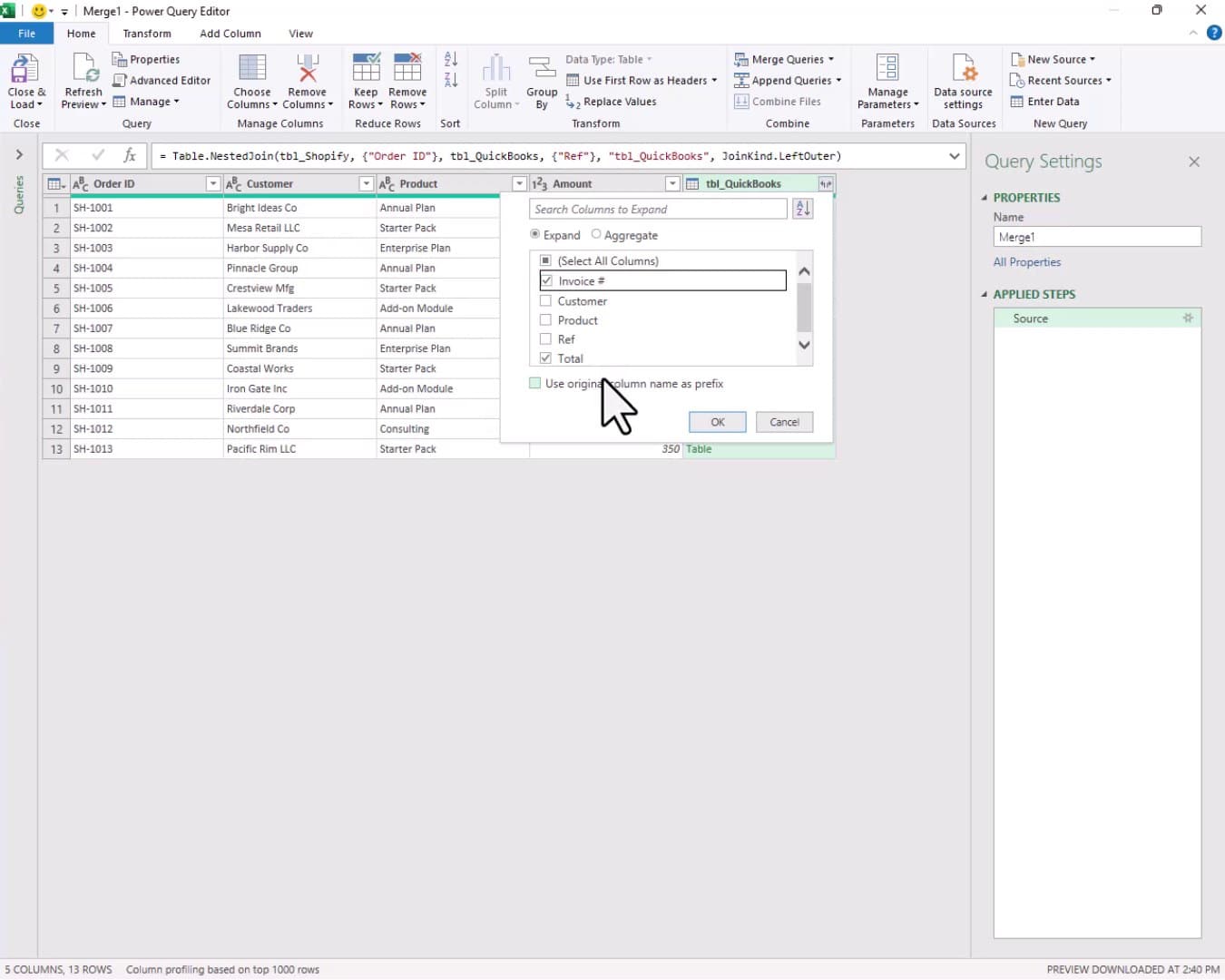
Now we can see all six columns side by side: Order ID, Customer, Product, Amount (Shopify), Invoice #, and Total (QuickBooks). Row 12 shows a null for Invoice # and Total, meaning that Shopify order never made it into QuickBooks.
Replacing Nulls and Adding a Difference Column
Before we can subtract the two amount columns, we need to handle that null. We select the Total column, then click Transform, Replace Values. We type null in the Value To Find box and 0 in the Replace With box, then click OK.

Now we select the Amount column, hold Ctrl, and also select the Total column. We click the Add Column tab, then Standard, then Subtract. Power Query adds a new column containing the difference between the two values. We rename that column to Diff.

Loading the Final Reconciliation to the Worksheet
With the Diff column in place, we click Home, Close & Load To. This time we select Table and choose an existing worksheet cell in the Exercise 3 tab, then click OK.

We hit OK, and bam:

The reconciliation table is live. We can see two exceptions right away. Order SH-1012 (Northfield Co) has no Invoice # and a Diff of 800, meaning it was never uploaded to QuickBooks. Order SH-1010 (Iron Gate Inc) shows a Diff of -450, meaning the Shopify amount was $50 but QuickBooks recorded it as $500. Both are exactly the kinds of errors this process is designed to catch.
The really powerful part? Next month, when new Shopify rows and QuickBooks rows are added to the source tables, all we need to do is right-click the recon table and choose Refresh. Power Query will run the entire merge automatically and update the results. We only build this ONCE, and it works every period going forward.
Summary
In this tutorial, we used Power Query to build a refreshable month-end reconciliation between Shopify and QuickBooks. Exercise 1 loaded the Shopify table as a connection-only query. Exercise 2 loaded the QuickBooks table the same way. Exercise 3 merged the two queries using a Left Outer join on the shared order ID key, expanded the relevant QuickBooks columns, replaced nulls with zeros, and added a Diff column using the Standard Subtract operation. The result is a single recon table that surfaces missing records and amount mismatches at a glance.
And that is how we can automate a two-source reconciliation with Power Query. Mission accomplished! If you have any suggestions, improvements, alternatives, or questions, please share by posting a comment below … thanks!
Sample File
FAQs
Does this Power Query reconciliation approach work with any two data sources?
Absolutely. The same workflow applies to any two lists that share a common key column. We could compare a bank statement against a check register, match inventory counts between two systems, or reconcile accounts receivable records. The data does not have to come from Shopify or QuickBooks specifically.
What is a Connection only query and why do we use it?
A Connection only query stores the data inside Power Query’s memory without writing the results to a worksheet table. We use it for the two source queries (Shopify and QuickBooks) because we do not need them to appear as standalone tables in the workbook. We only want the final merged result visible on the sheet.
What is a Left Outer join and why is it the right choice here?
A Left Outer join returns every row from the first (left) table, plus any matching rows from the second (right) table. Rows in the left table that have no match in the right table still appear, but with null values in the right-side columns. That behavior is exactly what we need for a reconciliation, because we want to see every Shopify order even if it has no corresponding QuickBooks invoice.
Why do we need to replace null with zero before subtracting?
Power Query cannot perform arithmetic on null values. If we try to subtract a null from a number, the result is also null rather than the expected difference. By replacing nulls with zero first, we ensure the Diff column returns a meaningful numeric value for every row, including the orders that are completely missing from QuickBooks.
How do we refresh the reconciliation table when new data arrives?
We simply right-click anywhere inside the recon table on the worksheet and choose Refresh. Power Query re-runs the entire merge against the current data in both source tables and updates the results automatically. No need to revisit the Power Query Editor at all.
Can the two key columns have different names in each table?
Yes. In our example, the Shopify table calls it Order ID and the QuickBooks table calls it Ref. When we configure the Merge dialog, we simply click the correct column in each table’s preview, and Power Query uses those two columns as the matching key regardless of their names.
What if the source data is not in an Excel Table?
If the data is in a plain cell range rather than an Excel Table, Power Query will prompt us to convert it to a table before loading. We can also point Power Query directly at external files like CSV or JSON by using the appropriate Get Data command from the Data tab instead of From Table/Range.
How do we filter the recon table to show only exceptions?
Since the output is a regular Excel Table, we can use the column filter dropdowns to show only rows where Diff does not equal zero, or where Invoice # is blank. We can also apply conditional formatting to highlight non-zero Diff values automatically, making exceptions stand out at a glance.
Is it possible to do this reconciliation with XLOOKUP instead of Power Query?
We could write an XLOOKUP formula to pull the QuickBooks total for each Shopify order and then calculate a difference column manually. That works fine for a one-time check. The advantage of the Power Query approach is repeatability. When the source data updates, a single refresh regenerates the entire comparison with no formula maintenance required.
What version of Excel is required for this Power Query workflow?
Power Query with Merge Queries support is available in Excel 2016 and later on Windows, as well as Microsoft 365. Excel for Mac added full Power Query support starting with Microsoft 365 for Mac. Earlier desktop versions like Excel 2013 had a limited Power Query add-in, but the built-in experience shown in this tutorial requires Excel 2016 or newer.

Excel is not what it used to be.
You need the Excel Proficiency Roadmap now. Includes 6 steps for a successful journey, 3 things to avoid, and weekly Excel tips.
Want to learn Excel?
Our training programs start at $29 and will help you learn Excel quickly.