
Power Query, PivotTable, and Pivot Chart: A Month-End Workflow
Month-end reporting often means the same tasks, repeated every single month. We pull data from a CSV, clean it up, build a summary, and maybe add a chart. If we are doing all of that manually, we are leaving a lot of time on the table. In this tutorial, we cover a three-exercise workflow that uses Power Query to import and clean the data, a PivotTable to summarize it, and a Pivot Chart to visualize it. Once it is set up, refreshing the entire report takes a single click.
Exercise 1: Retrieve Data with Power Query
Let’s say we have expense data that gets exported to a CSV file each month. We need to get that data into Excel. Sure, we could open the file, copy the range, paste it into Excel, and manually clean things up. But since this is a monthly task, that manual approach adds up fast.
Power Query is built exactly for this kind of recurring import. We set it up once, and from then on, a single Refresh All brings in the latest data. No opening, copying, or pasting required.
To get started, we go to the Data tab and choose Get Data, From File, From Text/CSV. We browse to our file and double-click it. Excel opens a preview pane showing the raw CSV contents.

The preview pane shows the file is named ExepnseData.csv and already looks well-structured with Department, Account, and Amount columns. We can verify the data looks right before we do anything else.

Rather than clicking Load right away, we click Transform Data. This opens the full Power Query Editor. Inside the editor, we can remove columns, filter rows, split columns, replace values, and much more. This data is already clean, so no transformations are needed here. But in practice, this is where we would handle any cleanup steps, and Power Query will repeat them automatically every time we refresh.

When we are ready to load the data, we click Close & Load To. In the Import Data dialog, we choose Table, select Existing Worksheet, and pick our target cell. We click OK.

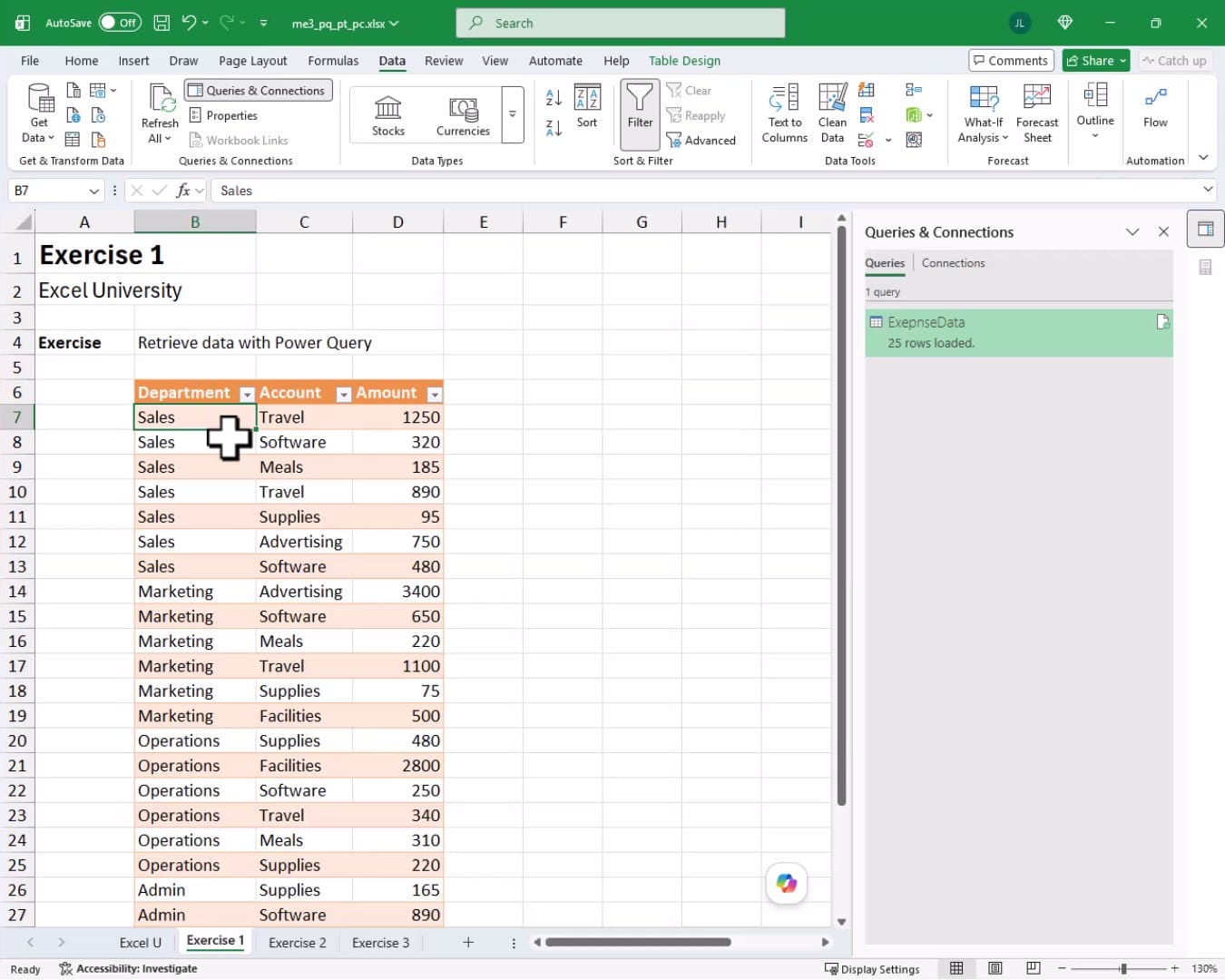
Bam: the data lands in the worksheet as a formatted Excel Table, and the Queries & Connections pane confirms the ExepnseData query loaded the rows.

Going forward, all we need to do is go to Data and click Refresh All. Power Query executes, fetches the updated CSV, and loads the new data into the table. Anything built on top of that table, like PivotTables or charts, will update right along with it. That is a massive time saver for ANY recurring reporting task.

Exercise 2: Summarize It with a PivotTable
Now that the data is in Excel, it is time to summarize it. We navigate to the Exercise 2 tab. We click inside the data table, go to Insert, and choose PivotTable. We place it in an existing worksheet, navigate to a target cell, and click OK.

In the PivotTable Fields pane, we check Account and drag it to Rows. Then we check Amount and it drops into Values as Sum of Amount. We get a clean summary of total spending by account category in just a few seconds.

The numbers look good, but the formatting could be cleaner. We right-click any value in the PivotTable, choose Number Format, select Number, set decimal places to zero, check the comma separator, and click OK. Much better.

Now here is the beautiful thing about this setup. Next month, we just click Data, Refresh All. Power Query runs first, pulls the updated CSV into the table, and then the PivotTable updates automatically. No manual steps needed.
What if the CSV changes its name or location? No worries. We open the Power Query Editor, click the gear icon next to the Source step, and browse to the new file path. Quick and easy.

Exercise 3: Visualize It with a Pivot Chart
With the data imported and summarized, let’s bring this tutorial home with a visual. We navigate to the Exercise 3 tab, click inside the data table, go to Insert, and choose PivotChart. We place it in the Exercise 3 worksheet, pick a starting cell, and click OK.
In the PivotChart Fields pane, we check Department and drag it to the Axis area. Then we check Amount, which drops into Values as Sum of Amount. We get a column chart showing total expenses by department right away.

A column chart works fine, but a bar chart is often easier to read for category comparisons. We click the Design tab, choose Change Chart Type, select Bar, and click OK. Then we clean things up a bit. We delete the legend since the chart only shows one series. We right-click the chart and choose Hide All Field Buttons on Chart to remove the filter buttons. We update the chart title to read Expenses by Department.
Finally, we format the axis numbers. We double-click the value axis, go to Number in the Format Axis pane, select Number, set decimal places to zero, and check the comma separator. We hit Enter, and bam: a clean, polished bar chart that updates automatically every month.

The complete monthly workflow now looks like this: update the CSV file (ideally saving it to the same folder with the same file name), open the workbook, go to Data, and click Refresh All. Power Query imports the fresh data, the PivotTable recalculates, and the Pivot Chart redraws. That is it. What used to take significant manual effort is now a one-click operation.
Summary
In this tutorial, we walked through a three-exercise month-end reporting workflow. In Exercise 1, we used Power Query to import a CSV file into an Excel Table. In Exercise 2, we built a PivotTable to summarize expenses by account. In Exercise 3, we created a Pivot Chart to visualize expenses by department. The real payoff is that the entire report refreshes with a single click, turning a time-consuming monthly chore into a streamlined, repeatable process. And that is how we can build a refreshable month-end reporting workflow. Mission accomplished!
If you have any suggestions, improvements, alternatives, or questions, please share by posting a comment below … thanks!
Sample File
FAQs
What version of Excel do I need to use Power Query?
Power Query is built into Excel 2016 and later on Windows. In Excel 2010 and 2013, it was available as a free add-in. Mac users gained Power Query support starting with Excel for Mac version 16.54 (released in 2021), though some features may differ from the Windows version.
Do I have to open the Power Query Editor every time I refresh?
Not at all. Once the query is set up, we just click Data, Refresh All on the Excel ribbon. Power Query runs in the background and updates the results table without ever opening the editor. The editor is only needed when we want to change the transformation steps or update the source file path.
What types of files can Power Query import?
Power Query can connect to a wide variety of sources, including CSV and text files, Excel workbooks, Access databases, SQL Server, SharePoint lists, web pages, JSON files, XML files, and many more. The Get Data menu on the Data tab shows the full list of available connectors.
What happens if the CSV file has new columns next month?
Power Query will bring in the new columns as long as the query is not explicitly removing them. If the query includes a step that selects only specific columns, the new column would be ignored until we update the query to include it. It is a good idea to review the Applied Steps in the editor when the source file structure changes.
Can a PivotTable use the Power Query table as its data source?
Yes, and that is exactly the approach we used in this tutorial. When we load Power Query results into an Excel Table and then build a PivotTable on top of that table, refreshing Power Query automatically feeds fresh data into the PivotTable. Clicking Refresh All triggers both steps in one shot.
Why use a Pivot Chart instead of a regular chart?
A Pivot Chart is connected directly to a PivotTable, so it updates automatically when the underlying data is refreshed. A regular chart built from a static range would need to be manually adjusted if the data changes. For recurring reports, a Pivot Chart is almost always the better choice.
Can I apply transformations in Power Query to clean messy data?
Absolutely, and that is one of Power Query’s greatest strengths. We can remove duplicate rows, fill down blank cells, split columns by delimiter, trim whitespace, replace values, filter out unwanted rows, change data types, and much more. Every transformation step is recorded and replayed automatically on each refresh.
What if the source CSV file is in a different folder each month?
We can update the file path by opening the Power Query Editor, clicking the gear icon next to the Source step in the Applied Steps pane, and browsing to the new location. Once we click OK and close the editor, the query will use the new path going forward. For more flexibility, we can also use Power Query parameters to make the file path dynamic.
Can I hide the PivotTable and only show the Pivot Chart?
Yes. A common approach is to simply move the Pivot Chart so it sits on top of and covers the PivotTable on the worksheet. The PivotTable still exists and still drives the chart. We can also place the PivotTable on a separate sheet and keep the chart sheet clean for presentation purposes.
Is Refresh All safe to use if I have multiple queries in the same workbook?
Yes, Refresh All will refresh all queries and PivotTables in the workbook. If query order matters because one query depends on another, we can control the refresh sequence by setting query load order or by using the Refresh button on individual queries rather than Refresh All. For most simple setups like the one in this tutorial, Refresh All works perfectly.

Excel is not what it used to be.
You need the Excel Proficiency Roadmap now. Includes 6 steps for a successful journey, 3 things to avoid, and weekly Excel tips.
Want to learn Excel?
Our training programs start at $29 and will help you learn Excel quickly.