
FILTER with SEARCH
Mastering Excel FILTER: Advanced Filtering with Multiple Conditions and Partial Matches
Excel’s FILTER function is a game-changer for dynamic data analysis. Not only does it allow us to extract data sets that meet specific criteria, but it also empowers us to layer multiple conditions using AND/OR logic and perform partial text matches with the SEARCH function. In this comprehensive guide, we’ll walk through practical examples step by step, demonstrating how to apply these powerful techniques to your own Excel workbooks.
Video
Overview of the FILTER Function in Excel
The FILTER function, available to Microsoft 365 and Excel for the web users, enables us to dynamically extract rows from a range or table that meet specified criteria. The syntax is straightforward:
=FILTER(array, include, [if_empty])
Where:
- array: The range or array to filter.
- include: A logical expression (or array) determining which rows to include.
- [if_empty]: (Optional) Value to return if no match is found.
Let’s build on this foundation to solve real-world filtering scenarios.
Step-by-Step: Filtering with Multiple Conditions
Single Condition Filter
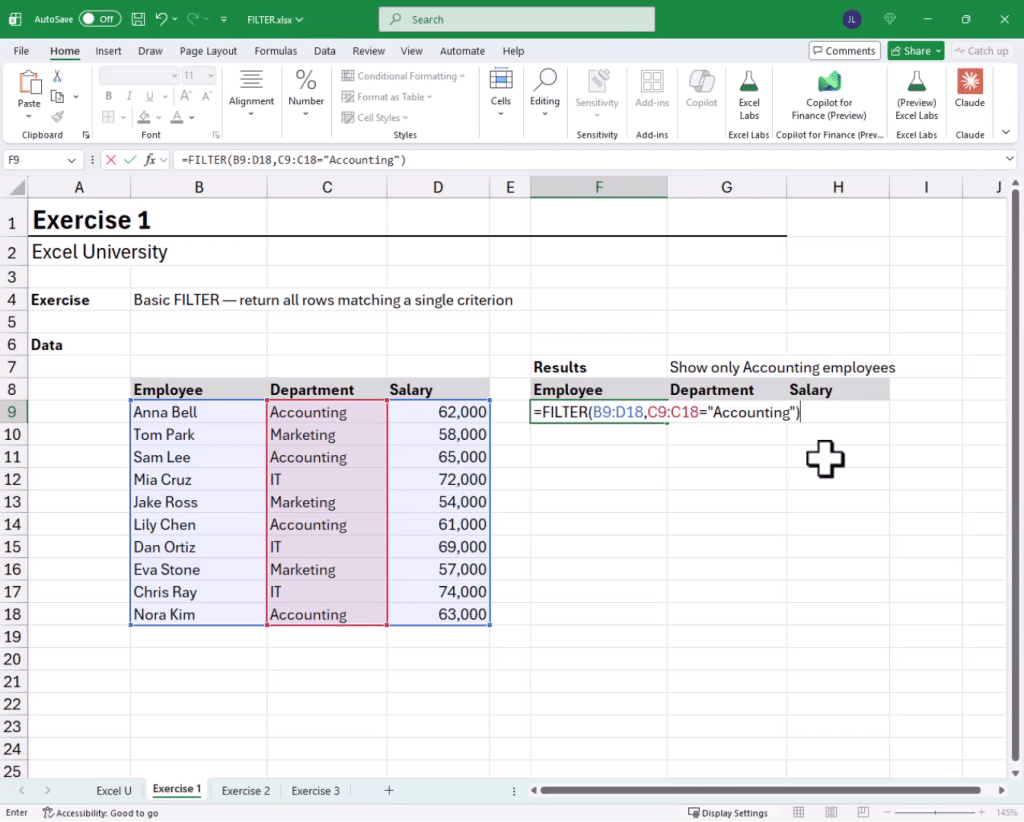
We have a data range, and would like to extract all rows where the Department is “Accounting”. We can use the following formula:
=FILTER(A2:D100, B2:B100 = "Accounting")
We’ve written the formula in F9:
We hit Enter, and bam:

Boolean Logic in Excel
It’s important to understand how Excel’s calc engine treats TRUE/FALSE values:
- TRUE = 1
- FALSE = 0
So, we can perform math operations with logical comparisons to combine conditions.
For example:
=TRUE + TRUEreturns 2=TRUE * FALSEreturns 0
AND Logic (Multiple Conditions Must Be True)
Suppose we need all rows where Region is “East” AND Product is “Laptop”:
=FILTER(Table1, ((Table1[Region]="East") * (Table1[Product]="Laptop")))
Here, the asterisk (*) acts as the AND operator, requiring both conditions to be TRUE for a row to be included. We write the formula in I18:

Hit Enter, and bam:

OR Logic (Either Condition Can Be True)
To filter where Product is “Laptop” OR “Monitor”:
=FILTER(Table1, (Table1[Product]="Laptop")+(Table1[Product]="Monitor"))
The plus (+) serves as the OR operator, so if either condition is met, the row appears in the output.
Handling Empty Results Gracefully
What if there are no matches? FILTER returns #CALC! by default. To display a user-friendly message or value, use the optional [if_empty] argument:
=FILTER(A2:D100, D2:D100 = "Tablet", "none")

Now, instead of an error, we see “none” if no matches are present.
Step-by-Step: Partial Matches Using FILTER with SEARCH
Sometimes we need to filter for rows that contain a search term, not just exact matches. Here’s how to combine FILTER and SEARCH for this capability.
Using SEARCH for Partial Text Matches
Use SEARCH to Find the Position of Text:
=SEARCH(H8, Table1[Item])
Wrap with IFERROR to Convert Errors into Zeros:
=IFERROR(SEARCH(H8, Table1[Item]), 0)
Combine with FILTER for Dynamic Results:
=FILTER(Table1, IFERROR(SEARCH(H8,Table1[Item]), 0))
Hit Enter, and bam:

Now, whenever we type a search term (e.g., “mouse”, “USB”, “board”) into cell G10 and hit Enter, the search results range instantly updates to only show rows containing that text in the desired column.
Summary: Supercharge Your Data Filtering
The FILTER function is a flexible function. Whether we’re applying multiple conditions with AND/OR logic or enabling interactive partial match searching using the SEARCH function, FILTER helps us present exactly the data we want in smart, dynamic ways. Coupled with clear error handling using the if_empty argument, our reports become more insightful and user-friendly.
Download Example File
Want to jump right in? Download the sample workbook used in this tutorial and explore all examples hands-on.
Frequently Asked Questions
- What versions of Excel support the FILTER function?
FILTER is available in Microsoft 365, Excel for the Web, and Excel 2021+. It’s not available in Excel 2019 or earlier standalone versions. - Can FILTER return data from non-adjacent columns?
Yes, by selecting only the columns you need (e.g.,=FILTER(CHOOSE({1,3},A2:A100,C2:C100), ...)). - How do I filter using more than two conditions?
Simply extend the logical expression:=FILTER(range, (cond1) * (cond2) * (cond3))for AND, or use+for OR. - Can FILTER with SEARCH check multiple columns for a search term?
Yes, structure SEARCH across multiple columns and connect with+(OR) logic. - Does FILTER use case-sensitive search?
SEARCH is case-insensitive. UseFINDfor case-sensitive matching. - How does FILTER handle empty cells in criteria columns?
Logical tests like =”” or ISBLANK() can manage empty cells within criteria expressions. - Will FILTER update automatically if data changes?
Yes, FILTER returns are dynamic and update instantly when source data or conditions change. - Can I use wildcards with FILTER directly?
Not with the basic = operator, but SEARCH allows partial and wildcard-like matching. - Why am I getting a #CALC! error?
Typically, this happens if no data matches; use the [if_empty] argument to manage this gracefully.

Excel is not what it used to be.
You need the Excel Proficiency Roadmap now. Includes 6 steps for a successful journey, 3 things to avoid, and weekly Excel tips.
Want to learn Excel?
Our training programs start at $29 and will help you learn Excel quickly.