
IMPORTCSV IMPORTTEXT
Bringing external data into Excel used to mean a lot of clicking: opening files, copy/pasting, or launching Power Query. But with Excel’s newer IMPORTCSV and IMPORTTEXT functions, you can now load external data directly into your sheet with a simple formula.
Video
Tutorial
These functions are lightweight, fast, and flexible—great for quick access to structured files like CSVs and text exports.
In this post, we’ll walk through how to use them to bring in data, define delimiters, skip headers, limit rows, and more—all with just a few arguments.
IMPORTCSV: Bring in CSV Files with a Formula
IMPORTCSV Function Returns: The contents of a CSV file as a dynamic array, automatically split into rows and columns.
Syntax:
IMPORTCSV(path, [skip_rows], [take_rows], [locale])path– Full file path and name of the CSVskip_rows– (Optional) Number of rows to skip (can be negative to skip from bottom)take_rows– (Optional) Number of rows to keep (can be negative to count from end)locale– (Optional) Regional settings for formatting (e.g., dates, decimals)
Exercise 1: Basic CSV Import
In the Exercise 1 worksheet, we’ve got a cell (B6) that contains the full path to a CSV file.
To import the file into Excel:
Formula in cell B6:
=IMPORTCSV(B4)This pulls in the entire CSV file and dynamically spills the contents into rows and columns—no need for import wizards or Power Query steps.
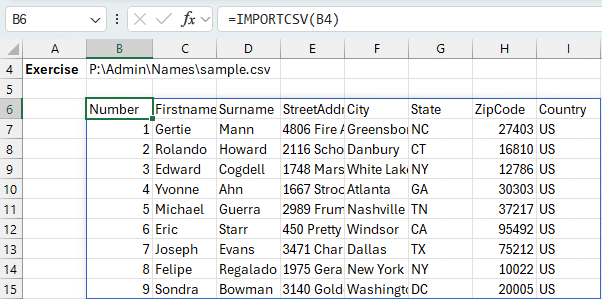
Tip: You can also manually type the file path directly into the formula like this:
=IMPORTCSV("C:\Users\Documents\sales.csv")
Bonus: you can also use the INFO function to retrieve the directory of the active workbook and then join the file name with a formula like this:
=INFO("DIRECTORY")&"sample.csv"
IMPORTTEXT: Import Text Files with Custom Delimiters
IMPORTTEXT Function Returns: A table from a text file, with support for custom delimiters (like tabs, pipes, or semicolons).
Syntax:
IMPORTTEXT(path, [delimiter], [skip_rows], [take_rows], [encoding], [locale])path– Full path to the text filedelimiter– Character used to split columns (e.g.,","or"\t")skip_rows– (Optional) How many rows to skiptake_rows– (Optional) How many rows to returnencoding– (Optional) Character encoding type (e.g.,"UTF-8")locale– (Optional) Regional formatting settings
Exercise 2: Importing a Delimited Text File
Let’s say we have a .txt file that’s actually comma-separated (just like a CSV), and we want to import it.
Formula in cell B6:
=IMPORTTEXT(B4)At first, you’ll notice everything comes into column A—because we haven’t told Excel what character separates the fields.
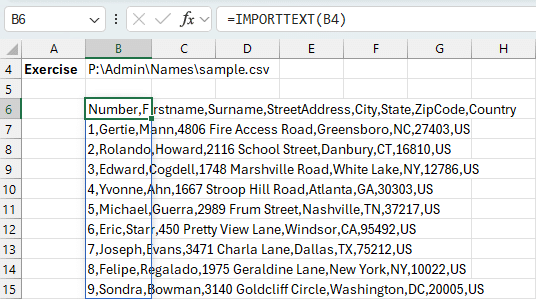
Specifying the Delimiter
Let’s go back and define the delimiter:
=IMPORTTEXT(B4, ",")Now, the data correctly spills into separate columns.
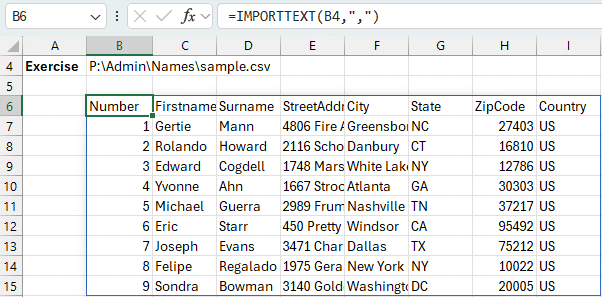
You can use any character as a delimiter:
- Comma →
"," - Tab →
CHAR(9)or"\t" - Pipe →
"|" - Semicolon →
";"
Extra Control: Skipping Rows, Taking Rows, and More
Both IMPORTCSV and IMPORTTEXT come with additional optional arguments for more control.
Let’s explore those in Exercise 3.
Skipping Rows
Want to skip the first row—maybe to remove a header?
Formula:
=IMPORTCSV(B4, 1)This skips row 1 and starts importing from the second row:
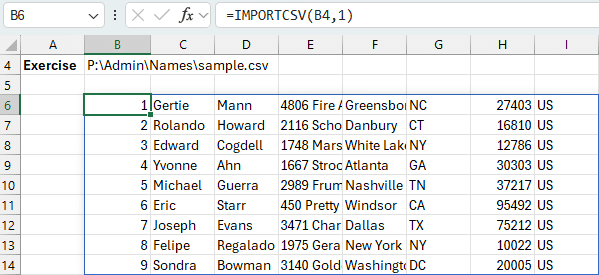
Skipping Rows from the End
You can also skip from the bottom using a negative number.
Formula:
=IMPORTCSV(B6, -1)This skips the last row of the file.
Taking a Limited Number of Rows
Instead of skipping, maybe you only want the first 2 rows:
Formula:
=IMPORTCSV(B6, , 2)Notice how we left the second argument blank (just a comma) and used the third argument to take 2 rows.
Want to get the last row only?
Formula:
=IMPORTCSV(B6, , -1)Note: These same techniques work with IMPORTTEXT too. Just be sure to define the delimiter when needed.
Conclusion
The IMPORTCSV and IMPORTTEXT functions are lightweight tools that make it easier to bring external data into Excel. They’re perfect for quick jobs, automation, or when you want to avoid the overhead of opening Power Query.
Whether you’re pulling in sales reports, logs, or bank transactions, these functions give you full control—with just a formula.
If you’ve tried them out or run into questions, drop a comment—we’d love to hear how you’re using them!
Sample File
You can download the Excel workbook here to follow along. It includes examples for:
- Basic CSV and text imports
- Delimiter specification
- Skipping and taking rows
These functions are currently supported in Excel 365 (with the latest updates).
FAQ
1. What’s the difference between IMPORTCSV and IMPORTTEXT?
IMPORTCSV assumes a comma as the delimiter. IMPORTTEXT lets you specify your own delimiter—great for tab- or pipe-delimited files.
2. Can I use a dynamic file path with these functions?
Yes! You can point the path argument to a cell (like B6), or type it directly in quotes.
3. What happens if the file path is invalid?
You’ll get a #VALUE! or #NAME? error. Double-check the full path and file extension.
4. Do these functions auto-refresh if the source file changes?
Yes—if the source file is updated, the function will re-calculate when the workbook is re-opened or you can force a refresh with Ctrl+Alt+F9.
5. Is Power Query better for large or complex imports?
Yes—Power Query offers more control for transforming and cleaning data. But IMPORTCSV/IMPORTTEXT are great for quick, simple imports.

Excel is not what it used to be.
You need the Excel Proficiency Roadmap now. Includes 6 steps for a successful journey, 3 things to avoid, and weekly Excel tips.
Want to learn Excel?
Our training programs start at $29 and will help you learn Excel quickly.