
Fix Text Numbers in Excel: 3 Ways to Convert Text to Numbers
Have you ever typed a SUM formula, hit Enter, and stared in disbelief at a big fat zero? The culprit is almost always the same: numbers that are stored as text. Excel sees those values as words, not quantities, so it simply adds up nothing. In this tutorial, we walk through three practical ways to fix text numbers in Excel, so our formulas start producing the results we actually expect.
Exercise 1: Spot the Problem and Use the Error Alert
Let’s say we have a transaction list imported from an external system. It has a Date column, an Account column, a Memo column, and an Amount column. Everything looks fine at first glance.
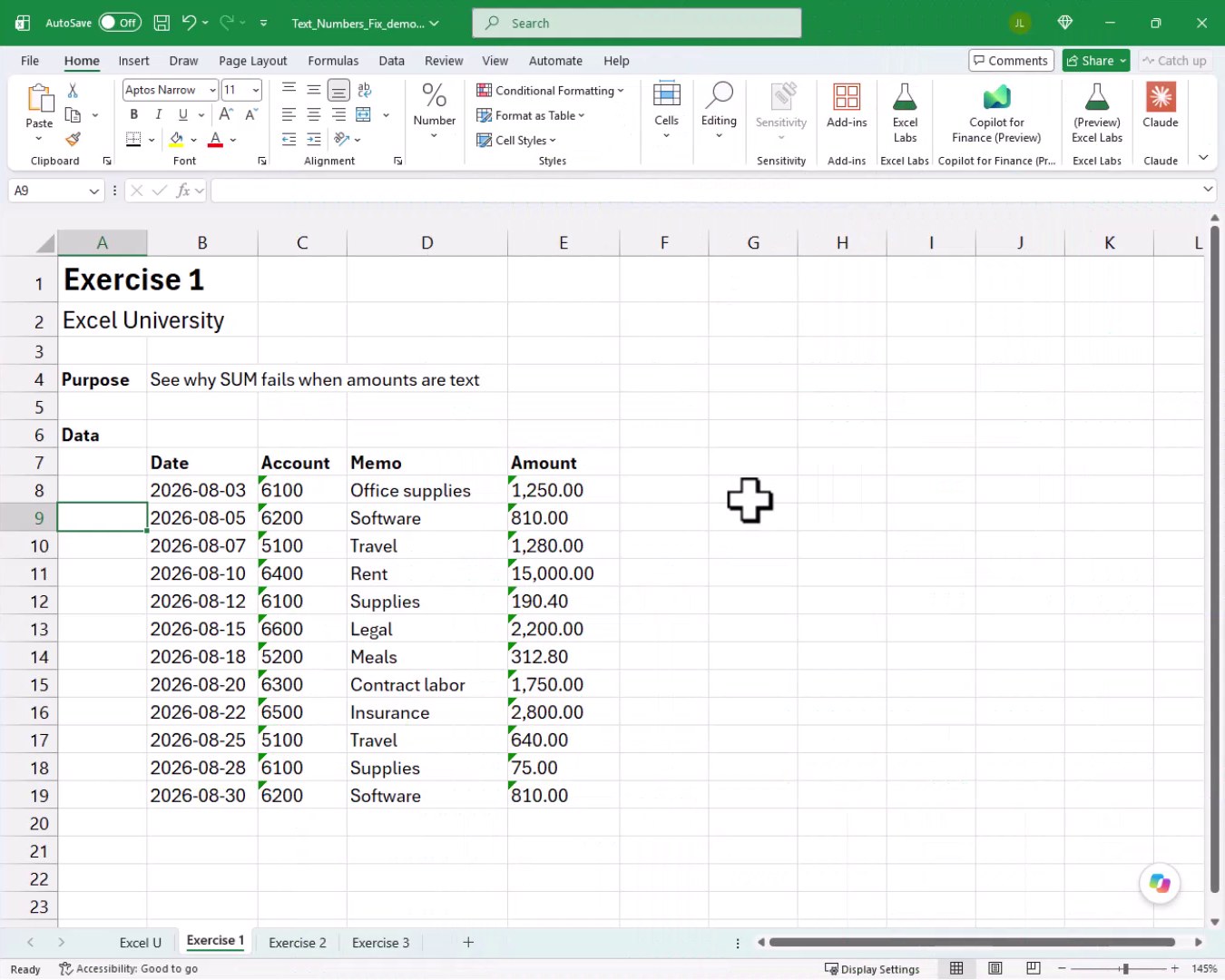
Notice those small green triangles in the upper-left corner of each Amount cell. That is Excel waving a flag. The amounts look like numbers, but they are being stored as text values. To confirm this, we can write a SUM formula targeting that range.
Before diving in, a quick look at the SUM function. It returns the total of the numeric values in a range or list of arguments. The function arguments are:
- number1: the first number, cell reference, or range to add
- number2, …: additional numbers, references, or ranges to include in the sum (optional)
We could write the following formula into cell E20:
=SUM(E8:E19)
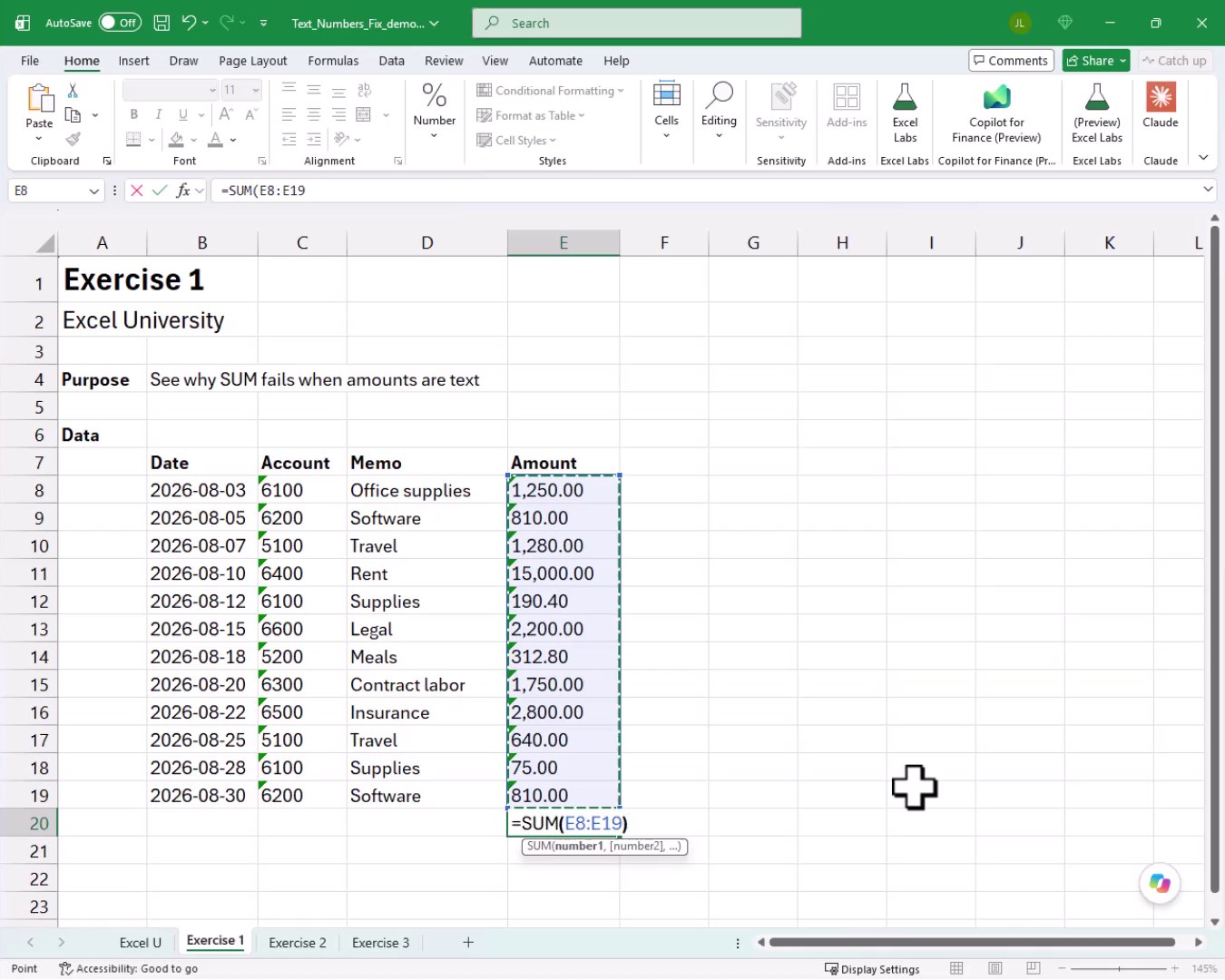
We hit Enter, and bam:
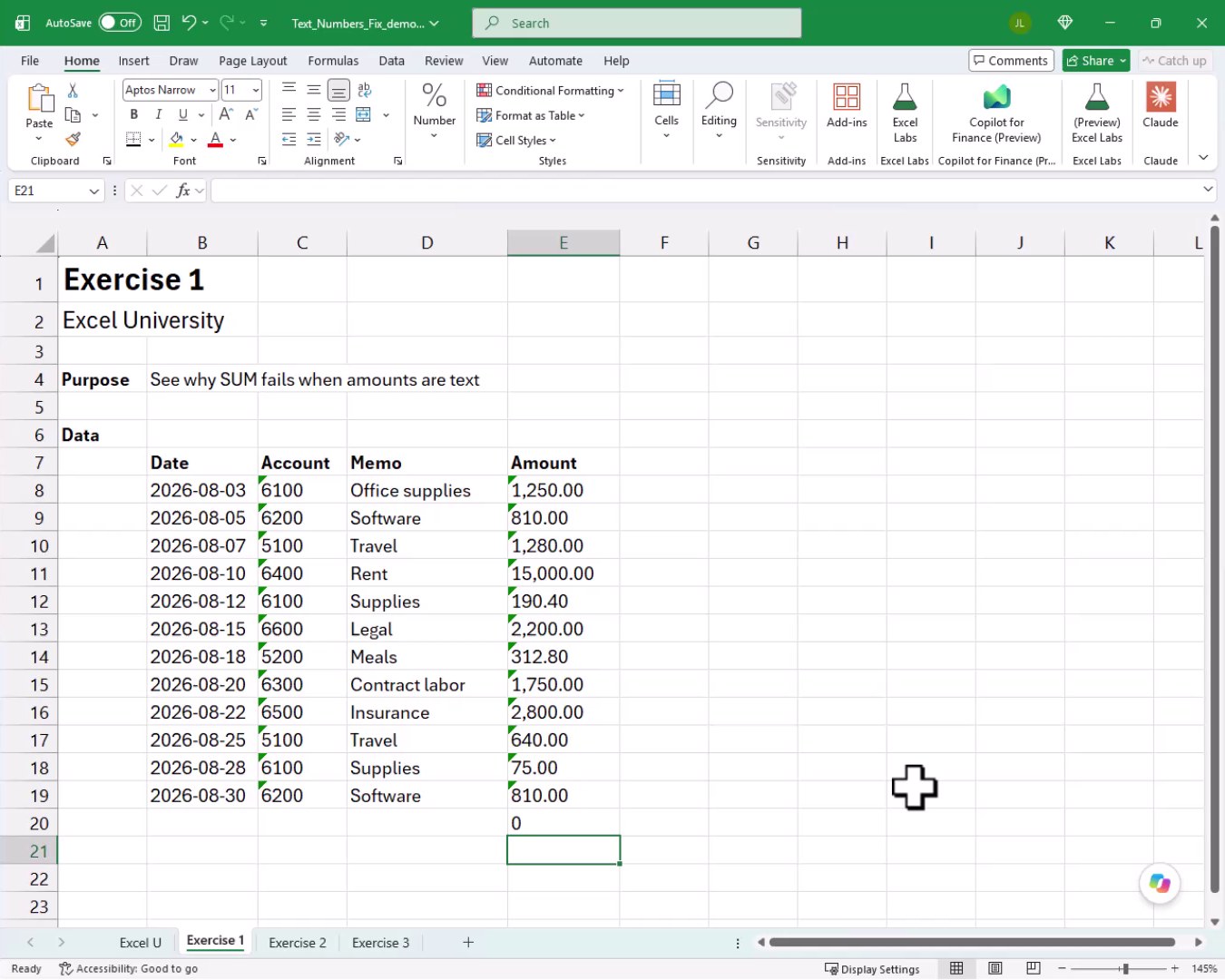
Zero. When Excel encounters text where it expects a number, it contributes nothing to the sum. That is why we get zero instead of the actual total. Now let’s fix it.
If the green triangles are visible, Excel has already flagged the issue. We can select the entire Amount range, hover over the error alert icon that appears near the top of the selection, and choose Convert to Number.
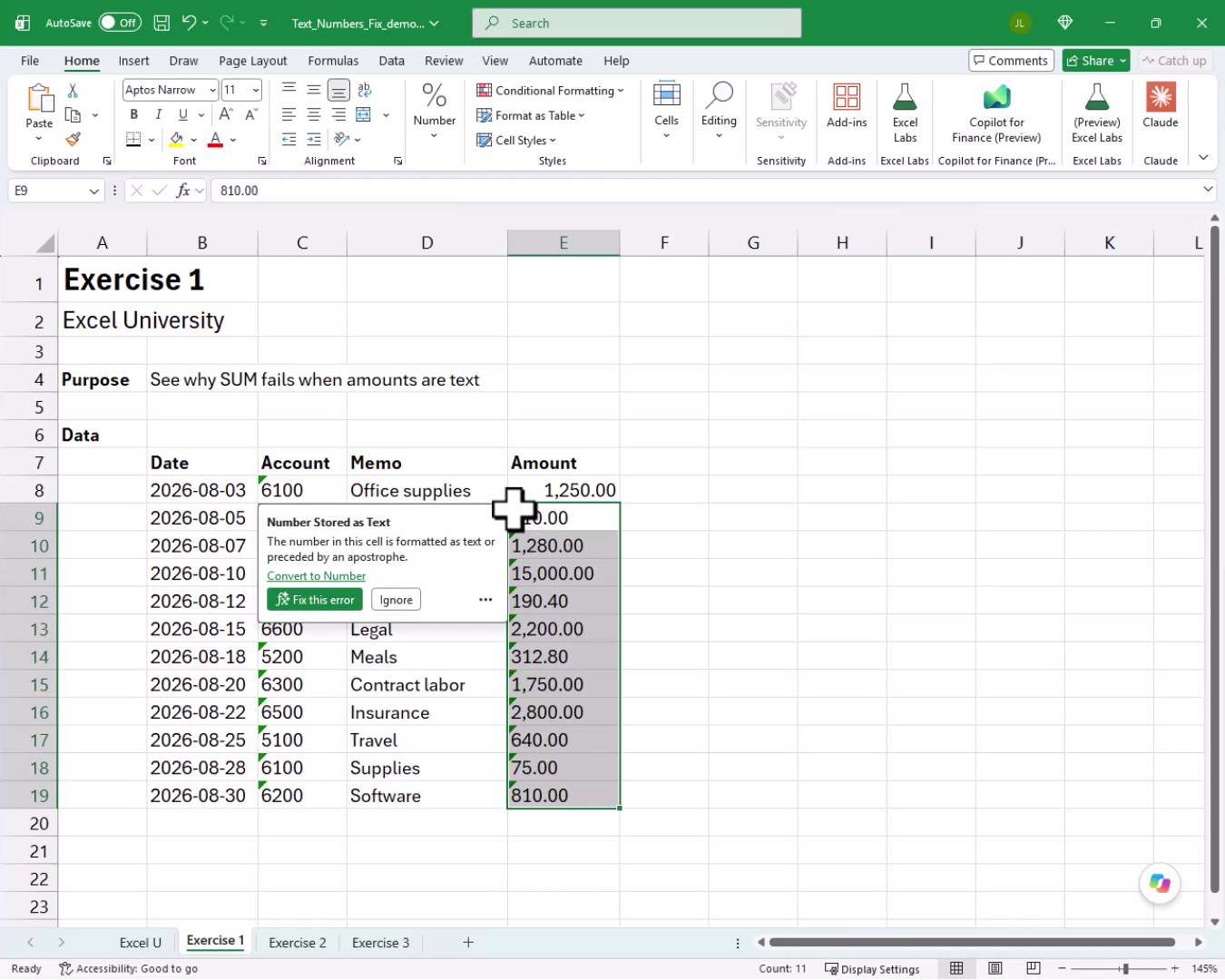
Once we click Convert to Number, Excel converts all the selected text values into real numbers. Our SUM formula updates automatically, and bam:
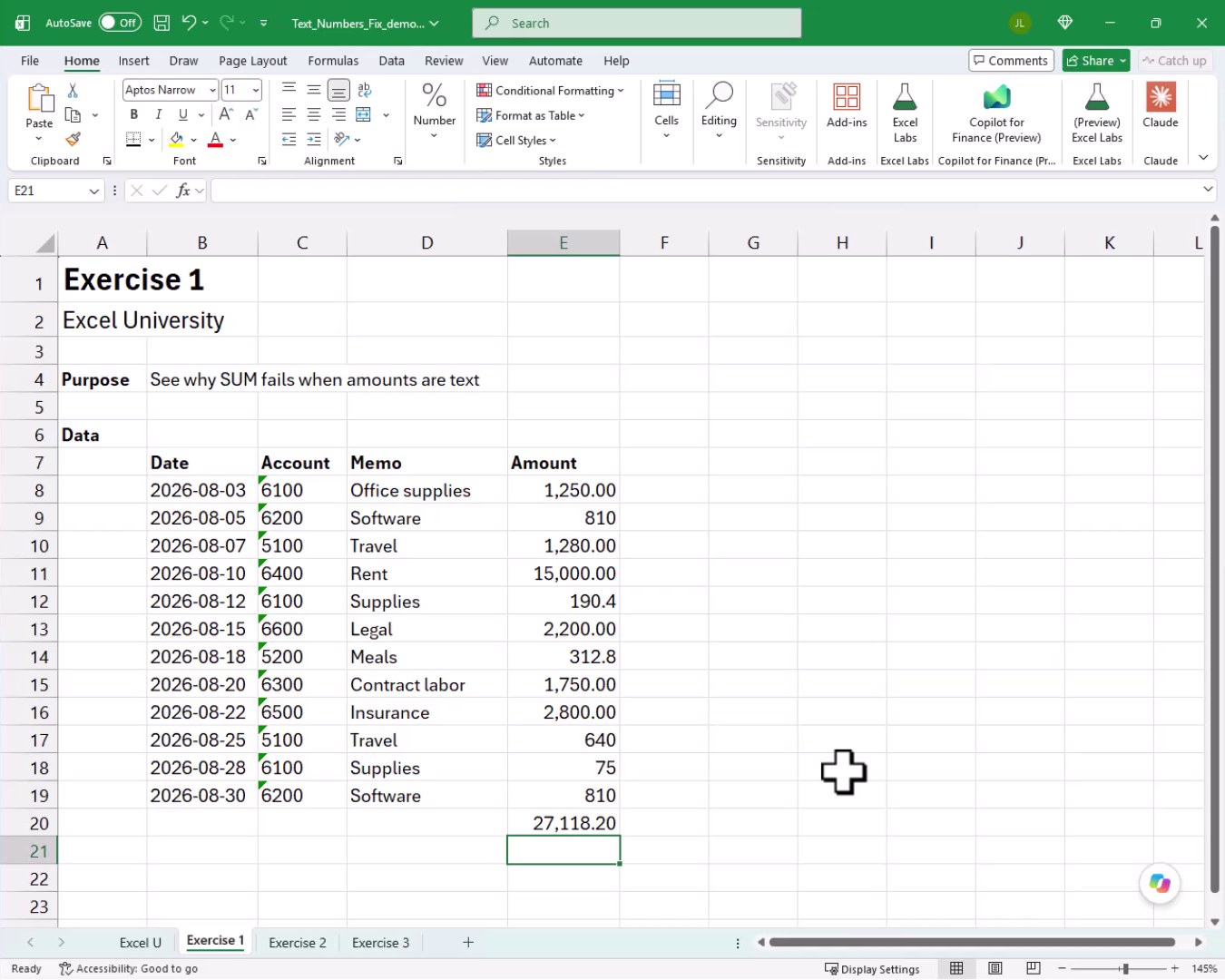
The correct total appears: 27,118.20. Mission accomplished for Exercise 1. But this approach requires those green triangles to be present, and it is a manual step each time data is refreshed. Let’s look at a formula-based approach next.
Exercise 2: Use the VALUE Function in a Helper Column
Consider the following worksheet for Exercise 2. The same text-number dataset is back, and this time the purpose is to handle the conversion using a formula so it can be reused or embedded in other calculations.
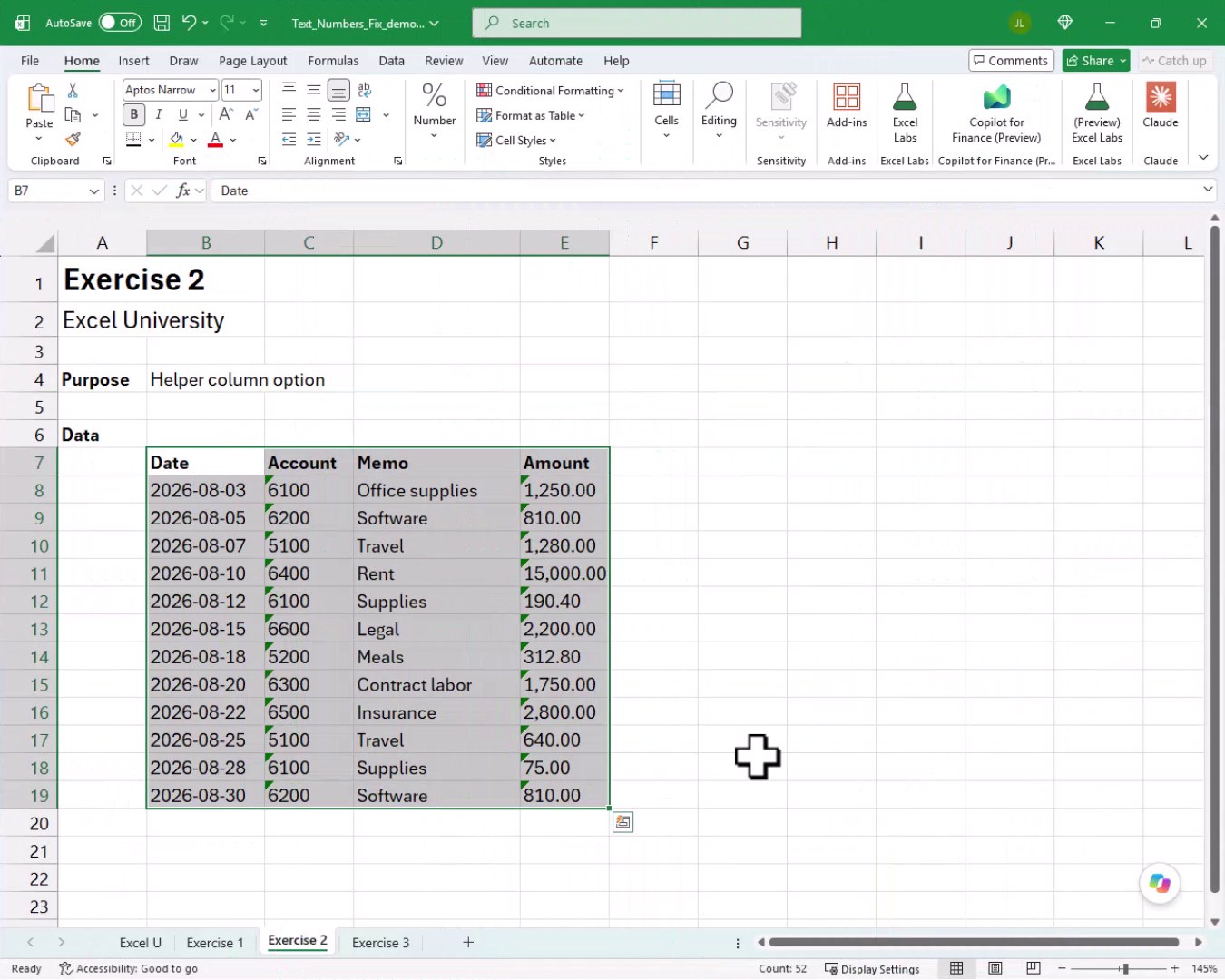
We can use the VALUE function to handle this. It reads a text string that looks like a number and returns an actual numeric value. The function arguments are:
For those new to the VALUE function, it converts a text string that represents a number into an actual numeric value. The function arguments are:
- text: the text string, or a reference to a cell containing a text string, that represents a number
We add a helper column labeled VALUE in column F. Then we write the following formula into cell F8:
=VALUE(E8)
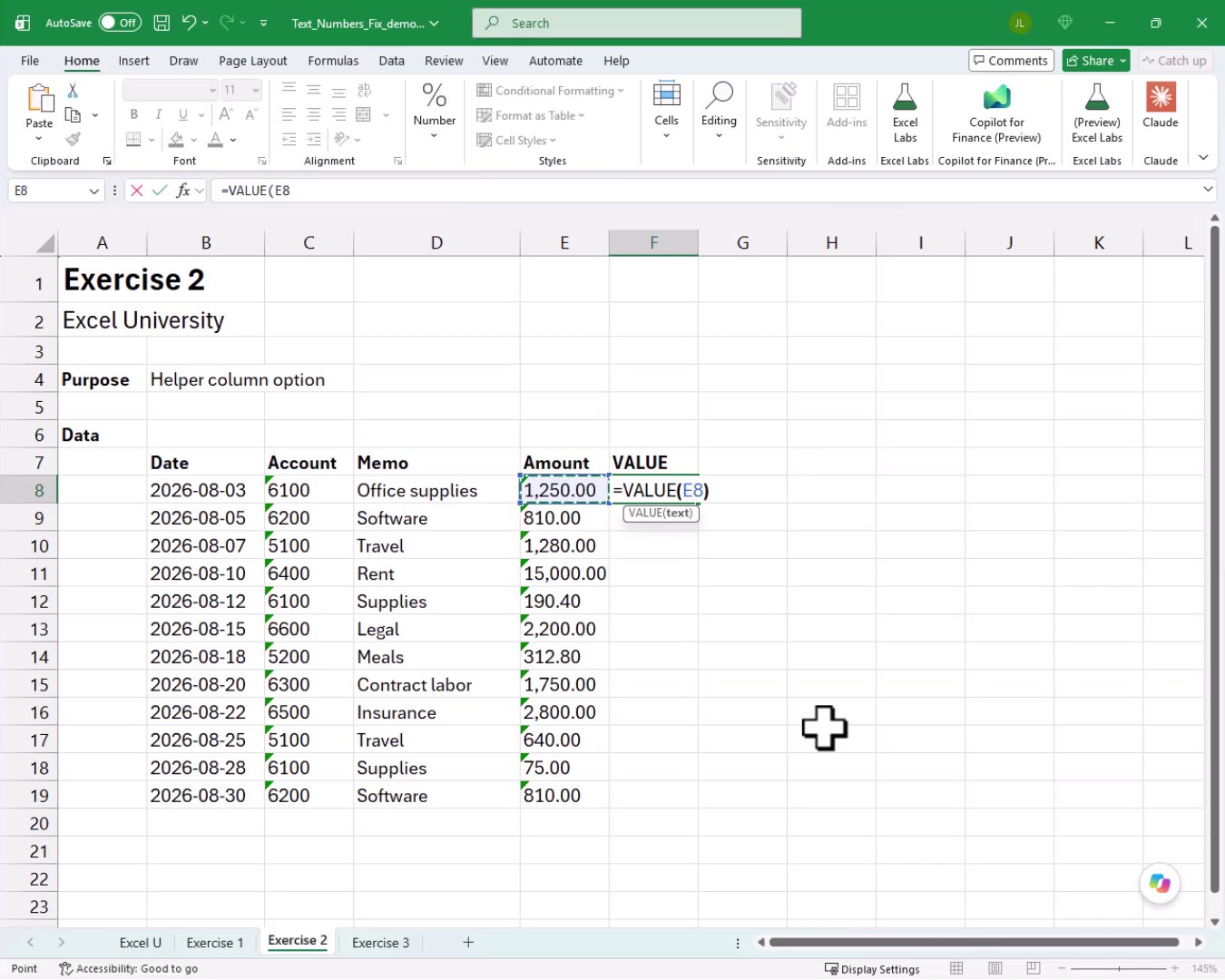
We fill the formula down, and bam:
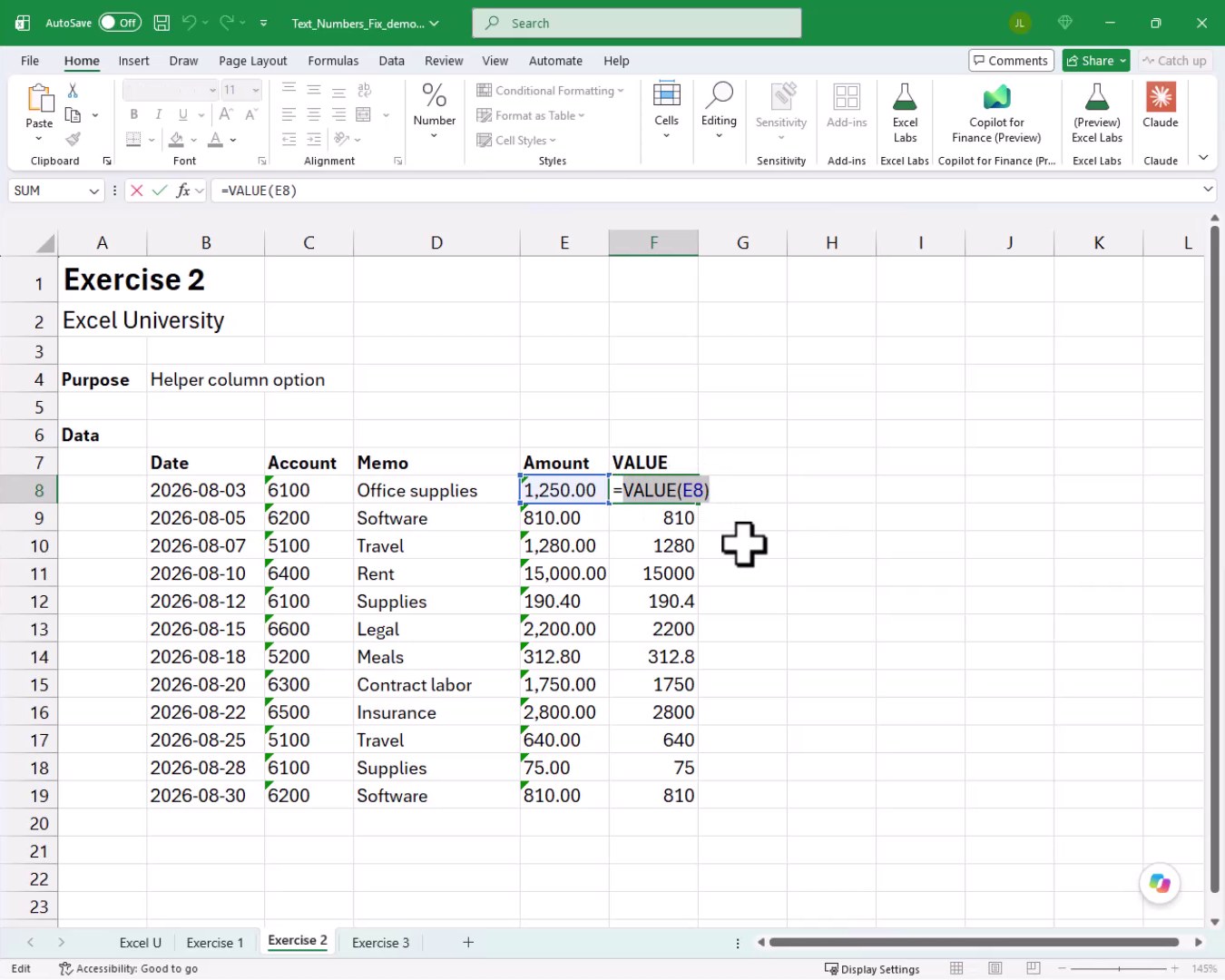
Column F now holds true numeric values that any other formula can use directly. And here is where VALUE gets really useful. We do not need a separate helper column at all. We can nest VALUE right inside another formula. For example, to calculate 5% of a text-number amount, we can write:
=VALUE(E8)*0.05
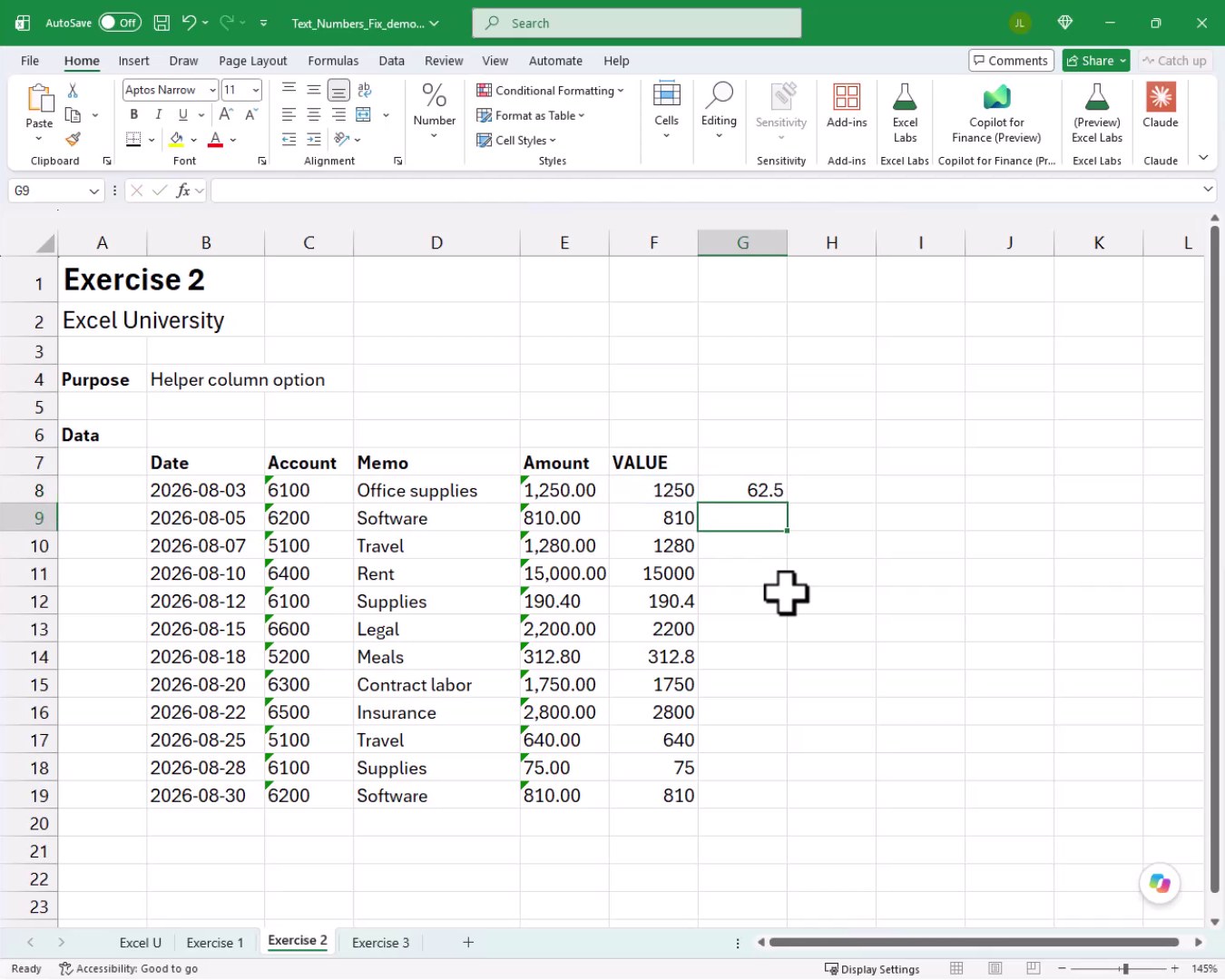
By wrapping VALUE around the cell reference, we convert on the fly AND keep the formula compact. No extra column required if we do not want one.
Exercise 3: Paste Special Add
Now it is time to make things more interesting. Exercise 3 shows a third approach that requires no formulas and no green triangles. It is a fast in-place conversion trick using Paste Special.
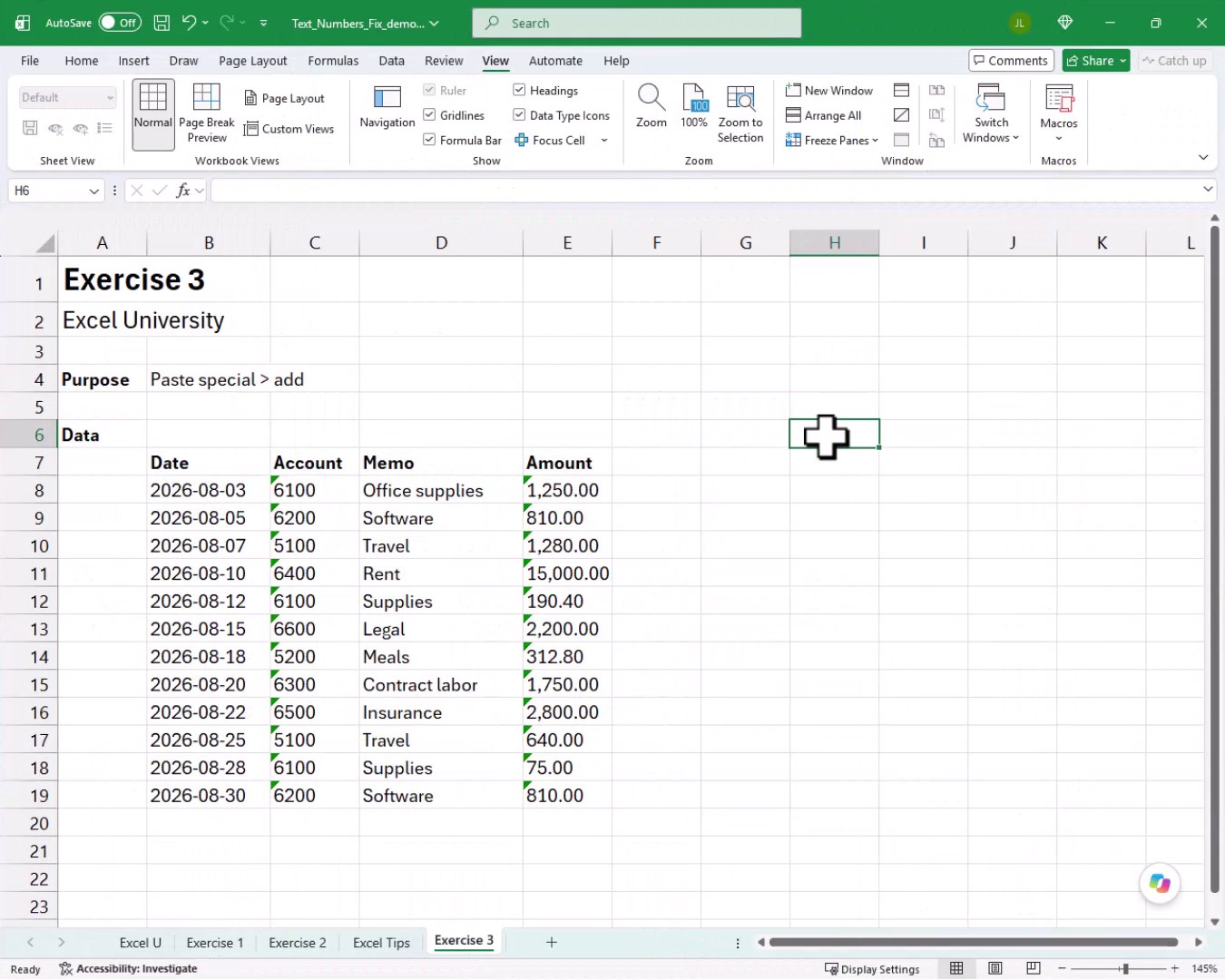
Here is how it works. First, we click on any empty cell in the worksheet. We copy it with Ctrl+C. That places a zero on the clipboard. Next, we select our text-number range, E8:E19 in this case. Then we open Paste Special (Ctrl+Alt+V or right-click, Paste Special) and choose the Add operation.
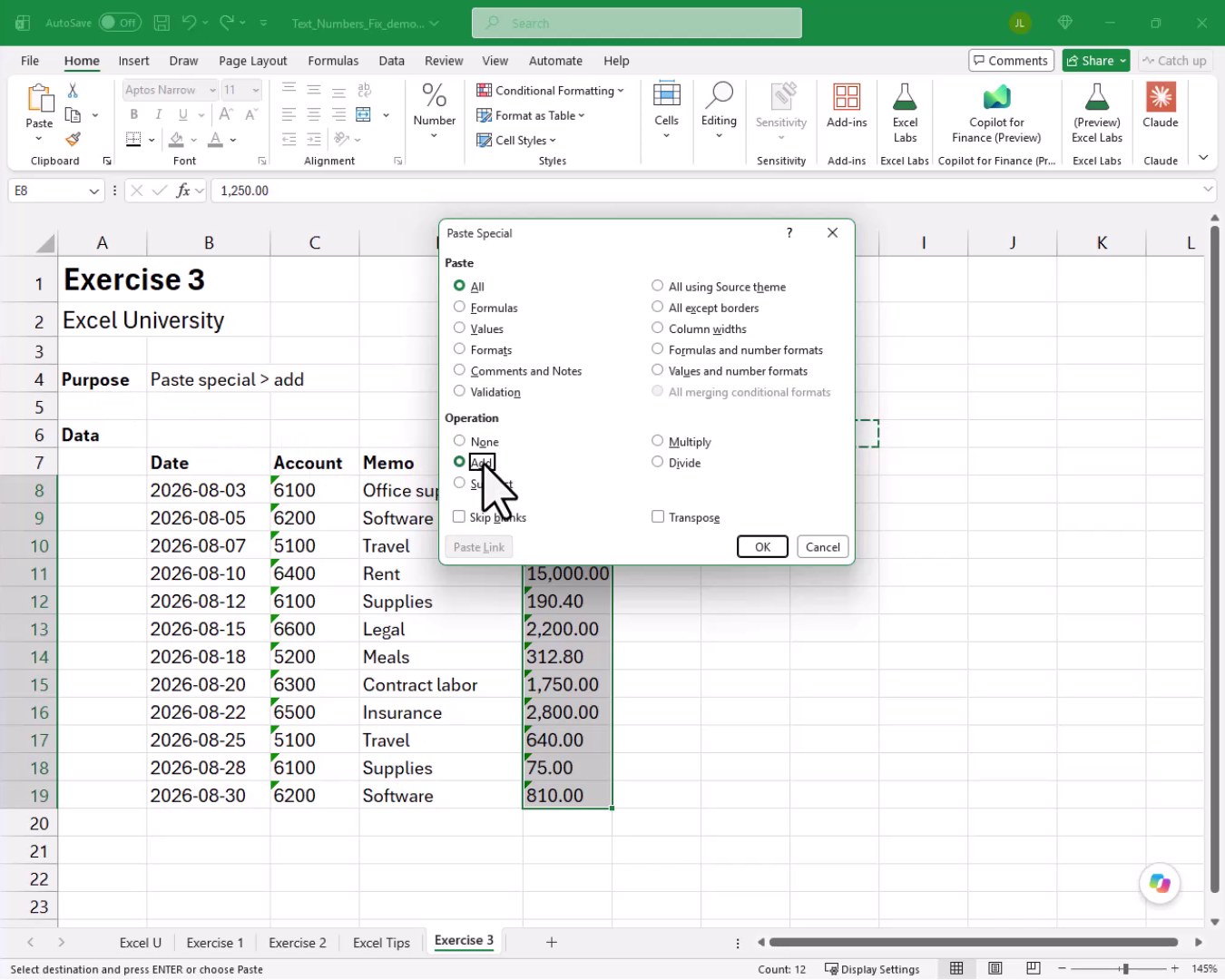
When we click OK, Excel performs a mathematical addition of zero to every cell in the range. Adding zero does not change any value, but the math operation forces Excel to interpret each cell as a number. The text values are converted in place.
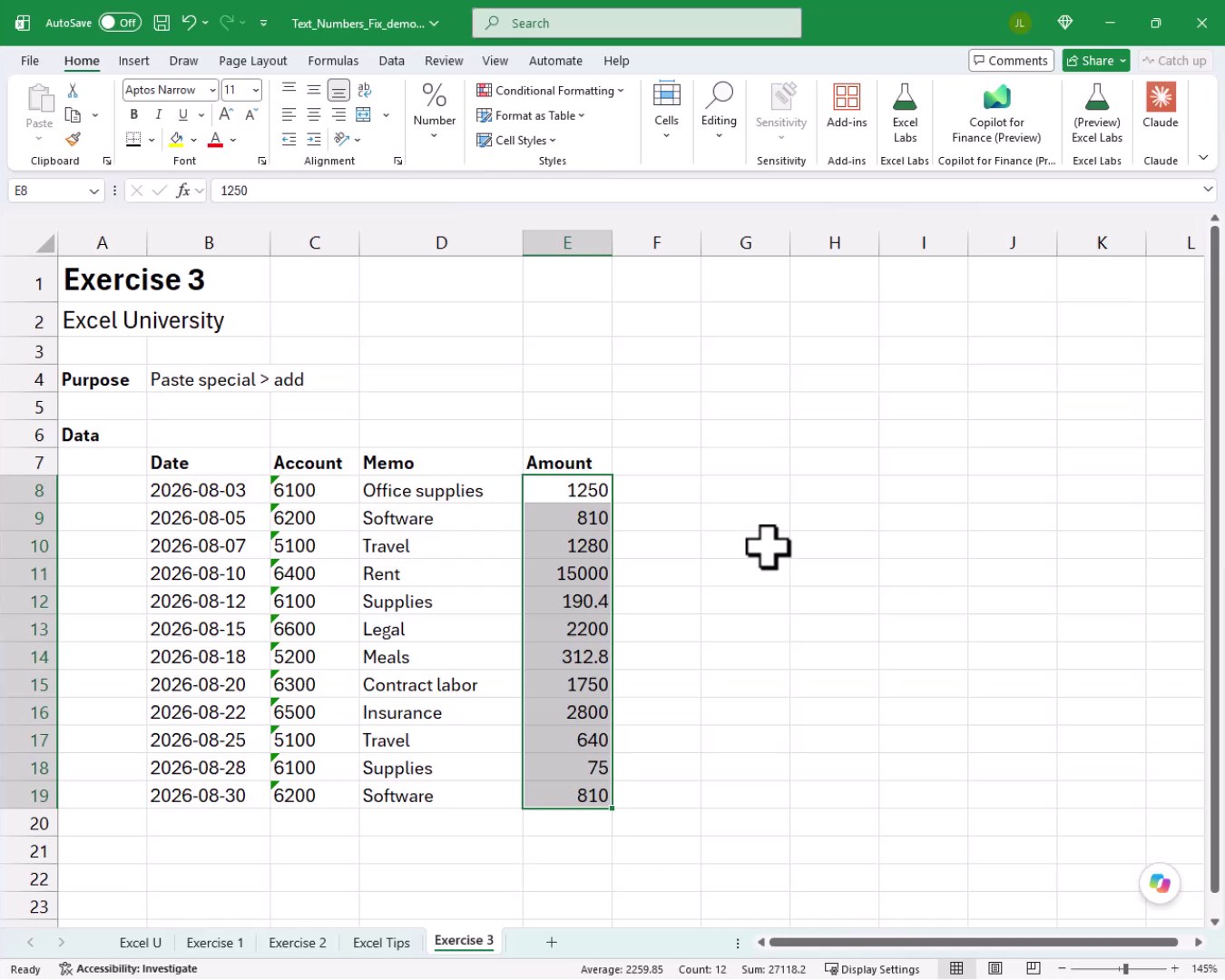
The values are now right-aligned, the green triangles are gone, and the status bar at the bottom confirms the correct sum. And that is how we can convert an entire range of text numbers in just a few clicks. Mission accomplished!
Summary
So those are a few different ways to fix text numbers in Excel. When SUM returns zero, it is almost always because the values look like numbers but are stored as text. We can use the built-in error alert to Convert to Number, wrap cells in the VALUE function (either in a helper column or nested inside another formula), or copy an empty cell and use Paste Special with the Add operation to force an in-place conversion. Each approach gets the job done depending on our situation.
If you have any suggestions, improvements, alternatives, or questions, please share by posting a comment below … thanks!
Sample File
FAQs
Why does SUM return zero instead of the correct total?
SUM returns zero when the values in the range are stored as text. Excel cannot add text, so each text cell contributes zero to the total. The fix is to convert those text values into real numbers using any of the three methods covered in this tutorial.
How do we tell if a number is stored as text?
The most common clues are green error triangles in the upper-left corner of the cell, values that are left-aligned instead of right-aligned, and SUM or other math formulas returning zero. We can also click a cell and check the formula bar for a leading apostrophe, which forces text storage.
What is the fastest method when green triangles are visible?
Select the full range of text numbers, hover over the yellow error alert icon that appears, and click Convert to Number. This converts the entire selected range in one step with no formulas required.
When should we use the VALUE function instead of the error alert?
VALUE is the better choice when the data refreshes regularly, such as from an import or a linked source. Because VALUE is a formula, it automatically handles any new text numbers each time the data updates. The error-alert approach is a one-time manual fix.
Can we nest VALUE inside other functions like SUMIF or AVERAGE?
Yes. VALUE can be nested inside almost any function that expects a number. For example, =VALUE(E8)*0.05 works as shown in Exercise 2. We can also wrap VALUE around a cell reference inside SUMIF, AVERAGE, or any other function that would otherwise ignore a text value.
Why does Paste Special Add convert text to numbers?
When we paste an empty cell using the Add operation, Excel adds zero to each value in the destination range. Performing any arithmetic forces Excel to evaluate the cell as a number. Since adding zero does not change the actual value, the result is an in-place conversion from text to number.
Does the Paste Special Add method work on large ranges?
Yes. We select the entire range before opening Paste Special, and the Add operation applies to every cell in that selection at once. It is actually one of the quickest ways to convert a large column of text numbers without writing any formulas.
Will formatting the cells as Number fix the problem?
No. Changing the cell format from Text to Number changes how the cell looks but does not convert the underlying stored value. The cell still holds a text string. We need to use one of the three conversion methods (error alert, VALUE, or Paste Special Add) to actually change the stored value.
What causes numbers to be stored as text in the first place?
Common causes include importing data from CSV files, external databases, or accounting systems that export amounts as text strings. A leading apostrophe typed before a number also forces text storage. Sometimes cells are formatted as Text before data entry, which causes Excel to treat any entered value as text.
Do these methods work in older versions of Excel like Excel 2019?
Yes. The error-alert Convert to Number option, the VALUE function, and the Paste Special Add trick all work in Excel 2019, Excel 2016, and earlier versions. None of these methods require Excel 365 or any dynamic array features.

Excel is not what it used to be.
You need the Excel Proficiency Roadmap now. Includes 6 steps for a successful journey, 3 things to avoid, and weekly Excel tips.
Want to learn Excel?
Our training programs start at $29 and will help you learn Excel quickly.