
Sum Faster in Excel: Shortcut, Tables, and Total Row
If there is one Excel function we use more than any other, it is probably SUM. And because we use it so often, it is worth learning how to insert it as fast as possible. In this tutorial, we cover the Alt+= keyboard shortcut that writes the SUM formula for us, how to sum multiple columns at once with a single keystroke, and how Excel Tables with a Total Row keep our totals accurate as new data rolls in. Let’s dive in.
Exercise 1: The Alt+= AutoSum Shortcut
Let’s say we have a list of expense transactions with an Amount column, and we want the total at the bottom. The traditional approach is to click the cell below the data, type the formula manually, and press Enter.

Since we are about to use the SUM function, here is a quick look at what it does. It returns the sum of a set of values. The function arguments are:
- number1: the first value, cell reference, or range to add
- number2, …: additional values, cell references, or ranges to add (optional)
The slow way is to click cell E20, type the formula, select the range manually, and press Enter:
=SUM(E8:E19)
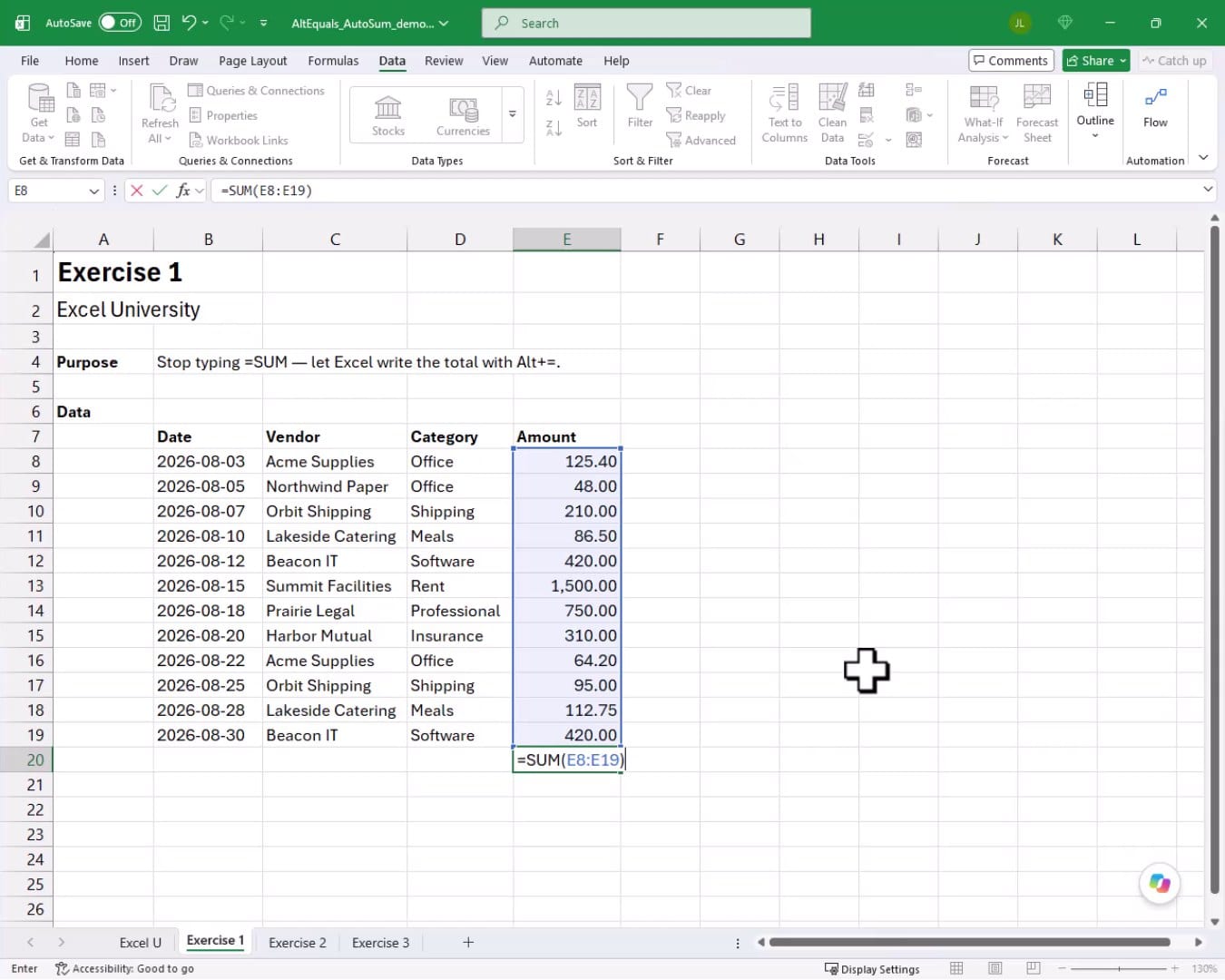
That works fine. But since we write SUM formulas constantly, we should do it the fast way. Instead of typing the formula by hand, we just click cell E20 and press Alt+=. Excel figures out the range for us and proposes the SUM formula automatically.
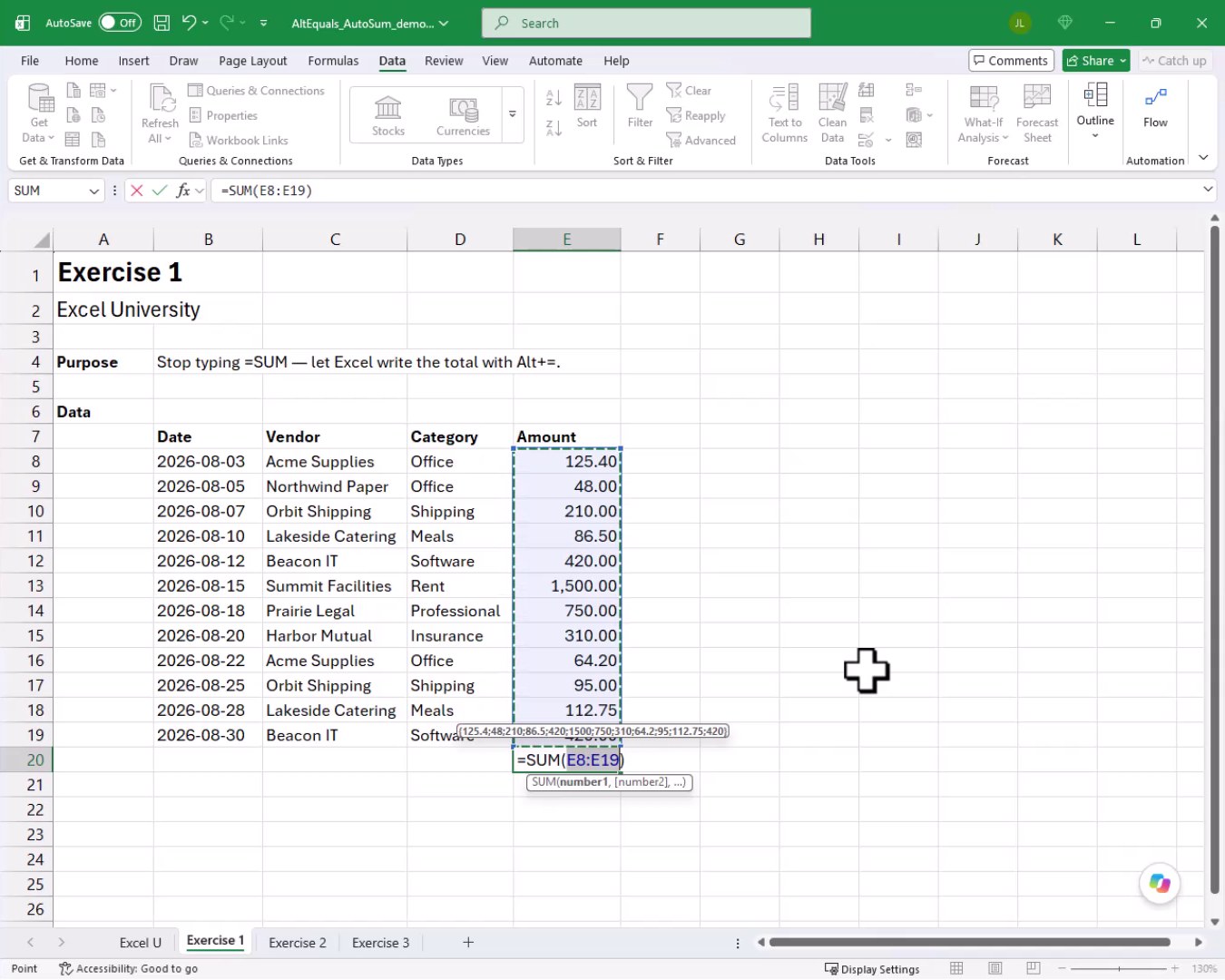
We press Enter, and bam:
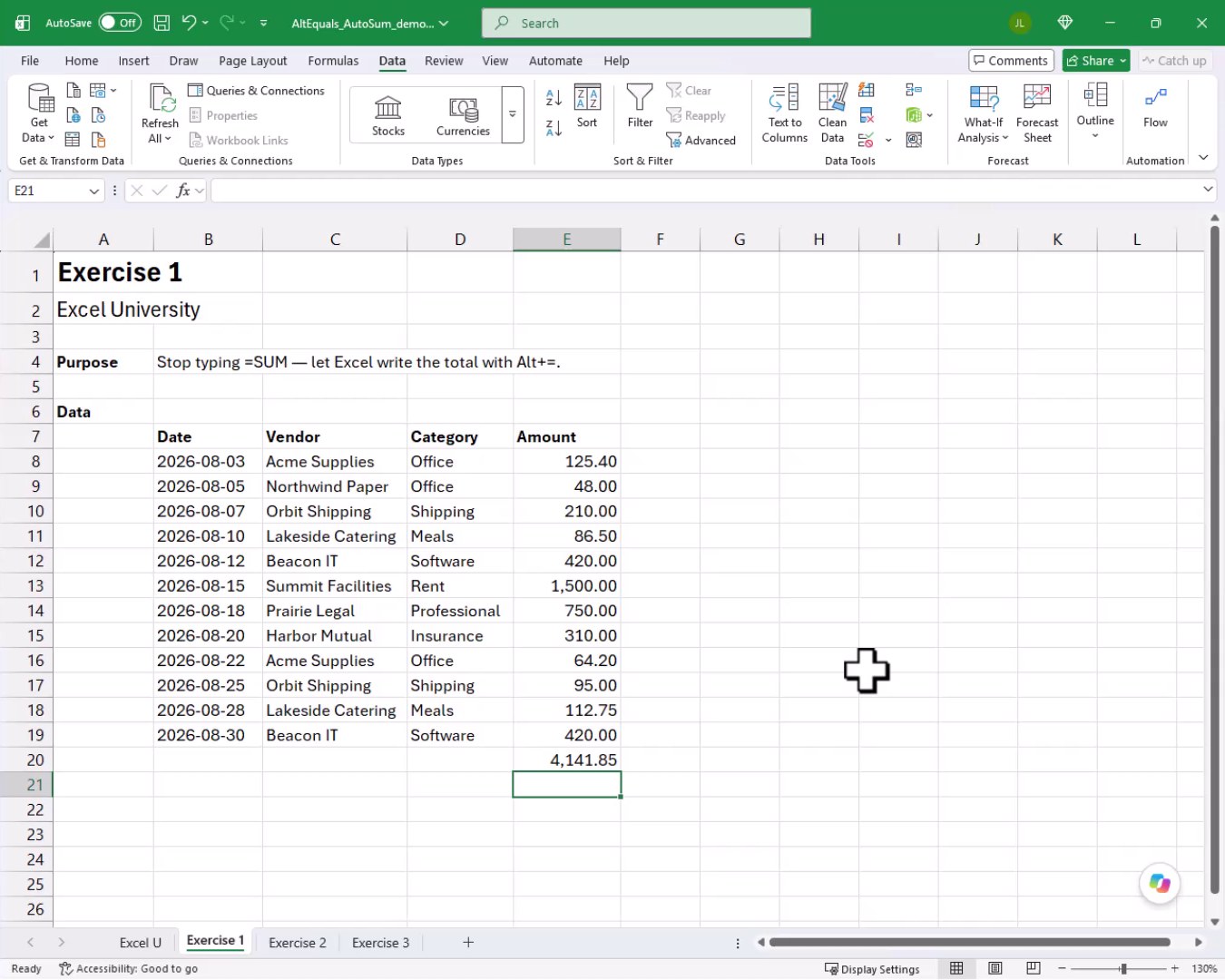
One keystroke. The total is there. That is WAY faster than writing the formula by hand every time. Mission accomplished for Exercise 1.
Exercise 2: Excel Tables and the Total Row
Now that we have the Alt+= shortcut down, it is time to tackle a bigger problem. What happens when new rows get added to the data? A plain SUM formula will not automatically pick up new rows typed below the original range. We would have to manually update the formula every time.
The fix is to use an Excel Table. When our data lives inside a Table, the Table expands automatically as new rows are added, and the Total Row expands right along with it. Let’s convert our range. We select any cell in the data, go to Insert, click Table, and click OK.
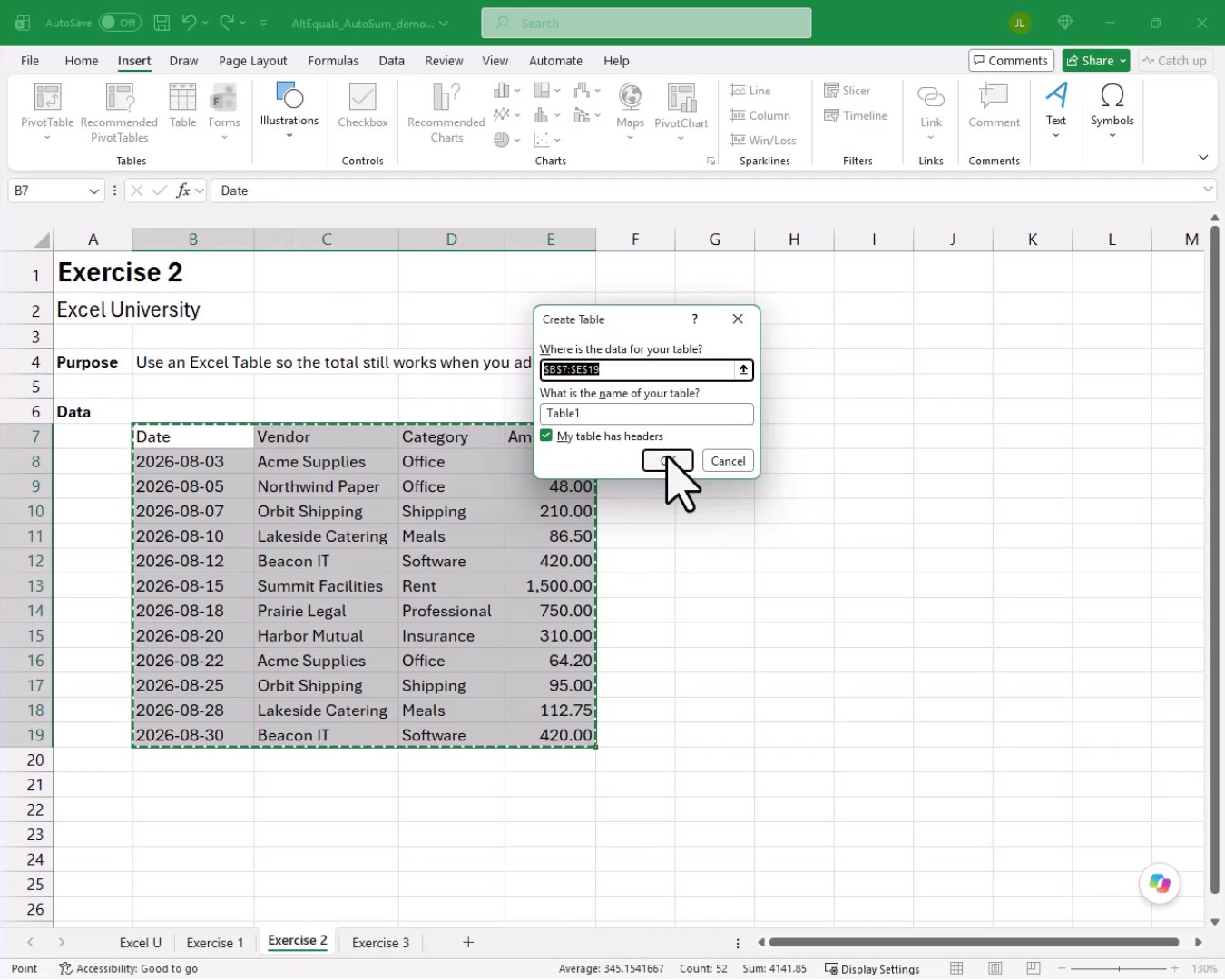
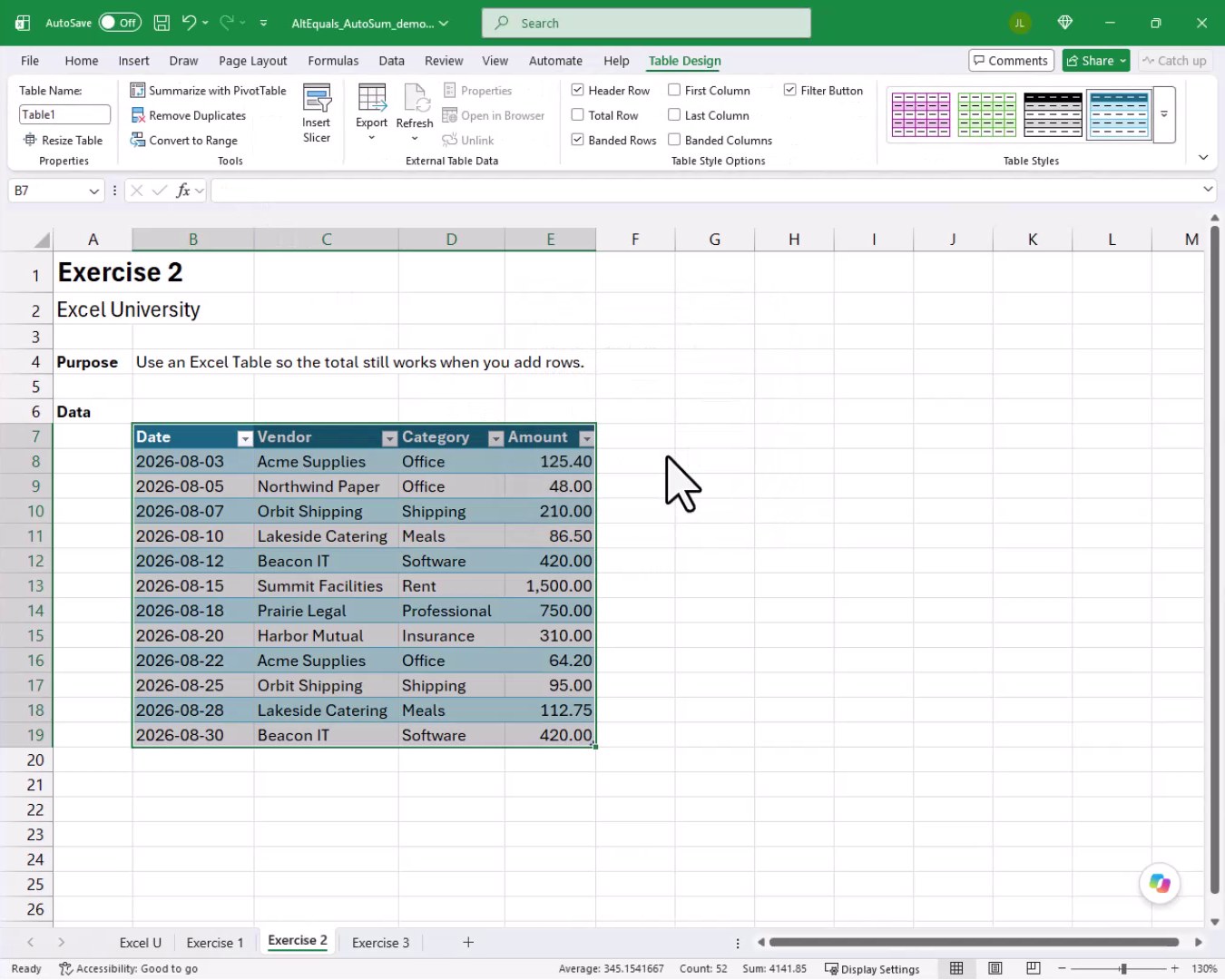
With the Table in place, we click any cell inside it, go to the Table Design tab on the ribbon, and check the Total Row checkbox.
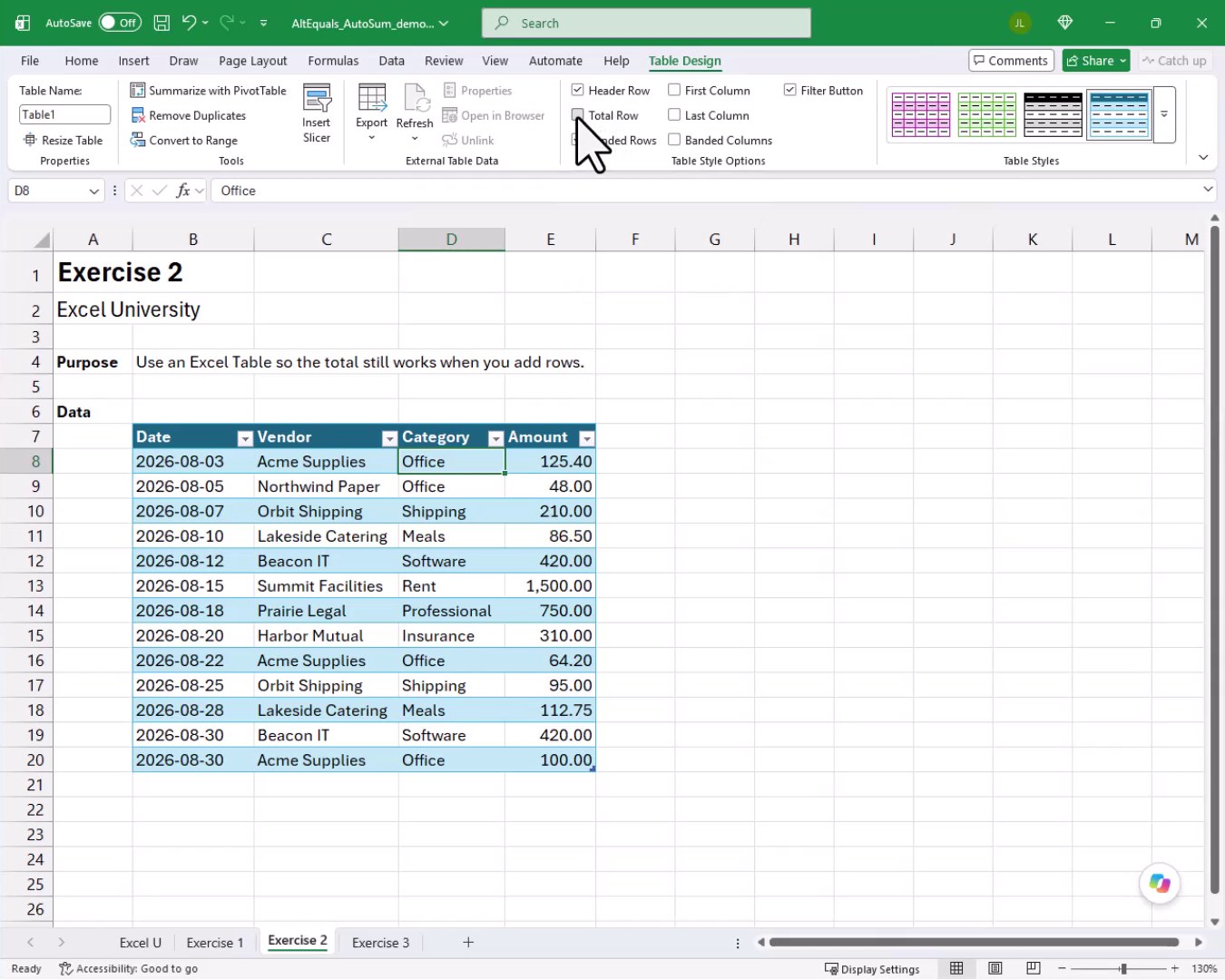
We get a total without even writing a formula:
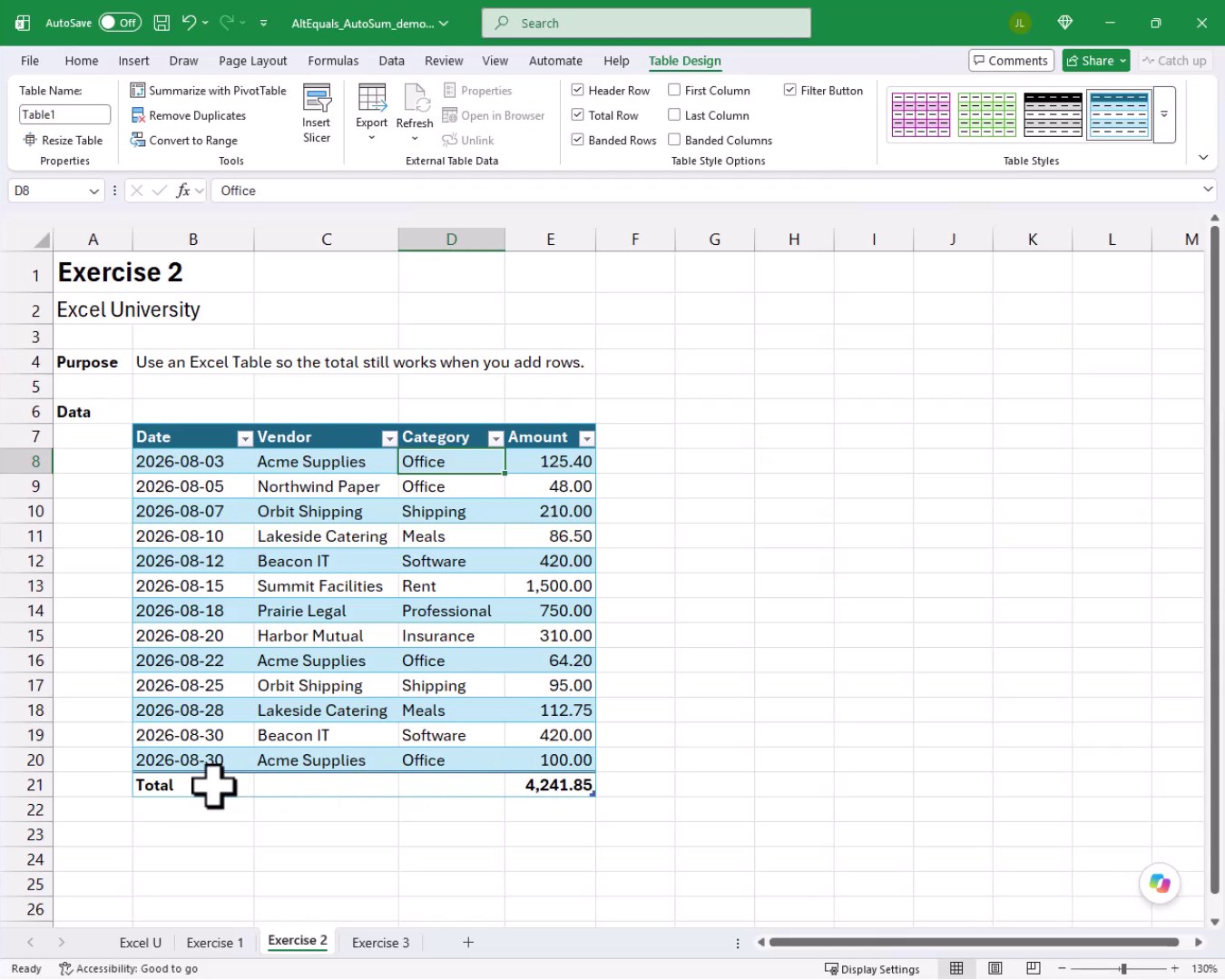
The Total Row appears instantly with the sum already calculated. Now here is the really cool part. What if we need to add another new row, but the Total Row is sitting right at the bottom? No worries. We just navigate to the last data cell in the last column of the Table and press Tab. Excel inserts a new Table row AND pushes the Total Row down automatically.
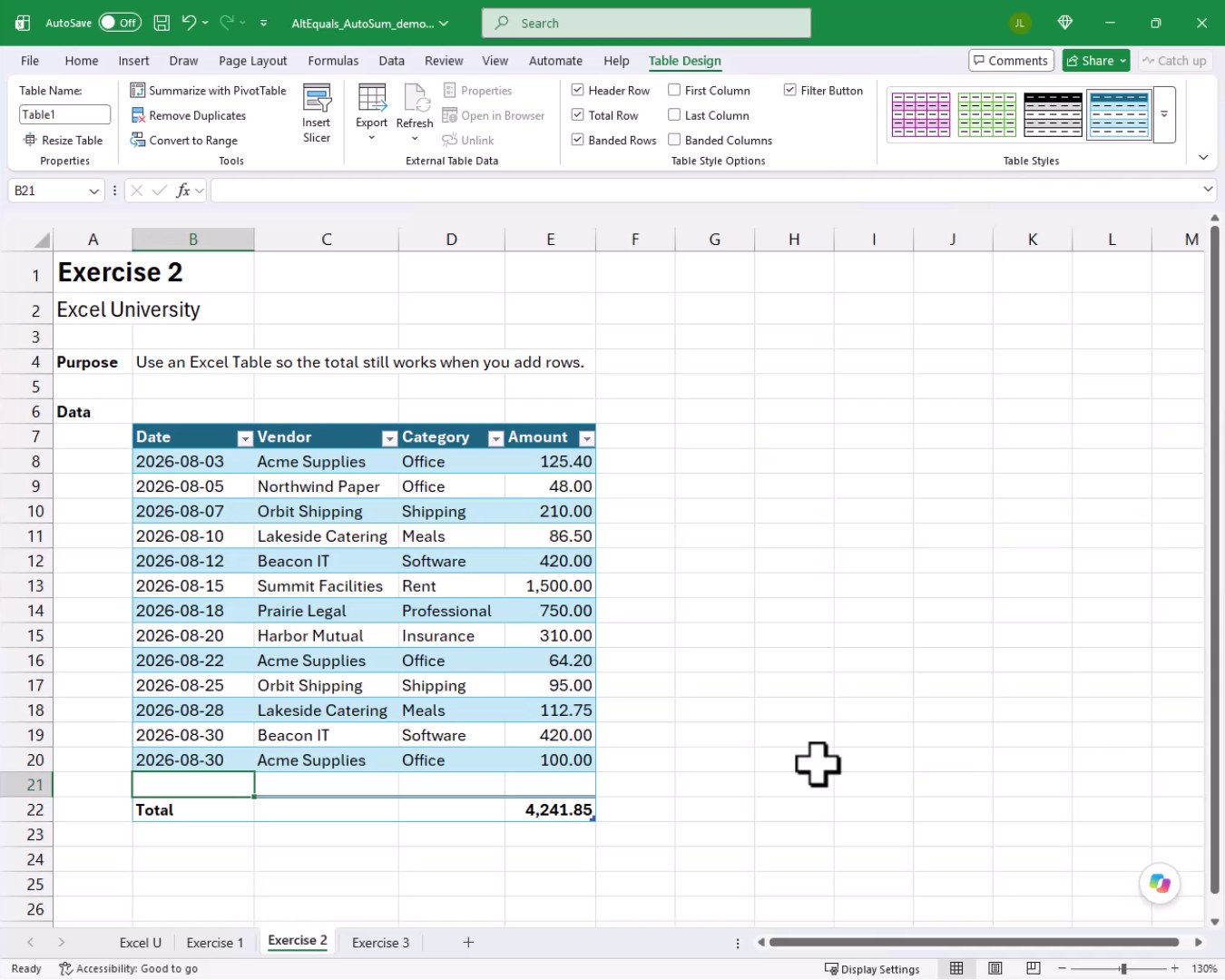
We fill in the new row with data, and the Total Row updates to include the new amount on the fly. The total always stays correct, no matter how many rows we add. And that is how we can keep totals accurate without babysitting a formula.
Exercise 3: Summing Multiple Columns at Once
Let’s bring this tutorial home with one more trick. Consider the following worksheet:
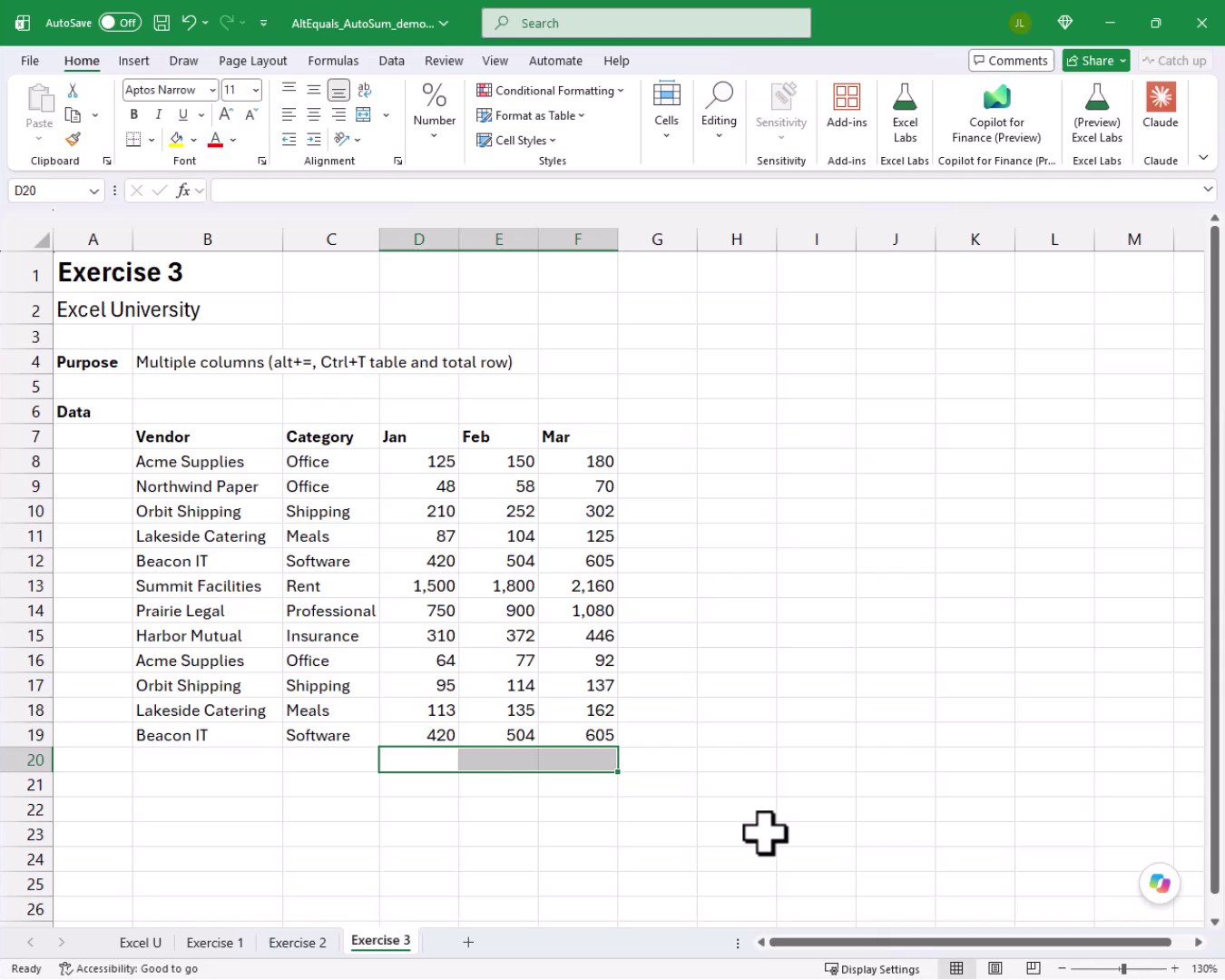
We have three amount columns, Jan, Feb, and Mar, and we want totals below all three. We could run Alt+= three times, once per column. But there is an even faster way. We select all three total cells at once (D20:F20) and press Alt+=. Excel writes a SUM formula in each selected cell simultaneously.
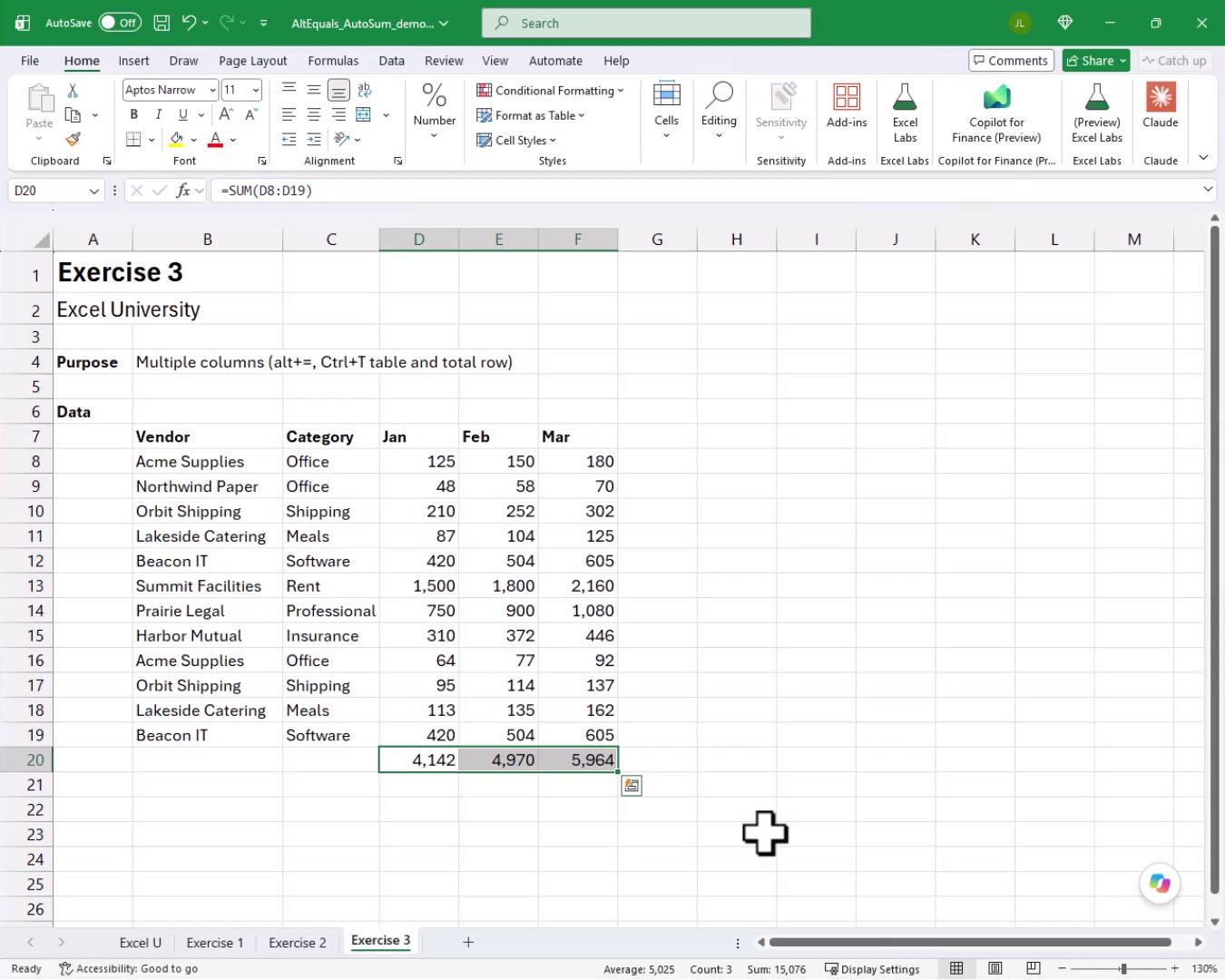
Three totals in one shot. That is a serious time saver. Now, what if we also want to convert this to a Table and add a Total Row? We can do exactly that. We select our range, go to Insert, Table, and click OK. Then on the Table Design tab, we check the Total Row checkbox.
When the Total Row first appears on a multi-column Table, it may only show a total for the last column. Not a problem. We can click the total cell for each column, use the dropdown that appears, and choose Sum from the list. We repeat that for each amount column, and all three totals appear in the Total Row.
![Exercise 3 Excel Table with a Total Row at row 20 showing totals of 4,142 for Jan, 4,970 for Feb, and 5,964 for Mar, with the formula bar displaying =SUBTOTAL(109,[Jan]).](https://www.excel-university.com/wp-content/uploads/excel-autosum-alt-equals-12.jpg)
And that is how we can sum multiple columns in a Table with a fully customized Total Row. Mission accomplished!
Summary
In this tutorial, we covered three ways to work with SUM more efficiently. First, the Alt+= keyboard shortcut lets us insert a SUM formula instantly without typing a single character. Second, converting our data to an Excel Table and enabling the Total Row gives us a total that updates automatically as new rows are added. Third, we can select multiple total cells across several columns and press Alt+= once to sum all of them in a single step. Together, these techniques save real time every single day.
If you have any suggestions, improvements, alternatives, or questions, please share by posting a comment below … thanks!
Sample File
FAQs
What does the Alt+= shortcut do in Excel?
Pressing Alt+= triggers the AutoSum feature. Excel looks at the cells directly above (or to the left) of the active cell, proposes a SUM formula covering that range, and waits for us to confirm it with Enter. It is the fastest way to insert a SUM formula without typing anything manually.
Does the Alt+= shortcut work on a Mac?
On a Mac, the equivalent shortcut is Command+Shift+T. It does the same thing as Alt+= on Windows, proposing a SUM formula based on adjacent numbers.
Can we use Alt+= to sum a row instead of a column?
Yes. If we click a cell to the right of a row of numbers and press Alt+=, Excel proposes a SUM formula that covers the numbers to the left. It works horizontally just as well as vertically.
Why does the Alt+= shortcut sometimes select the wrong range?
Excel makes its best guess at the intended range based on adjacent data. If there are blank cells in the column, or if the data does not start right above the total cell, the proposed range might not be exactly right. We can always adjust the selection before pressing Enter to confirm.
What is the keyboard shortcut to convert a range to an Excel Table?
We can press Ctrl+T (Windows) or Command+T (Mac) while any cell in the range is selected. The Create Table dialog will open, where we confirm the range and click OK. No ribbon navigation required.
What formula does the Table Total Row actually use?
The Total Row uses the SUBTOTAL function with function number 109, which means it sums only the visible rows. This is especially useful when filtering the Table, because the total updates to reflect only the rows that are currently visible.
If we add new rows to a Table, does the Total Row update automatically?
Yes. Because the Total Row formula references the entire Table column by name, it automatically includes any new rows added to the Table. We do not need to adjust the formula at all.
Can we change the Total Row from Sum to a different function?
Absolutely. When we click a cell in the Total Row, a dropdown arrow appears. Clicking it reveals options including Average, Count, Max, Min, Sum, and more. We can set each column independently, so different columns can display different aggregations at the same time.

Excel is not what it used to be.
You need the Excel Proficiency Roadmap now. Includes 6 steps for a successful journey, 3 things to avoid, and weekly Excel tips.
Want to learn Excel?
Our training programs start at $29 and will help you learn Excel quickly.