
Intro to AI Automation with Zapier
When it comes to automation, Excel users can certainly streamline tasks within the grid. But sometimes, we need to automate tasks outside of Excel—especially when it comes to integrating external tools and triggering actions automatically. That’s where Zapier comes in.
In this post, we’ll take a beginner-friendly dive into Zapier’s AI automation capabilities by creating a fun and dynamic daily weather report. The main goal isn’t necessarily to become a weatherman; it’s to start learning how Zapier works and how we can harness AI within it. Once we’re comfortable with these tools, we’ll be well-positioned to integrate Zapier with services like Excel Online, Gmail, and more.
Video
Project Overview: AI-Powered Weather Report Email
In this hands-on project, we’ll build a “Zap”—Zapier’s term for an automated workflow—that checks the weather each morning, uses AI to craft a colorful weather narrative, and then sends it to us via email.
Here’s what we’ll do:
- Use Zapier’s built-in Schedule trigger to start the process each morning
- Use Zapier’s Weather app to retrieve current weather data
- Pass this data to Zapier’s built-in AI tool to rewrite it in a fun and engaging tone
- Send the result via the Email by Zapier app
Let’s walk through each step together.
Step-by-Step: Build the AI Weather Email Zap
Step 1: Start a New Zap and Set the Trigger
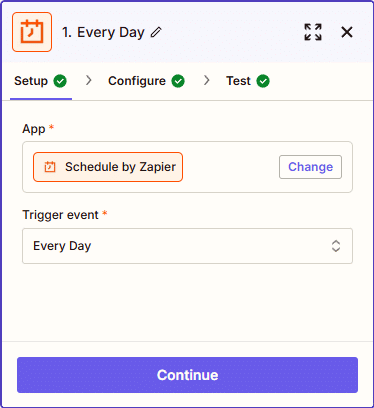
We’ll begin by using the built-in Schedule by Zapier trigger:
- Log into your Zapier account
- Create a new Zap and select “Schedule” as the trigger app
- Choose “Every Day” as the trigger frequency
- Set the time you want the email delivered (e.g., 5:30 AM) and continue
Step 2: Add Weather Data
- Add an Action step and choose “Weather by Zapier”
- Select the action event: “Get Current Weather”
- Retrieve latitude and longitude for the desired location. For example, use this tool to get coordinates for Juneau, Alaska (or any preferred location)
- Paste the latitude and longitude into the fields and choose Fahrenheit for units

Step 3: Spice It Up with AI
Add another action and select “AI by Zapier”
Choose the action: “Analyze and Return Data”
Use the Prompt Builder to craft your AI request
Example input that you enter:
You are a dynamic weather reporter. I want you to take the basic weather data that I will provide and create a lively weather report using drama, humor, and additional interesting commentary.Example of what the prompt builder generates:

Note: you map the required fields such as temperature, humidity, wind speed, wind bearing, and a brief summary from the earlier weather action step by clicking the plus button in the upper right.
You can continue and then test and you can see the AI will return a vivid, friendly weather report narrative:

Step 4: Send the Email
- Add a final step and select Email by Zapier
- Choose “Send Outbound Email” as the action
- Set the recipient to yourself
- Fill in the subject, e.g., “Today’s Weather Report”
- Use the dynamic field from the AI step as the email body (AI output field)
- Optional: Add a reference in the footer to the Zap’s name so future edits are easier

Step 5: Run a Test and Publish
- Click “Test” on the final email step to preview the message
- If all looks good, give your Zap a name like “AI Weather Report”
- Click Publish
Your final zap looks something like this:

You’re all set! Every morning at the time you defined, this Zap will run quietly in the background and deliver a creative, AI-generated weather email right to your inbox.
Summary
This project is more than just a fun weather email—it’s an essential first step toward mastering AI automation with Zapier. We’ve learned how to:
- Create a time-based trigger to start the zap
- Added a zap step to retrieve the current weather for a designation location
- Add an AI step in the zap to generate a weather report
- Use the email step to email you the report
With this foundational knowledge, we’ll be ready for more advanced Zapier workflows that integrate directly with apps like Microsoft Excel, Gmail, and Google Sheets.
Thanks for joining us on this exciting journey into the world of AI automation with Zapier. Stay tuned for more hands-on automation tutorials, especially those that bring the power of Excel into the Zapier ecosystem!
Frequently Asked Questions (FAQs)
What is Zapier?
Zapier is an online automation tool that allows users to connect different apps and services to automate repetitive tasks without coding.
Can Zapier integrate with Excel?
Yes! Zapier connects to Excel Online and supports actions like adding rows, updating rows, and responding to new data entries.
How much does Zapier cost?
Zapier offers a free plan with limited tasks per month. Paid plans unlock more zaps, steps, and premium app connections.
Can I use a different AI tool in a Zap?
Yes! While we used AI by Zapier here for simplicity, you can use external AI tools via related Zapier apps or APIs with webhooks in more advanced zaps.
How do I find latitude and longitude for other cities?
Use sites like latlong.net to quickly find the coordinates of any city you wish to monitor.
What else can I do with Zapier and AI?
You can automate customer support, generate summaries, analyze sentiment, translate text, and much more.
Can I edit the automation after publishing?
Absolutely. Go to your Zap dashboard, select the zap, and click “Edit” to modify any part of the workflow.
Do I need to code to use Zapier?
No coding is required! Zapier is designed to let users create and manage automations through a user-friendly interface.
What’s next after this project?
In upcoming blog posts, we’ll explore integrating Zapier with Gmail, Excel, and Forms to build more powerful workflows.

Excel is not what it used to be.
You need the Excel Proficiency Roadmap now. Includes 6 steps for a successful journey, 3 things to avoid, and weekly Excel tips.
Want to learn Excel?
Our training programs start at $29 and will help you learn Excel quickly.