
Internal Rate of Return with XIRR
If we need to calculate the internal rate of return (IRR) for a series of cash flows occurring on irregular dates, the standard IRR function in Excel falls short. That’s where XIRR steps in. The XIRR function allows us to incorporate actual dates for each cash flow, offering a more precise and reliable result which is especially critical for real-world financial modeling.
Video
What Is the XIRR Function in Excel?
In this post, we’ll walk through how to use the XIRR function in Excel, compare it with the standard IRR function, and demonstrate how actual timing affects IRR results. We’ll wrap up with a sample file download and answers to frequently asked questions to ensure we cover all angles of this invaluable Excel financial function.
The XIRR function calculates the internal rate of return for a schedule of cash flows occurring at uneven intervals. It uses actual calendar dates rather than assuming even distribution of periods like the traditional IRR function.
Syntax:
=XIRR(values, dates, [guess])
values: The array of cash flows, with the initial investment usually being negative.dates: The array of dates corresponding to each cash flow.guess: Optional. Our estimate for the IRR (Excel defaults to 0.1 or 10%).
Step-by-Step Walkthrough
Step 1: Compare IRR and XIRR With Even Timing
Let’s begin by understanding how IRR and XIRR work under the assumption of regularly spaced cash flows.
In this example, we have six cash flows spaced a year apart. We compute IRR using the following formula written into C14.
=IRR(C7:C12)

Next we use the XIRR function to compute internal rate of return using the actual dates provided in column F:
=XIRR(E7:E12, F7:F12)

Both functions return roughly 12%. You’ll note that there is a slight difference. IRR assumes evenly spaced periods; XIRR uses actual dates with 365-day year assumptions, delivering a more refined result.
Step 2: Link Between XIRR and XNPV
Next, we need to understand the relationship between XIRR and XNPV (the function discussed in a prior post that calculates the net present value). In summary, the internal rate of return calculated with XIRR is the rate that sets the net present value calculated with XNPV to zero. Let’s unpack this.
Let’s say we have the following cash flows:

First let’s compute internal rate of return with XIRR:
=XIRR(B6:B11, C6:C11)

The result is approximately 12%. But, what does that mean? It means that the net present value, when using that discount rate, is break even (equals zero). To confirm this, we’ll use the result of the XIRR function in the XNPV function as follows:
=XNPV(C13, B6:B11, C6:C11)
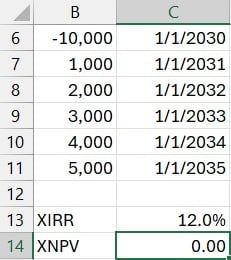
This confirms that the XIRR is the rate of return that sets XNPV to zero. This is the foundation of internal rate of return calculations … it’s the rate at which a project breaks even in present value terms.
Step 3: Understanding Impact of Irregular Dates
Let’s take it a step further and explore how timing really impacts IRR results. Here we have the same cash flow amounts and same years, but with within each year some payments hit in March, others in December, etc.
Using XIRR with this data:
=XIRR(B6:B11, C6:C11)

Instead of 12%, the result changes to approximately 9.6%. That’s a significant difference, underscoring how important exact cash flow timing is when computing internal rate of return.
Summary
While Excel’s IRR function is quick and useful for evenly spaced payments, the XIRR function provides higher accuracy when cash flows occur on irregular dates. It’s indispensable for finance professionals and investors dealing with real-world data.
Here’s a quick recap:
- Use
IRRfor regularly timed cash flows. - Use
XIRRwhen actual dates vary. XIRRreturns the rate at which theXNPVequals zero.- Minor variations in timing can lead to major shifts in return results.
Hope this walkthrough helped demystify XIRR and its applications.
Download the Sample File
Frequently Asked Questions (FAQs)
- What is the difference between IRR and XIRR in Excel?
IRR assumes cash flows occur at regular intervals, while XIRR accommodates irregular dates using exact calendar information. - When should I use XIRR instead of IRR?
Use XIRR when your cash flows occur on different dates that are not equally spaced, which is common in real-world scenarios. - Does XIRR work with negative cash flows?
Yes, XIRR can handle both positive and negative cash flows but requires at least one of each to work. - What does it mean when XIRR returns a #NUM! error?
This occurs if Excel can’t converge on a result. Common causes include inconsistent sign on cash flows or an unreasonable guess. - What is a good guess value in XIRR?
The default guess is 10% (0.1), but you can input any number depending on your scenario to help Excel converge. - Is XIRR more accurate than IRR?
Yes, especially when dealing with real-world, irregularly spaced cash flows. - Can I use XIRR in earlier Excel versions?
XIRR is available in Excel 2007 onward, including Office 365 and Excel Online. - Does XIRR use a 360-day or 365-day year?
XIRR uses a 365-day calendar year, accounting for actual day count conventions. - How do I interpret the result of XIRR?
It represents the annualized return percentage of a series of cash flows based on their specific dates, helping evaluate the performance of investments.

Excel is not what it used to be.
You need the Excel Proficiency Roadmap now. Includes 6 steps for a successful journey, 3 things to avoid, and weekly Excel tips.
Want to learn Excel?
Our training programs start at $29 and will help you learn Excel quickly.