
Internal Rate of Return IRR
When evaluating where to invest our money, whether it’s in education, a new business, or a CD, understanding the rate of return is essential. Thankfully, Excel makes this process straightforward with the IRR function, or Internal Rate of Return. This function helps us calculate the annualized rate our cash flows will earn over time. In this blog post, we’ll walk step-by-step through practical use cases to show exactly how IRR works and how we can use it to compare different financial opportunities.
Video
What is the IRR Function in Excel?
The IRR function in Excel calculates the internal rate of return for a series of annual cash flows. It’s closely related to the NPV function, because IRR is the discount rate that results in a net present value (NPV) of zero.
Syntax:
=IRR(values, [guess])- values – An array of cash flows (must include at least one negative and one positive value).
- guess – Optional. A guess for what the IRR will be. Excel usually works fine without this.
With that short intro out of the way, let’s dig into some hands-on examples.
Exercise 1: Using IRR to Evaluate a Simple Investment
Let’s begin with a basic investment scenario. Suppose we’re considering putting $10,000 into a project that returns cash flows as follows:
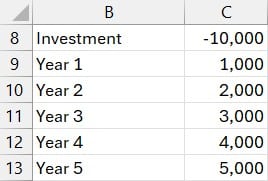
To calculate the internal rate of return:
=IRR(C8:C13)This yields an IRR of approximately 12%.

That’s the return rate required to break even on this investment, which is when NPV = 0. We can verify this by feeding the resulting internal rate of return (C15) into the NPV function as the discount rate argument and netting out the initial investment amount (C8):
=NPV(C15, C9:C13) + C8The result of this formula is shown in C16 below:
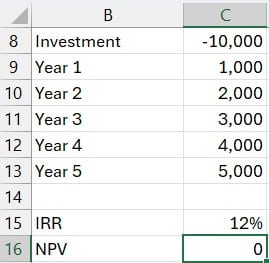
This returns zero, which confirms the computed internal rate of return is the rate at which net present value is zero.
Now that we have our bearings, let’s see how we can use this to gain insight when evaluating two different investment opportunities.
Exercise 2: Comparing Two Investment Options with IRR
Now, let’s look at a real-world decision: should we invest in a professional certification or launch a side hustle on Etsy?
We set up our worksheet by entering our initial investment amounts and related cash flows:

We can now compute the IRR for each.
Certification IRR:
=IRR(C7:C10)Etsy Store IRR:
=IRR(D7:D10)The results are:
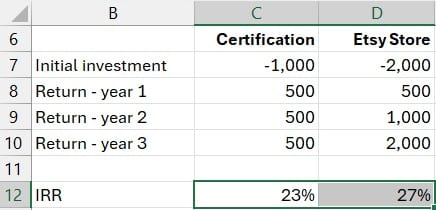
From this, we can clearly see which opportunity yields the higher return Etsy with 27% vs. 23% for the certification. While other factors need to be considered (time, risk, etc.), IRR gives us a common point of comparison.
Exercise 3: Handling Uneven Cash Flows with IRR
What if not all future cash flows are positive? The IRR function still works as long as there’s at least one positive and one negative value. For example, we can easily compute the internal rate of return for the investment and related cash flows shown below:

In cell C13, we can use the following formula:
=IRR(C6:C11)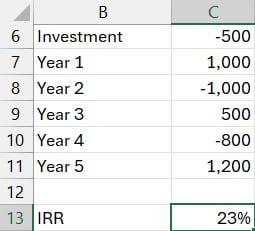
This returns approximately 23%.
Summary
The IRR function is an incredibly powerful tool for comparing different investment options. By using it, we can:
- Calculate the annualized rate of return on an investment
- Compare multiple opportunities using a common financial metric
- Evaluate cash flows that include both positive and negative values
Whether we are weighing a major purchase, a career development opportunity, or a side hustle, IRR offers a data-driven way to reveal one factor to consider in our decision.
Download the Excel File
FAQs
- What does the IRR function do in Excel?
It calculates the internal rate of return for a set of cash flows that happen at regular intervals. - What’s the difference between IRR and NPV?
IRR is the discount rate that results in an NPV of zero; NPV calculates the present value based on a specific discount rate. - Can IRR handle negative cash flows?
Yes. As long as there’s at least one negative and one positive cash flow, IRR will compute. - Can I use IRR if my investment returns vary over time?
Yes. Just enter all the expected cash flows, positive or negative, into the IRR function. - What if my cash flows aren’t evenly spaced?
In that case, use theXIRRfunction instead, which allows you to specify dates. - What’s a good IRR?
That depends on your expected return. Generally, higher IRR values are better, but they should also factor in your risk and opportunity cost. - What happens if IRR returns a #NUM! error?
This usually means Excel couldn’t find a rate that results in an NPV of zero. Try changing the guess value or double-check your cash flows. - Can I use IRR on monthly data?
Yes, but the result will be a monthly rate. You’ll need to annualize it (multiply by 12) for annual comparisons. - Is IRR always accurate?
IRR is one estimate of potential return, but real-world factors like market shifts and non-financial considerations should always be included in decisions.

Excel is not what it used to be.
You need the Excel Proficiency Roadmap now. Includes 6 steps for a successful journey, 3 things to avoid, and weekly Excel tips.
Want to learn Excel?
Our training programs start at $29 and will help you learn Excel quickly.