
Copilot Rules and Skills in Excel: Get More Consistent Results
Excel Copilot is a powerful assistant, but left to its own devices it tends to improvise. Sometimes that works great. Other times, not so much. The good news is that we can take control by setting up workbook-scoped rules and custom skills. Rules tell Copilot how to behave inside a specific workbook. Skills tell it exactly how to complete a common task, step by step, every single time. In this tutorial, we walk through three exercises that show both features in action, including how to build a custom skill that we can reuse across any workbook going forward.
Exercise 1: Setting Up Workbook-Scoped Rules with a .Rules Sheet
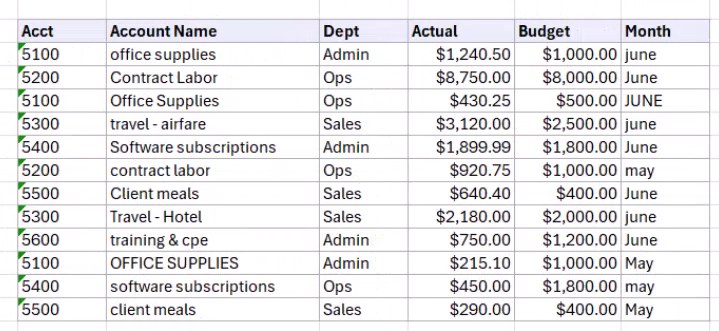
Let’s say we have a messy General Ledger data set that needs to be cleaned and formatted. Before we prompt Copilot, we want to make sure it follows our standards rather than guessing.
Copilot supports two levels of rules. First, there are global personalization rules that apply across every workbook. Second, there are workbook-scoped rules that apply only to the current file. To create workbook-scoped rules, we simply add a worksheet named .Rules to the workbook. The rules must be written in column A, and the sheet must be visible for Copilot to read them. If the sheet is hidden, Copilot ignores the workbook rules and falls back to global personalization settings.
Here is an example of a .Rules sheet with sections for formatting, formulas, reports, and a style guide:
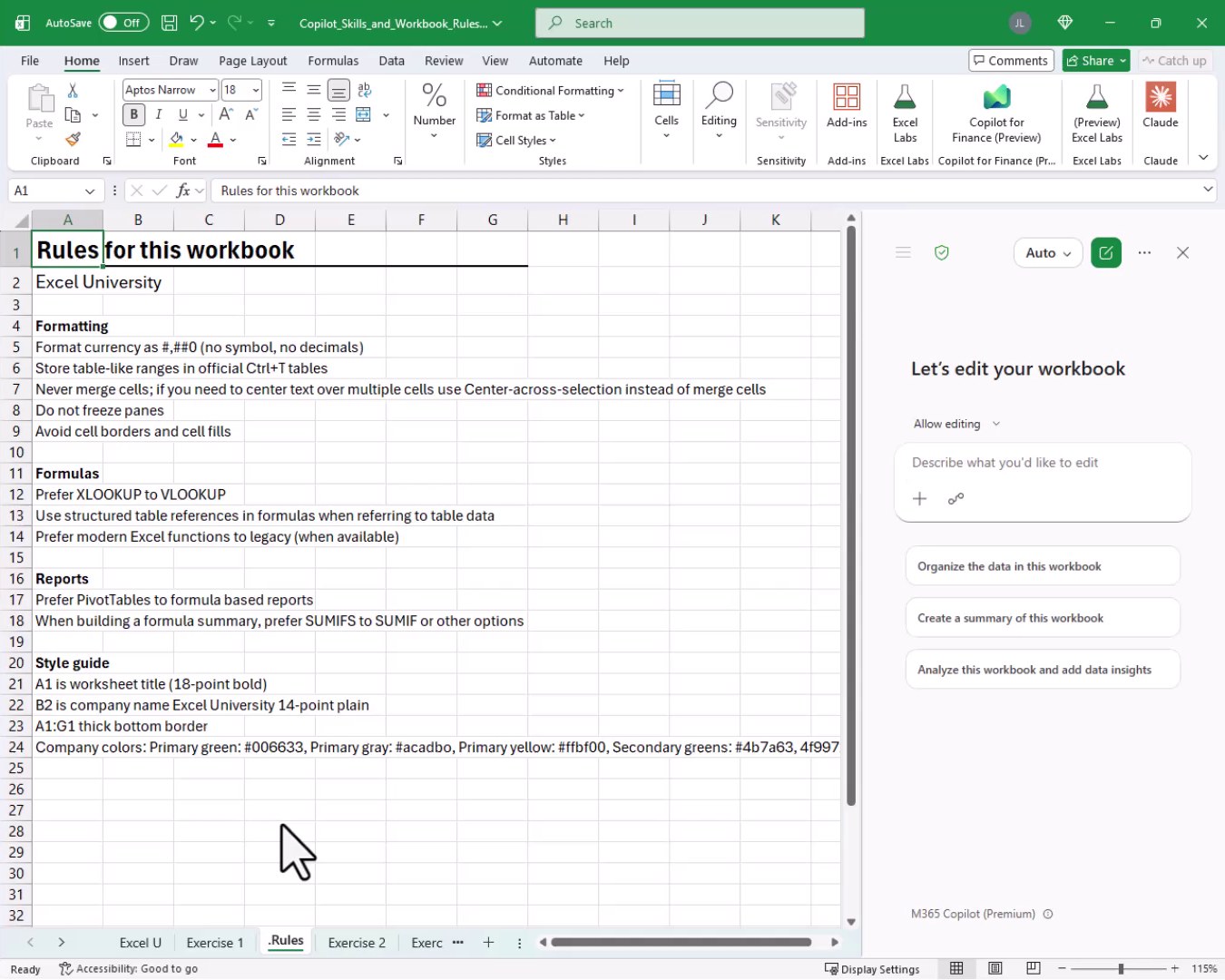
Some of the rules in this workbook tell Copilot to format currency as #,##0 with no symbol and no decimals, store table-like ranges as official Ctrl+T tables, never merge cells, avoid cell borders and fills, prefer XLOOKUP over VLOOKUP, prefer SUMIFS for formula summaries, and follow a specific style guide for fonts and company colors. Once those rules are in place, our prompt can stay short. We navigate to the Exercise 1 sheet and type a simple instruction into the Copilot pane:
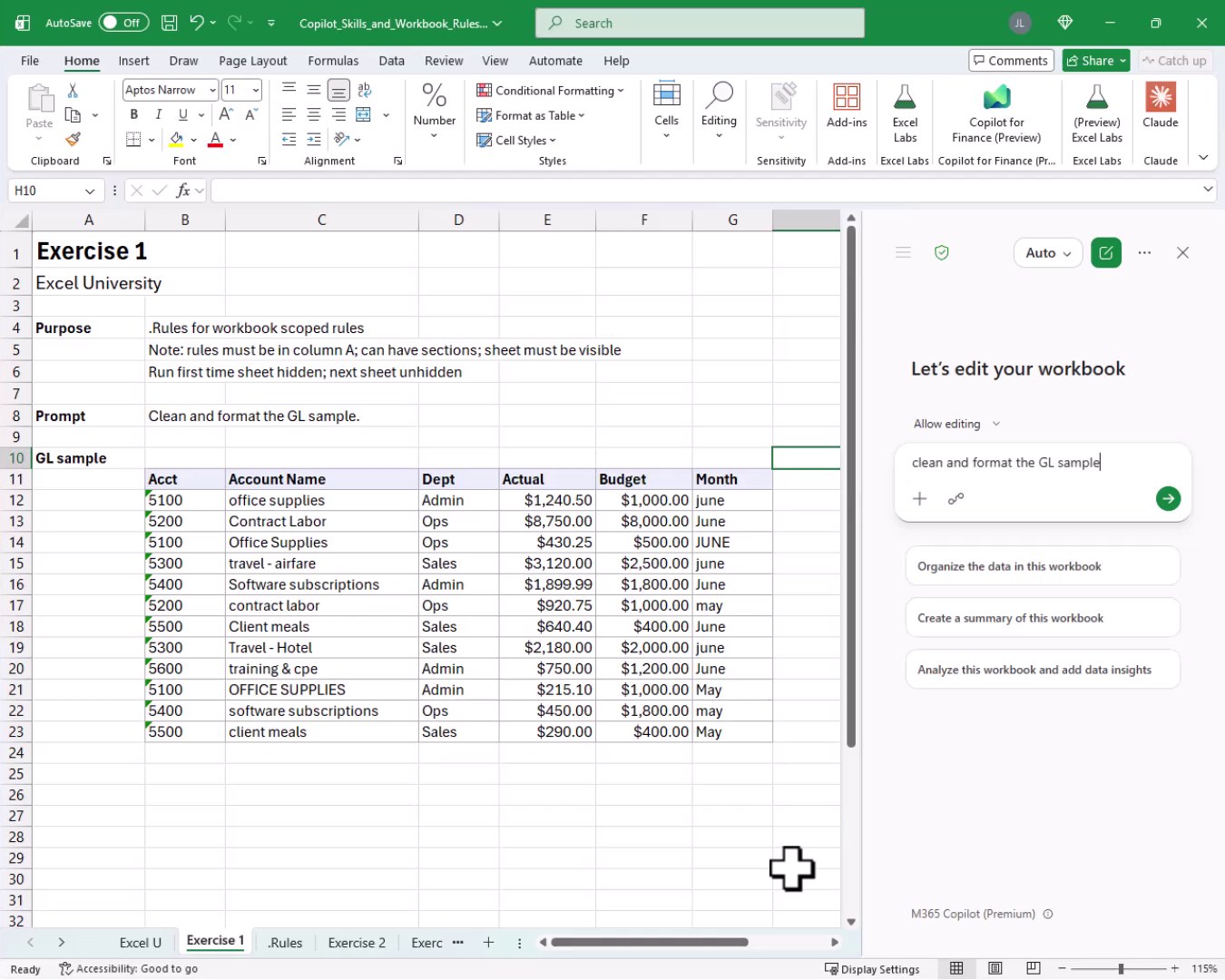
We hit go, and bam:
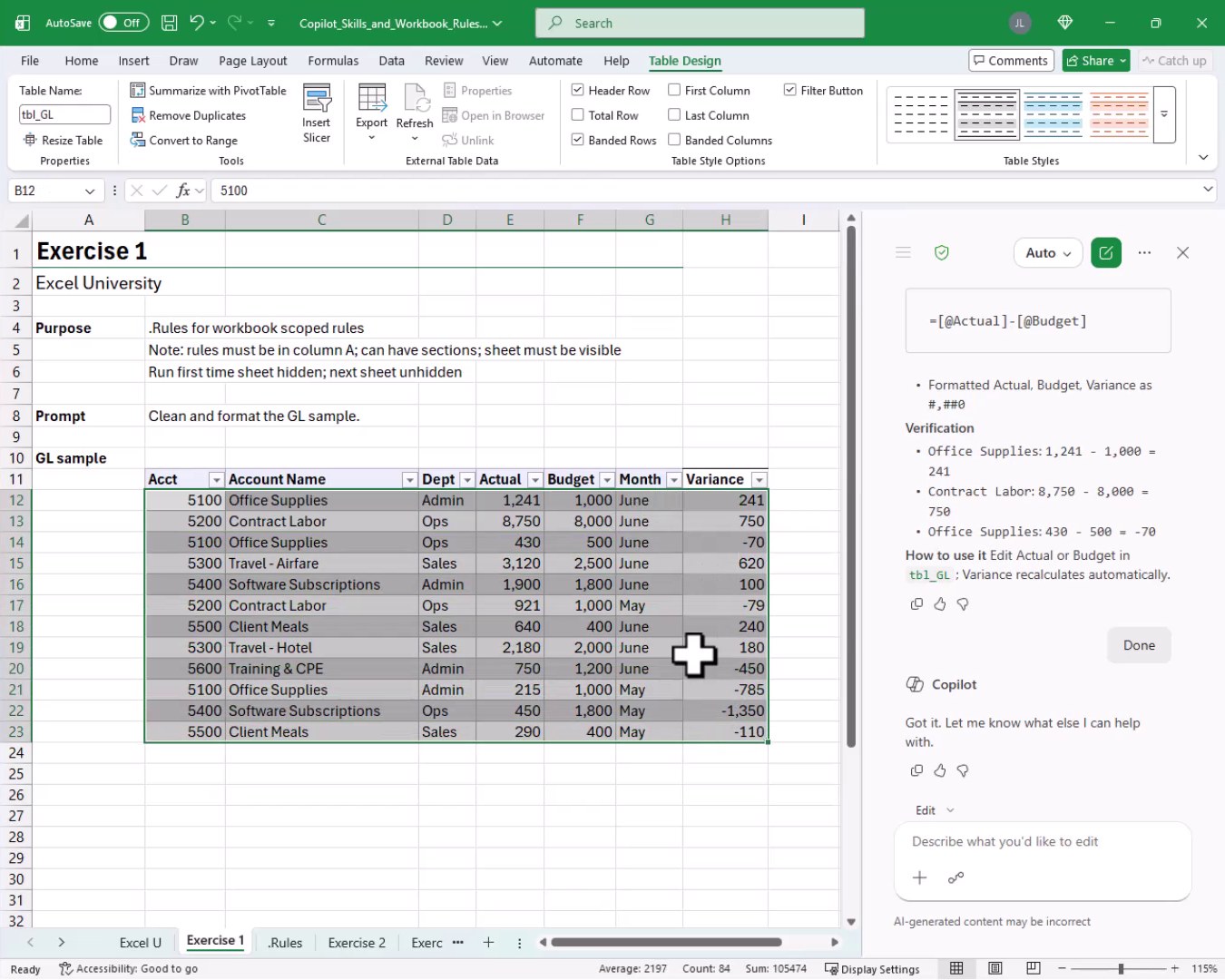
Copilot converted the data into an official Excel table named tbl_GL, standardized the account name casing, added a Variance column with the formula =[@Actual]-[@Budget], and formatted Actual, Budget, and Variance exactly as specified in the .Rules sheet. It even ran a verification pass and confirmed the math on individual rows. All of that from a short prompt, because the rules did the heavy lifting.
And that is how we can set up workbook-scoped rules to guide Copilot. Mission accomplished! Now that we have rules covered, it is time to talk about skills.
Exercise 2: Using Built-In Skills with the @3-Statements Skill
Skills let us define exactly how Copilot should complete a common, repeatable process. There are built-in skills and custom skills. Let’s start with the built-in variety. Consider the following worksheet:
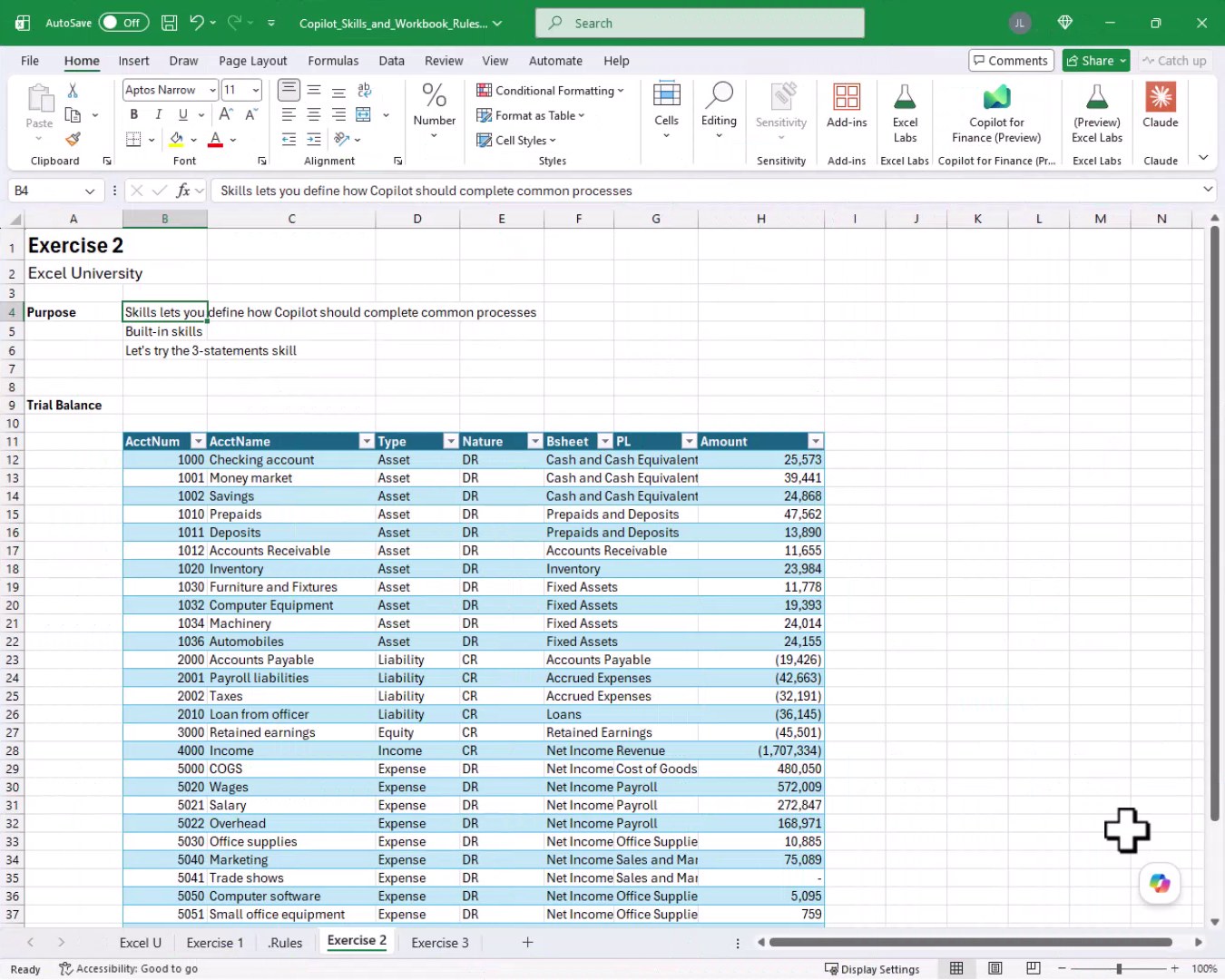
We have a Trial Balance table and we want to generate a Balance Sheet and Income Statement from it. To see what built-in skills are available, we open the Copilot pane and click Manage Skills. The Finance category includes several built-in options:
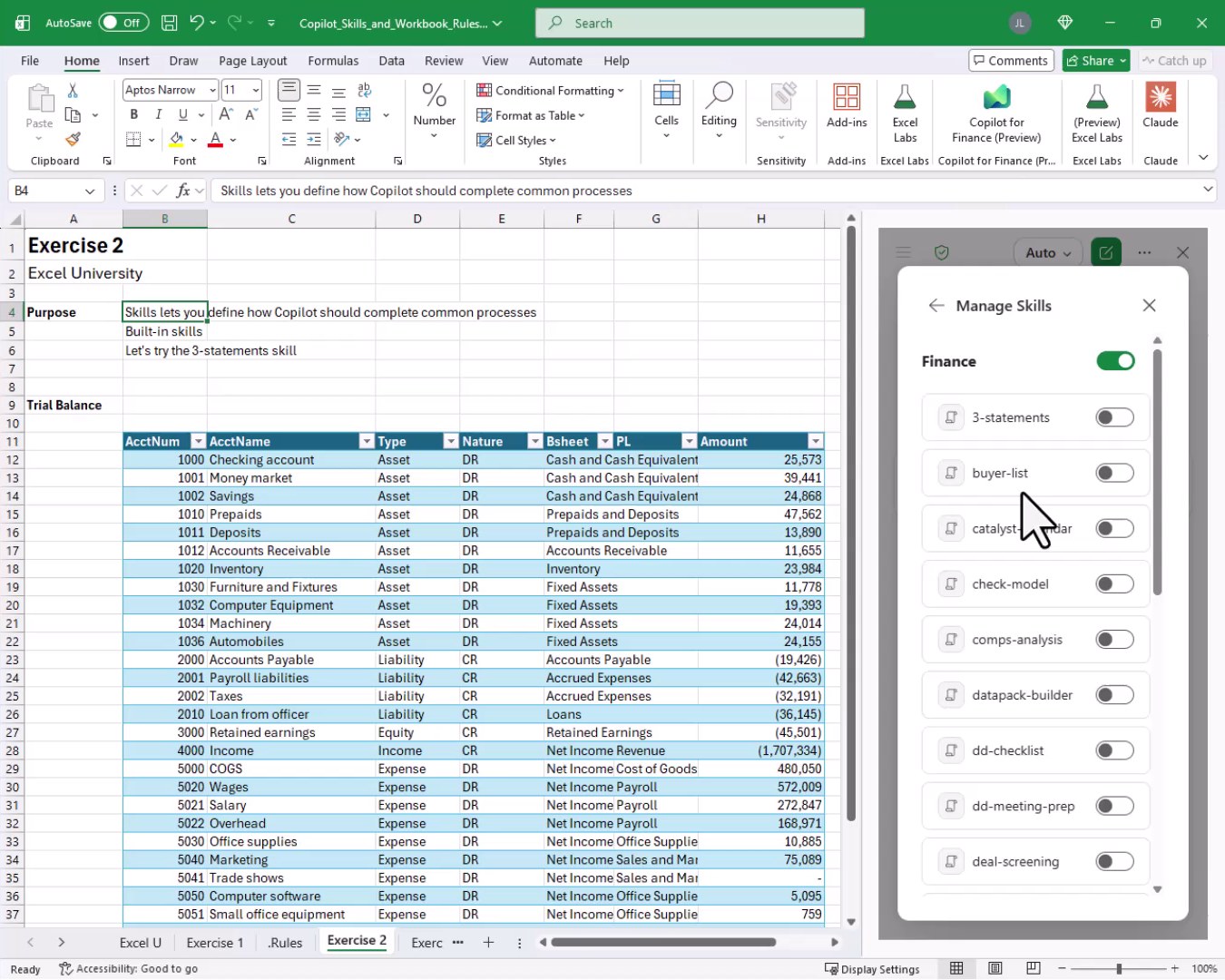
We toggle on the 3-statements skill and close the panel. To invoke a skill, we use the @ symbol followed by the skill name. So we type the following into the Copilot chat:
@3-statements build a balance sheet and income statement from this trial balance
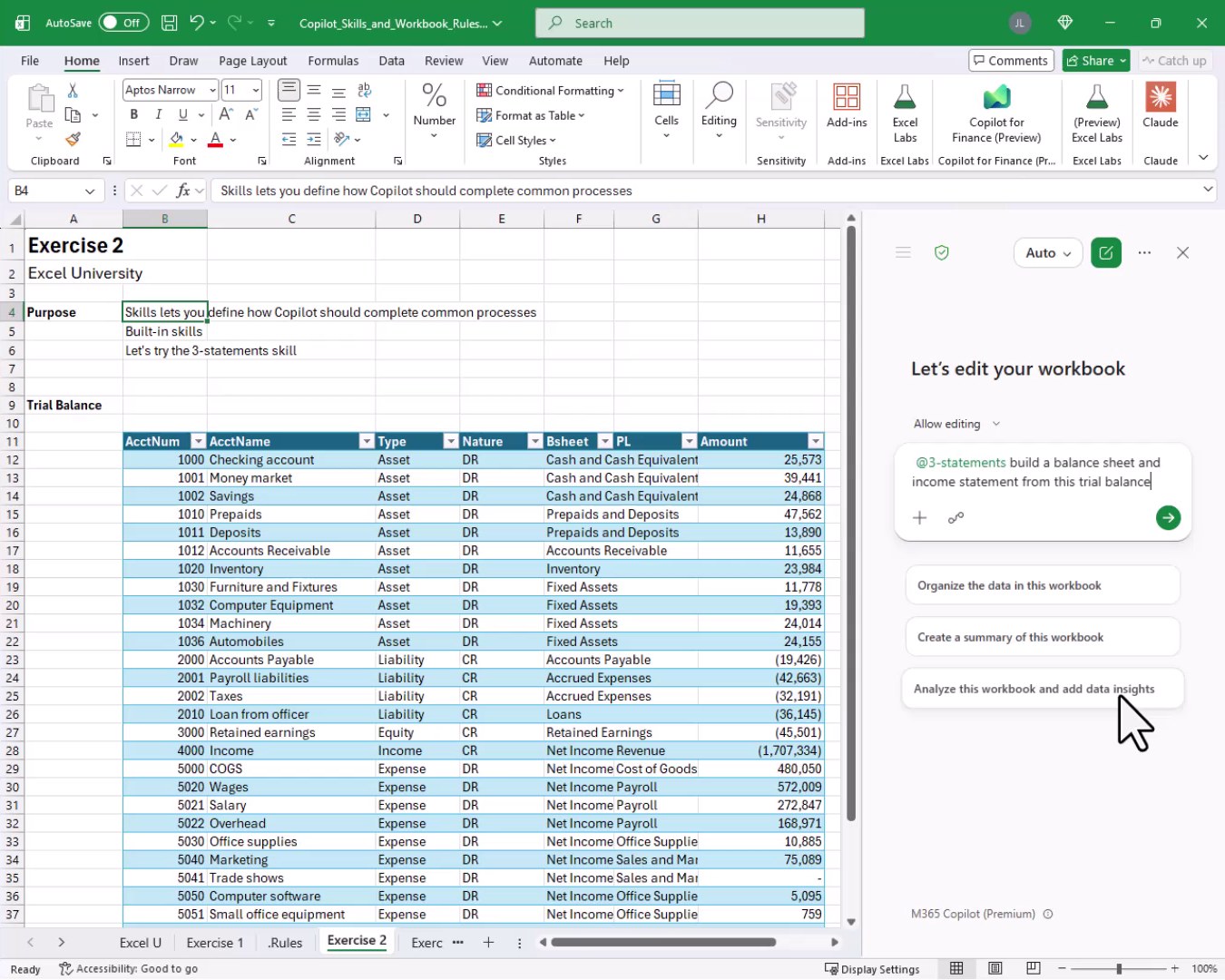
Copilot runs the skill and generates new worksheet tabs for the Balance Sheet and Income Statement. Here is what it produces:
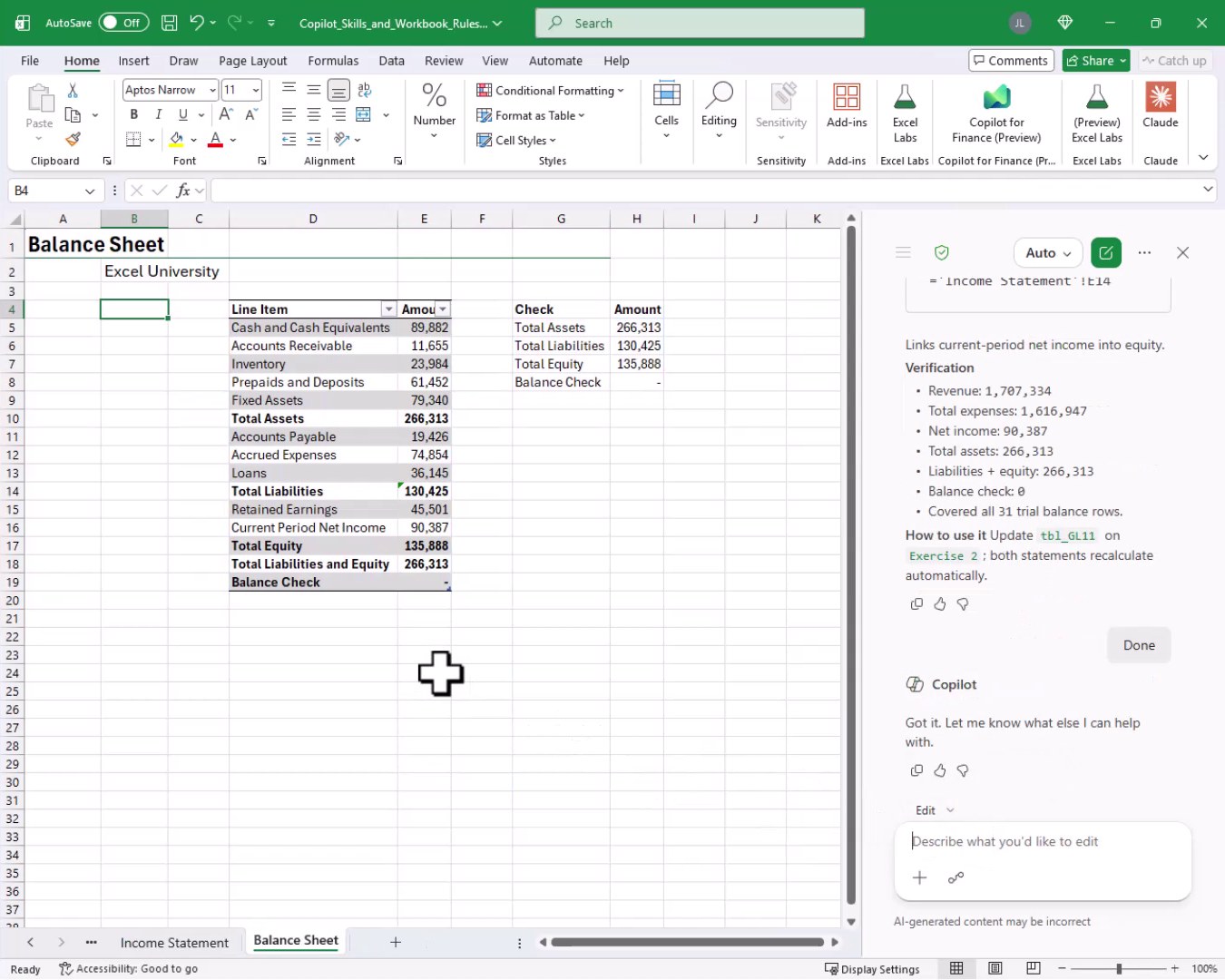
The skill builds linked statements, connects net income into equity, and runs verification checks. That said, the formatting leaves something to be desired. The statements are placed inside Excel tables, formulas are inconsistent, and the layout does not match our preferred style. So, how can we do that? Well … we create our own custom skill.
Exercise 3: Creating a Custom Skill with a Markdown File
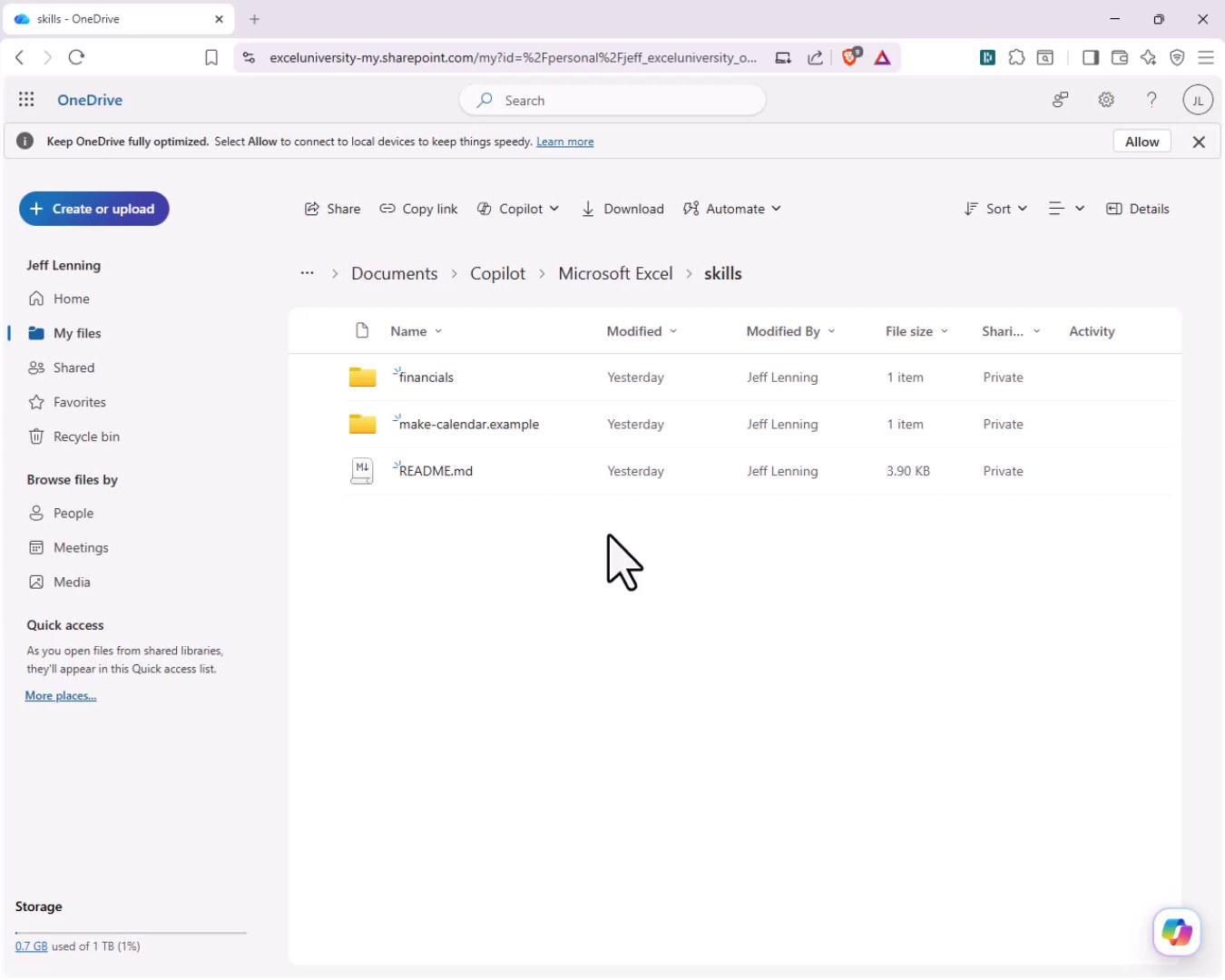
Custom skills are stored as markdown (.md) files in a special OneDrive folder. The first time Copilot creates the folder, it appears at Documents > Copilot > Microsoft Excel > skills. Inside that folder, we create a subfolder for each skill we want to define, then add a file named skill.md inside it. Here is what the OneDrive folder structure looks like:
The skill.md file uses a standard markdown format with a front matter section at the top that includes the skill name and description. After that, we describe what we want the skill to do. We can use Copilot itself to help draft the file. Here is the content of the financials skill:
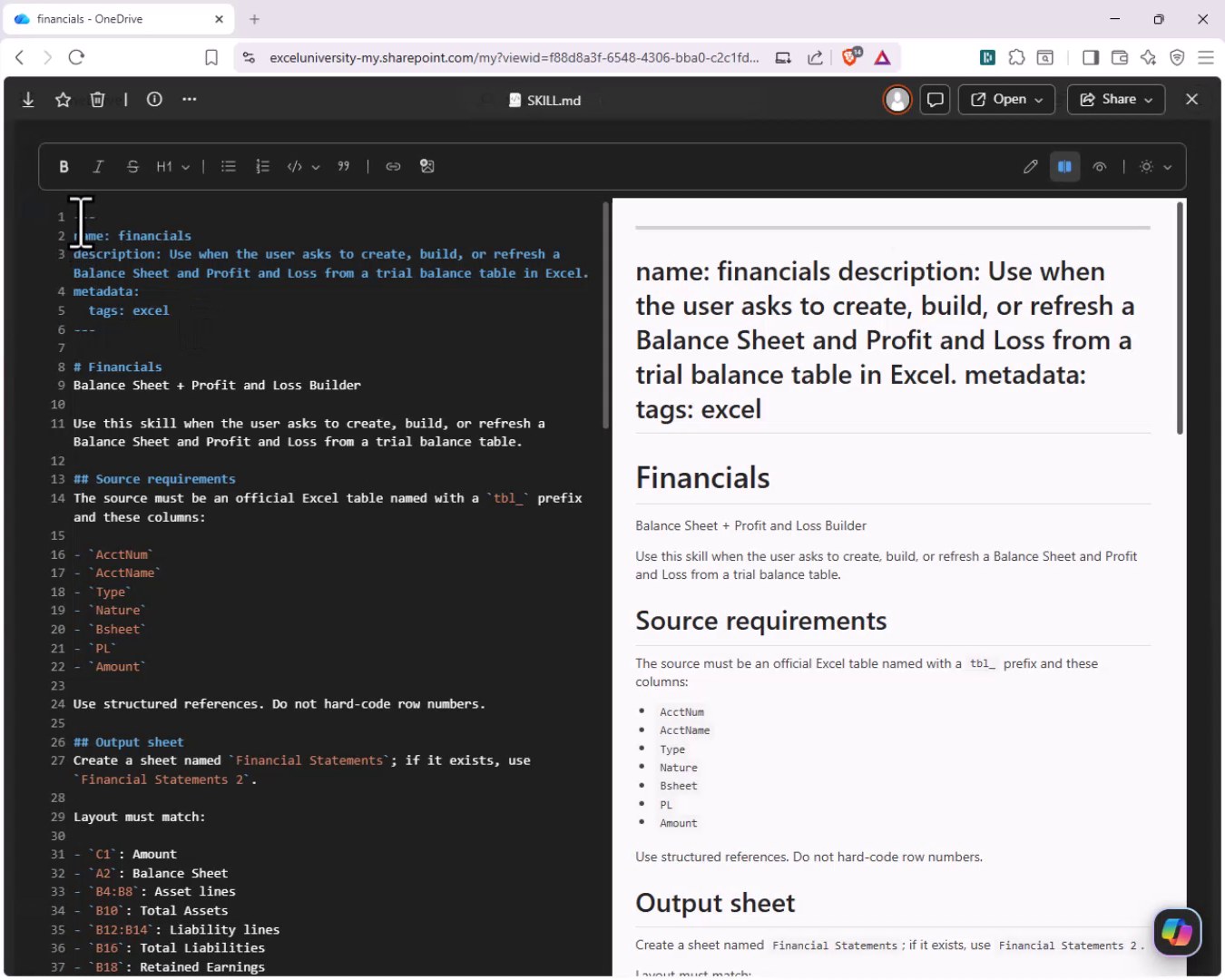
The markdown file tells Copilot to expect a source table with a tbl_ prefix and specific columns (AcctNum, AcctName, Type, Nature, Bsheet, PL, Amount). It specifies the output sheet name, the exact cell layout for the Balance Sheet and Income Statement, and instructs Copilot to use structured references rather than hard-coded row numbers. Once the file is saved in OneDrive, we return to Excel and enable the skill in the Manage Skills panel under Custom Skills:
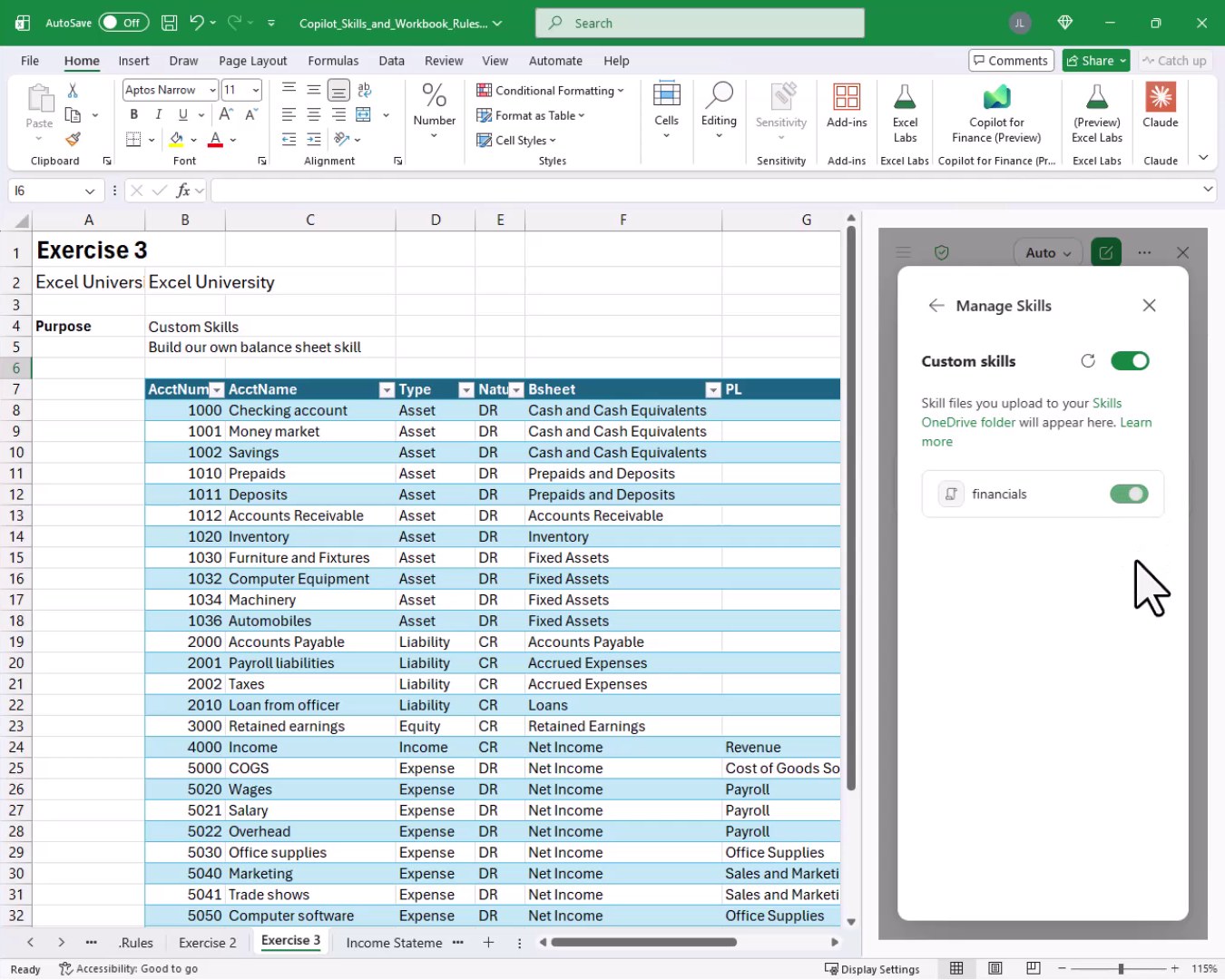
With the custom skill enabled, we invoke it the same way we invoke any built-in skill, using the @ symbol:
@financials create a balance sheet and income statement
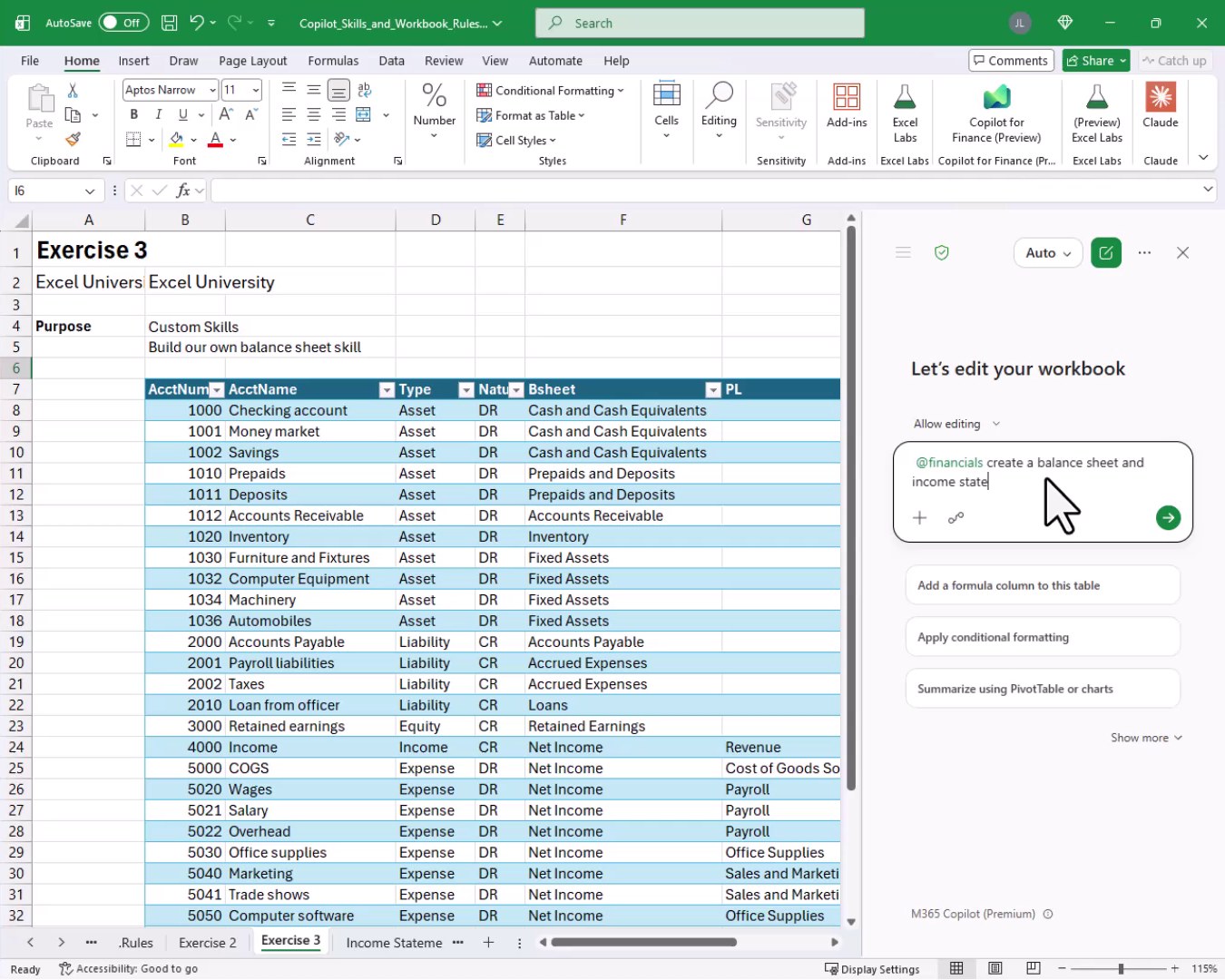
Copilot runs the custom skill, provides a summary and verification steps, and produces the output. And bam:
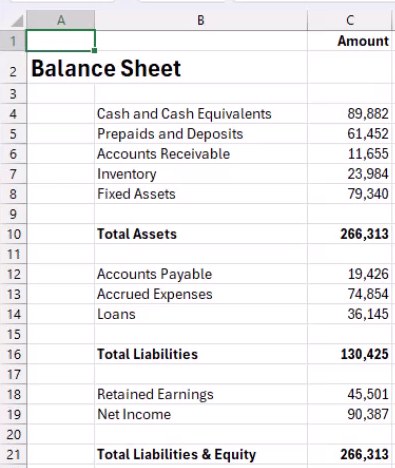
The Balance Sheet comes out in exactly the structure, format, and style defined in our markdown file. No tables wrapping the financial statements. No inconsistent formulas. Just clean, structured output that matches our preferences. AND because the skill lives in OneDrive, we can invoke it in any workbook going forward without redefining anything.
Think of a custom skill as a standing how-to guide for a common, repeatable task. The .Rules sheet tells Copilot how to behave inside a specific workbook. Custom skills tell Copilot how to complete a specific process, in any workbook, any time.
Summary
In this tutorial, we looked at three ways to get more consistent and predictable results from Copilot in Excel. Exercise 1 showed us how to create a .Rules worksheet with workbook-scoped instructions so Copilot follows our formatting and formula standards automatically. Exercise 2 introduced built-in skills like @3-statements that we can invoke with the @ symbol to run a defined process. Exercise 3 took it a step further by building a custom skill using a markdown file stored in OneDrive, giving us full control over the output structure and formulas, with the ability to reuse that skill across any workbook.
If you have any suggestions, improvements, alternatives, or questions, please share by posting a comment below … thanks!
Sample File
FAQs
Does the .Rules sheet need to be named exactly ‘.Rules’?
Yes. Copilot looks for a worksheet named .Rules (with the period prefix) to identify workbook-scoped rules. Any other name will not be recognized. The sheet also must be visible, not hidden, for the rules to take effect.
Can we have both global personalization rules and a .Rules sheet at the same time?
Yes. Copilot applies global personalization rules to every workbook. If a .rules sheet is present and visible, those workbook-scoped rules are also applied. The workbook rules essentially layer on top of the global ones.
What happens if we hide the .Rules sheet?
Copilot ignores a hidden .rules sheet entirely. If we need to hide it temporarily, be aware that the workbook rules will not be in effect until the sheet is made visible again.
Do we need a Microsoft 365 subscription to use Copilot in Excel?
Yes. Copilot in Excel requires a Microsoft 365 subscription that includes Copilot (sometimes called Microsoft 365 Copilot). It is not available in standalone or perpetual-license versions of Excel.
Where does OneDrive store custom skill files?
Custom skill files are stored at Documents > Copilot > Microsoft Excel > skills in the user’s OneDrive. Each skill lives in its own subfolder, and the skill definition file inside that folder must be named skill.md.
Do we need to know markdown to write a custom skill file?
Not really. Markdown is a simple plain-text format and the structure is straightforward. Even better, we can describe what we want to Copilot in plain language and ask it to draft the skill.md file for us, which is exactly the approach shown in the tutorial.
Can we share custom skills with coworkers?
Custom skills are personal and stored in each user’s own OneDrive. To share a skill, we would share the skill.md file with coworkers so they can place it in their own OneDrive skills folder and enable it in their Copilot settings.
Can we invoke multiple skills in a single prompt?
Typically we invoke one skill per prompt using the @ mention. Combining multiple skills in a single message is not a standard supported pattern. It is best to run skills one at a time to get reliable and verifiable results.
How is a custom skill different from a .rules sheet?
A .rules sheet defines behavioral standards for a specific workbook: formatting preferences, formula preferences, and style guidelines. A custom skill defines a repeatable process or task that Copilot can execute on demand in any workbook, not just one. Rules answer ‘how should Copilot behave here?’ Skills answer ‘how should Copilot perform this specific task?’
Will Copilot always produce identical output when we run the same custom skill twice?
Not always. Copilot is an AI and results can vary slightly between runs even with the same skill and prompt. The more precise and detailed the skill.md file is, the more consistent the output will be. Adding verification requirements and strict layout instructions in the markdown file helps reduce variation significantly.

Excel is not what it used to be.
You need the Excel Proficiency Roadmap now. Includes 6 steps for a successful journey, 3 things to avoid, and weekly Excel tips.
Want to learn Excel?
Our training programs start at $29 and will help you learn Excel quickly.