
Categorize Credit Card Charges with the COPILOT Function
Mapping credit card charges to GL accounts is one of those month-end tasks that is tedious enough once, and exponentially more painful every month after that. Raw credit card descriptions are cryptic, the volume is high, and the manual effort adds up fast. In this tutorial, we walk through three exercises that show how to use Excel’s COPILOT function to automatically categorize those charges, map them to your own internal accounts, and even flag low-confidence results for manual review. It’s a genuinely useful application of AI inside Excel.
Exercise 1: Auto-Categorize with a Simple Prompt
Let’s say we have a list of credit card charges with raw descriptions and amounts. The Copilot Category column is empty, and our job is to fill it in. Consider the following worksheet:
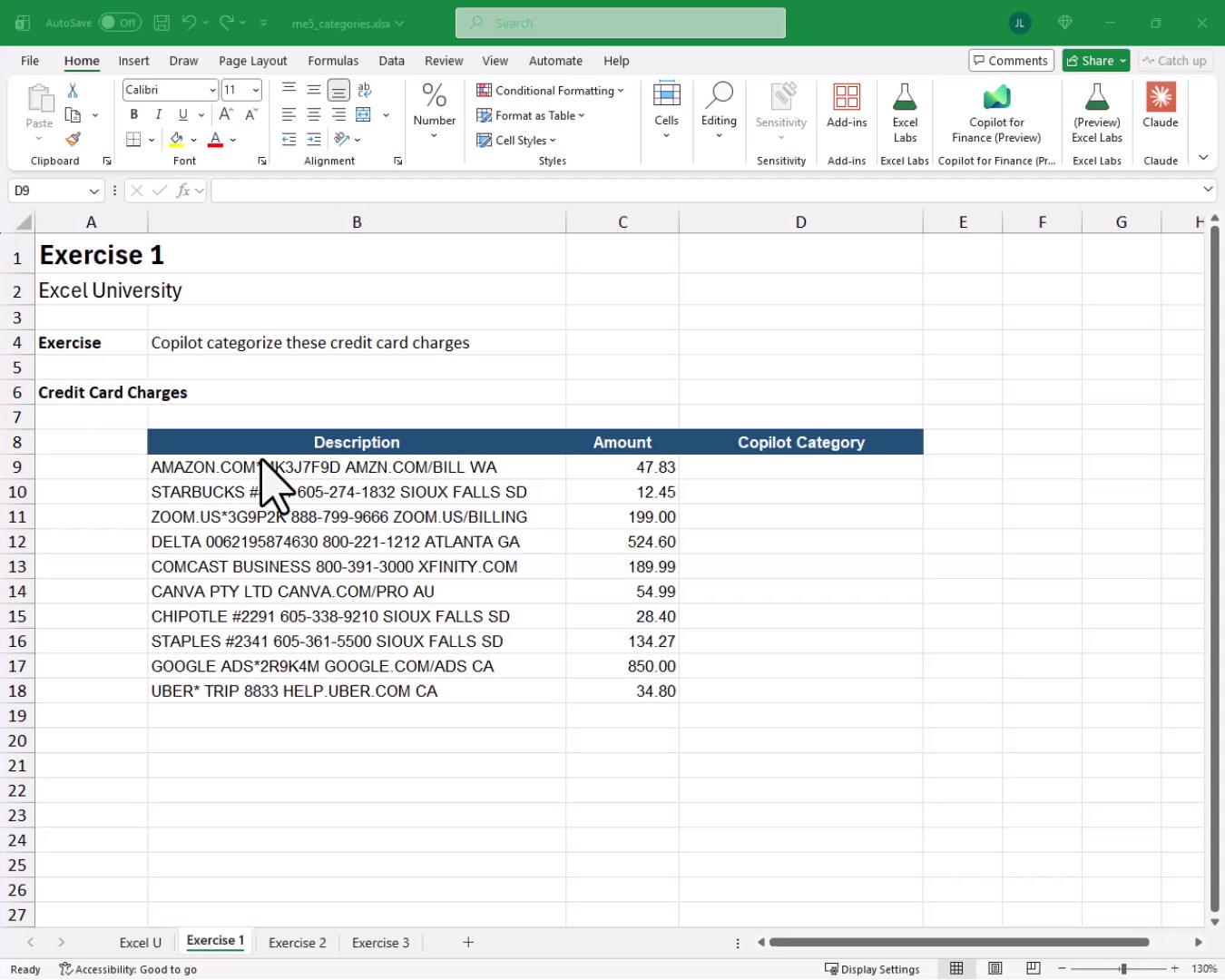
Those descriptions are not exactly user-friendly. Mapping each one manually to a category takes real time. That is where the COPILOT function comes in.
In case we’re new to the COPILOT function, it sends a natural language prompt to Microsoft Copilot and returns AI-generated text based on the prompt and any context ranges we provide. The function arguments are:
- prompt: a text string describing what we want Copilot to do
- context1: a range or value that provides data for the prompt (optional)
- label1: a text label describing context1 (optional)
- …: additional context/label pairs can be added as needed (optional)
The COPILOT function works with pairs of arguments: a prompt, then context ranges. In cell D9, we could write the following formula:
=COPILOT("give me the category of each credit card charge",B9:B18)
The first argument is our plain-English instruction. The second argument points to the description range so Copilot knows what to categorize.
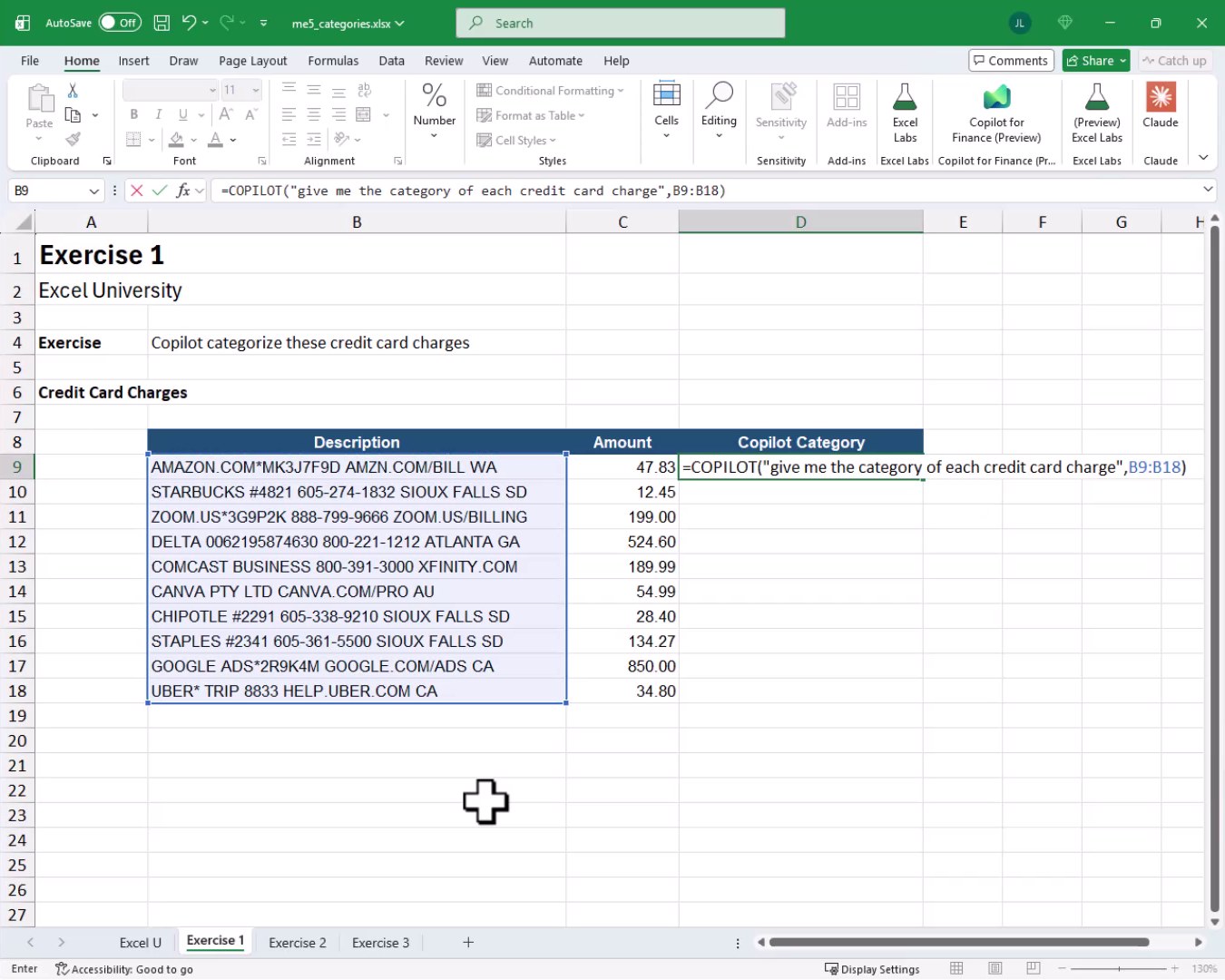
We hit Enter, and bam:
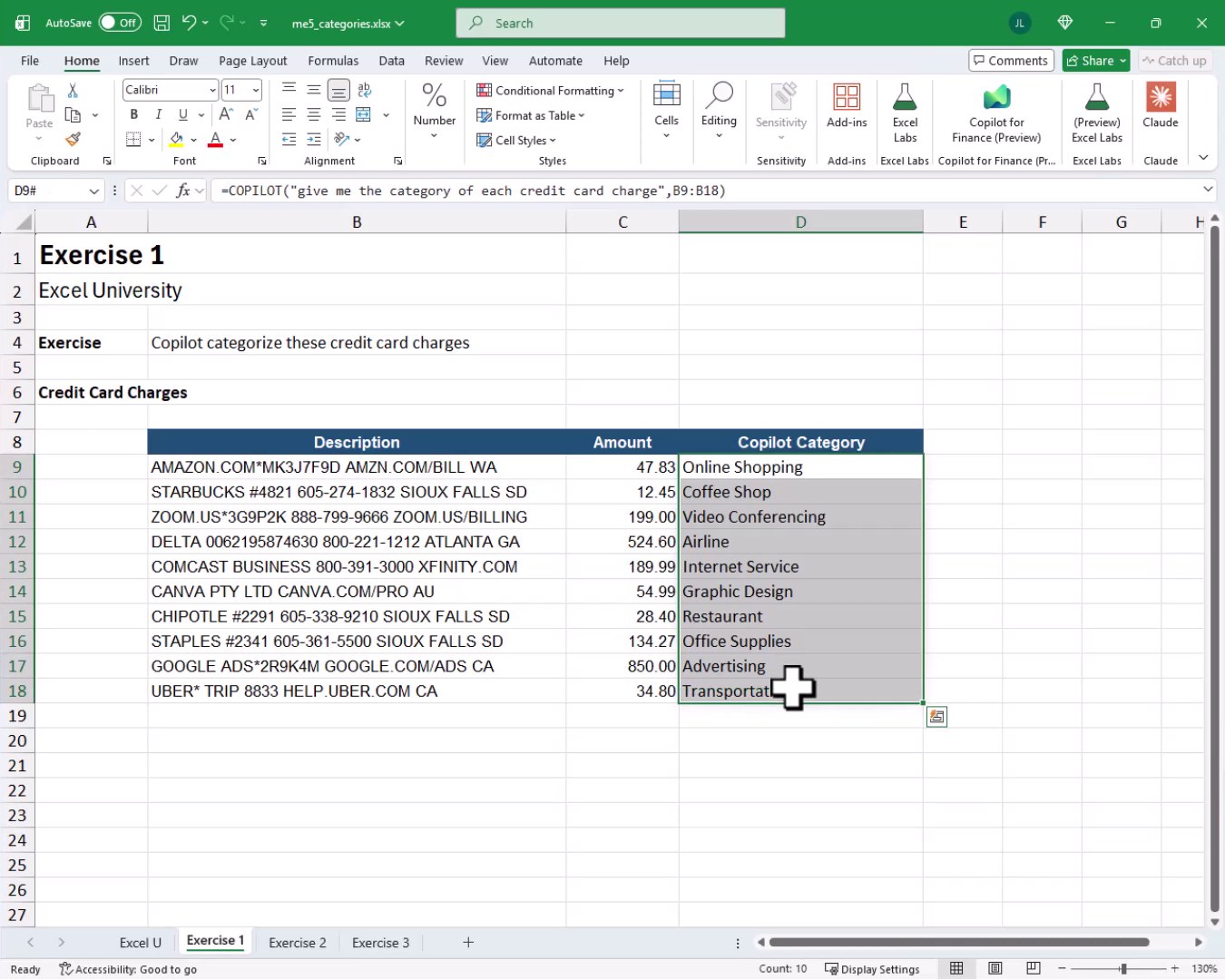
Copilot categorized all ten charges instantly. The results look reasonable, but there is one problem. Those are Copilot’s own invented categories, not our actual GL accounts. Categories like “Coffee Shop” and “Video Conferencing” are not what our chart of accounts looks like. We need to fix that in the next exercise.
Exercise 2: Map to Your Own GL Accounts
Now that we have seen the basic approach, it is time to make things more interesting. Exercise 2 introduces a list of our actual internal accounts that we want Copilot to use. The worksheet also has more transactions. Let’s take another look at our data:
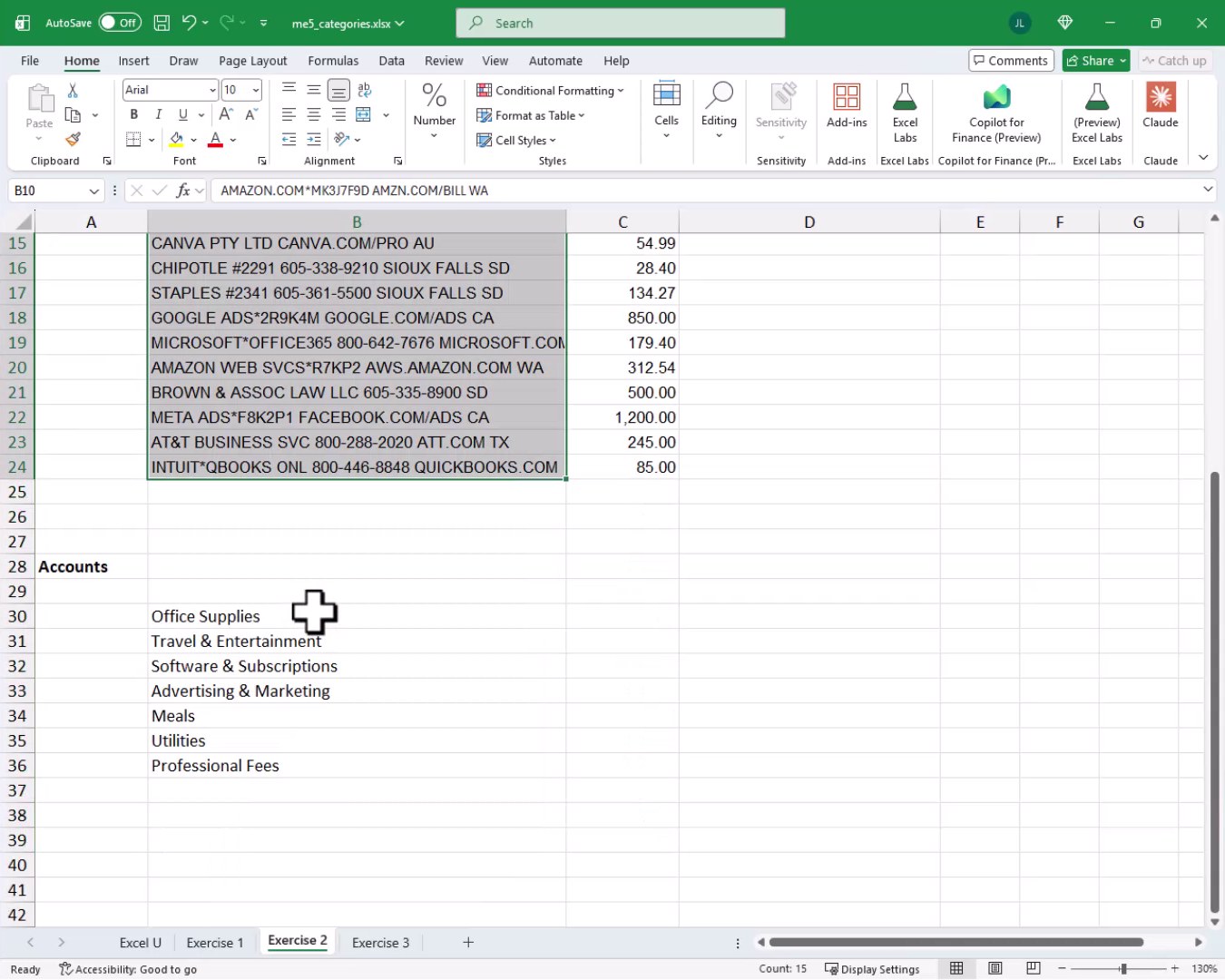
We have the charge descriptions in B10:B24 and our internal account list in B30:B36. The key is to pass both ranges into the formula so Copilot maps to OUR accounts, not ones it invents. So, we use the following formula:
=COPILOT("categorize these credit card charges",B10:B24,"based on my accounts here",B30:B36)
The formula now includes a second context pair. First, we pass the descriptions. Then we pass a label telling Copilot to use our accounts, followed by the actual account range.
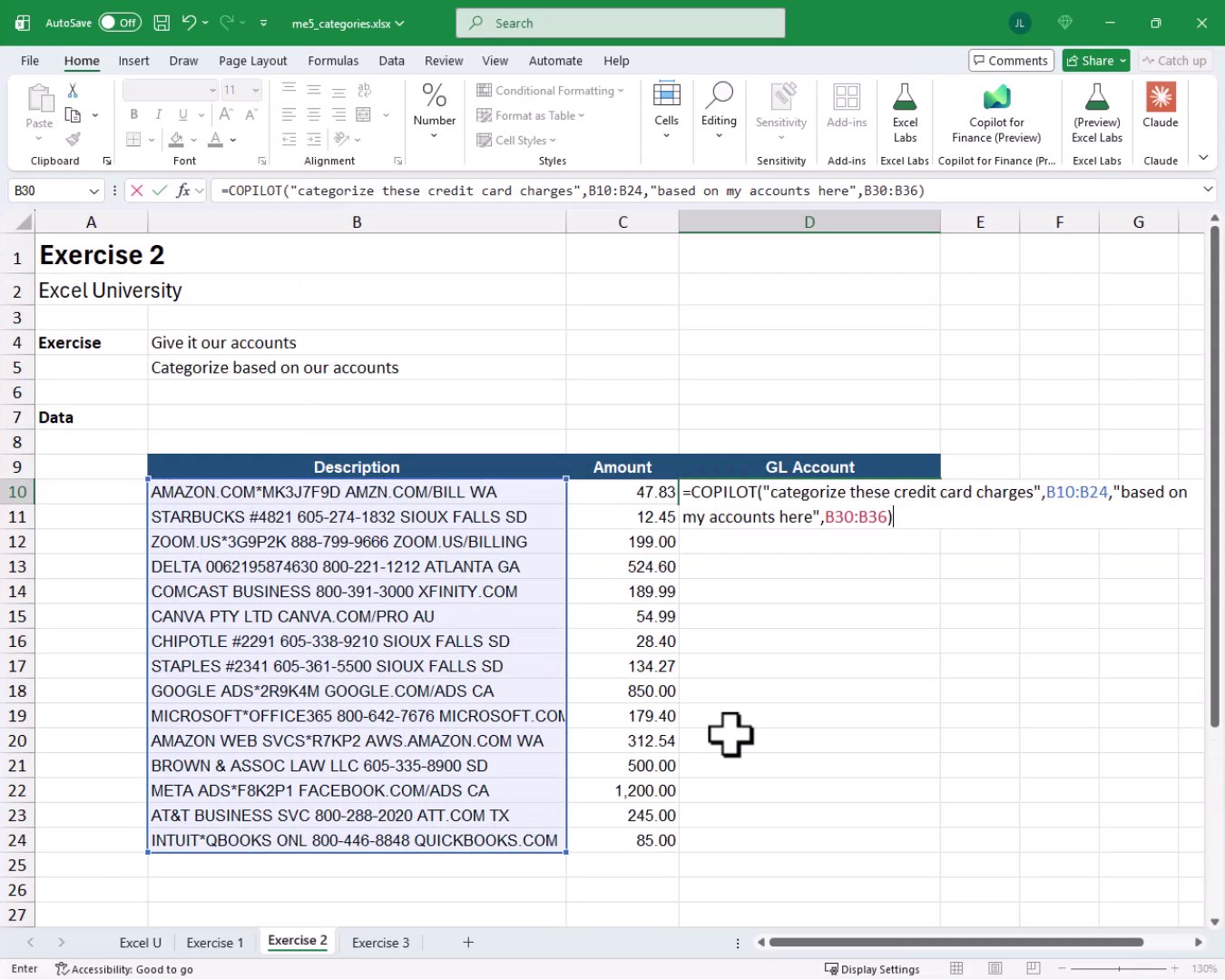
Hit Enter, and bam…
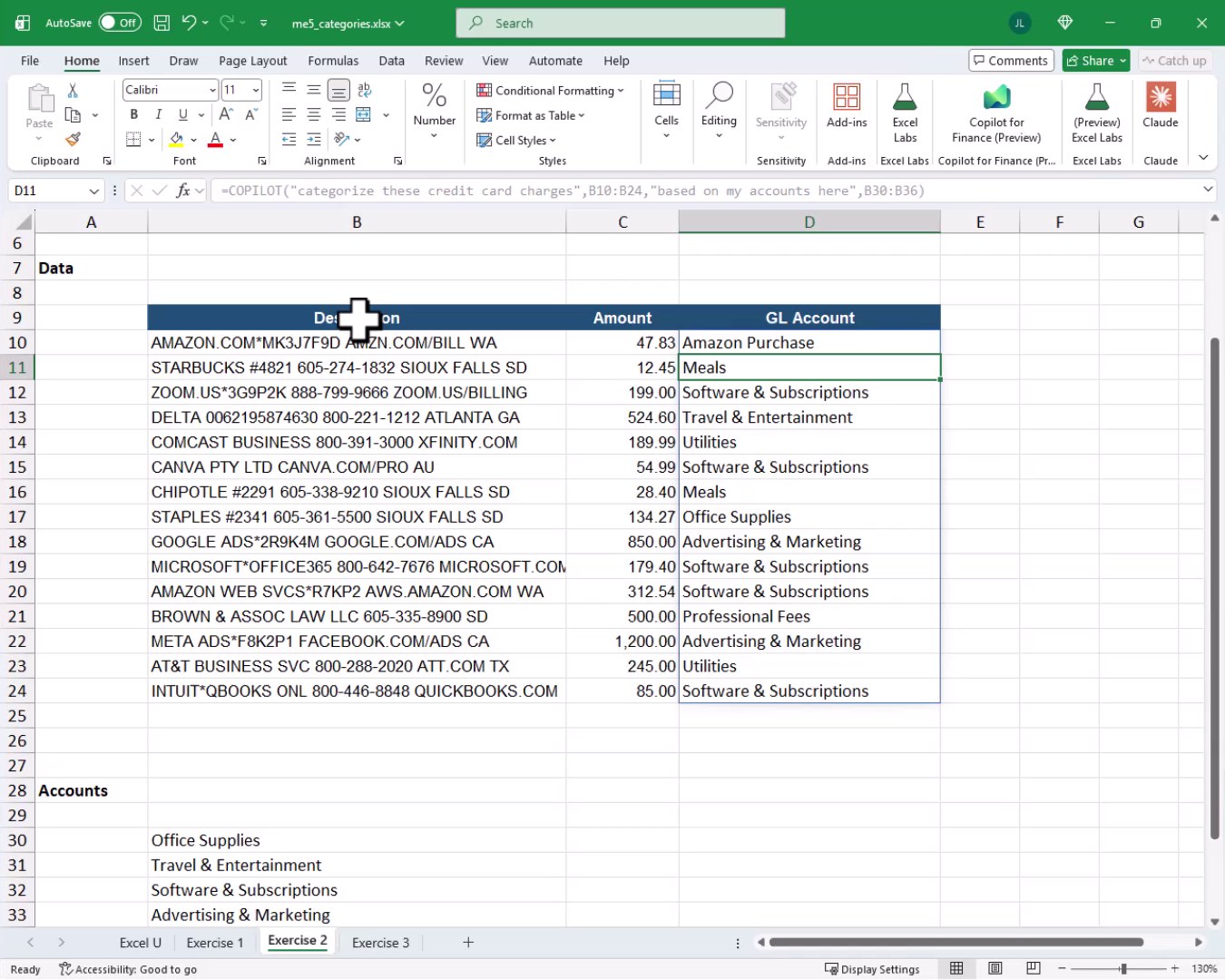
Every charge is now assigned to one of our actual GL accounts. Categories like “Software & Subscriptions”, “Advertising & Marketing”, and “Professional Fees” match our chart of accounts exactly. That is a huge time saver, AND it eliminates the creative guessing that makes manual categorization inconsistent.
Exercise 3: Add a Confidence Threshold
With Exercise 2 complete, we can map charges to our accounts in seconds. But, what if we wanted some way to flag the ones Copilot is not sure about? Well, let’s tackle that now.
The COPILOT function lets us add additional instructions directly inside the prompt string. We can simply tell it to return “Unknown” whenever its confidence drops below 90%. Exercise 3 has a larger list of charges and the same accounts. Let’s take a look at the setup:
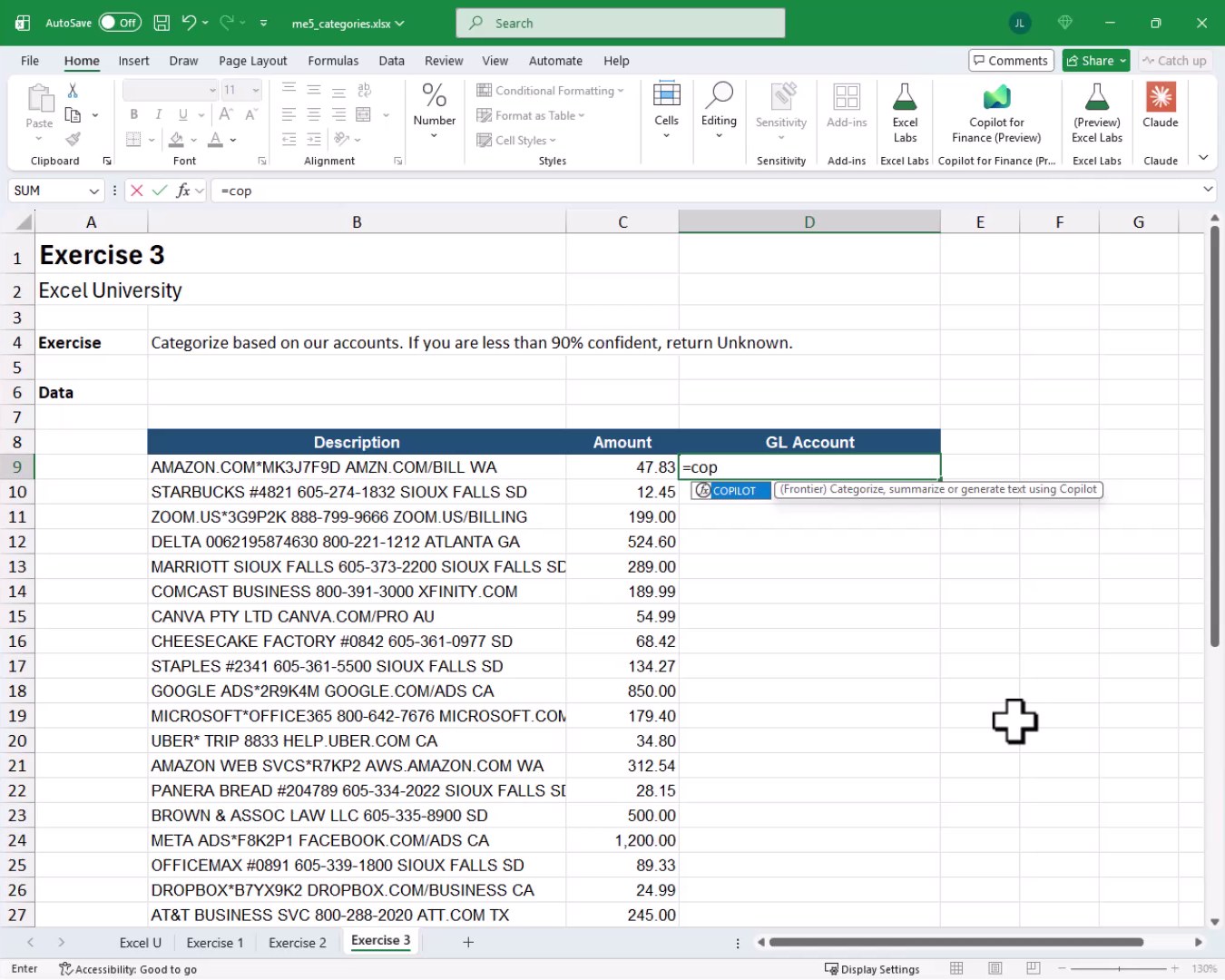
All we need to do is extend the prompt with the confidence instruction. We write the following formula into cell D9:
=COPILOT("give the category for these credit card charges",B9:B33,"based on my accounts",B37:B43,"if you are less than 90% confident, return Unknown")
The extra string at the end is just plain English. We tell Copilot the confidence rule and it applies it as part of the categorization logic.
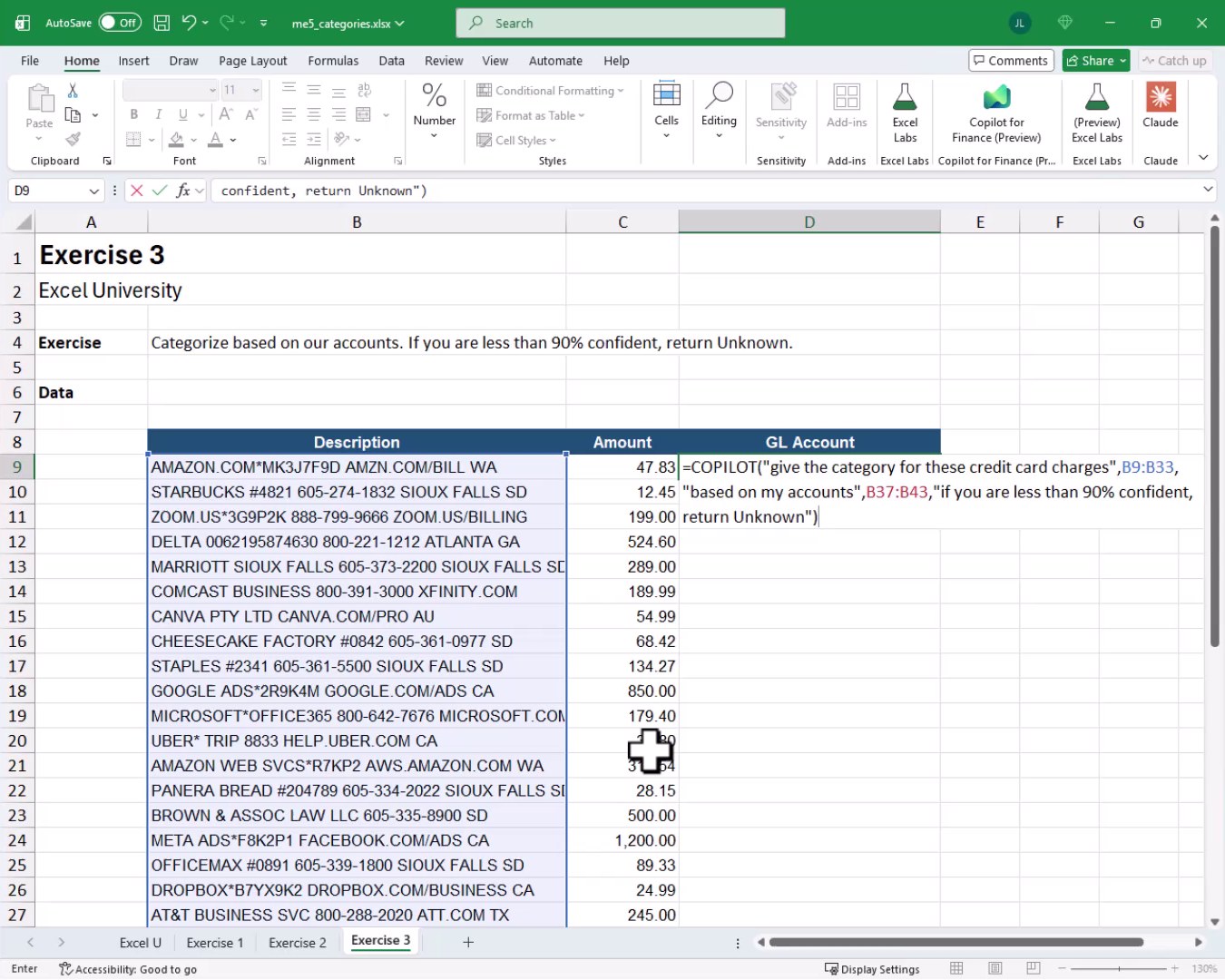
We hit Enter, and bam:
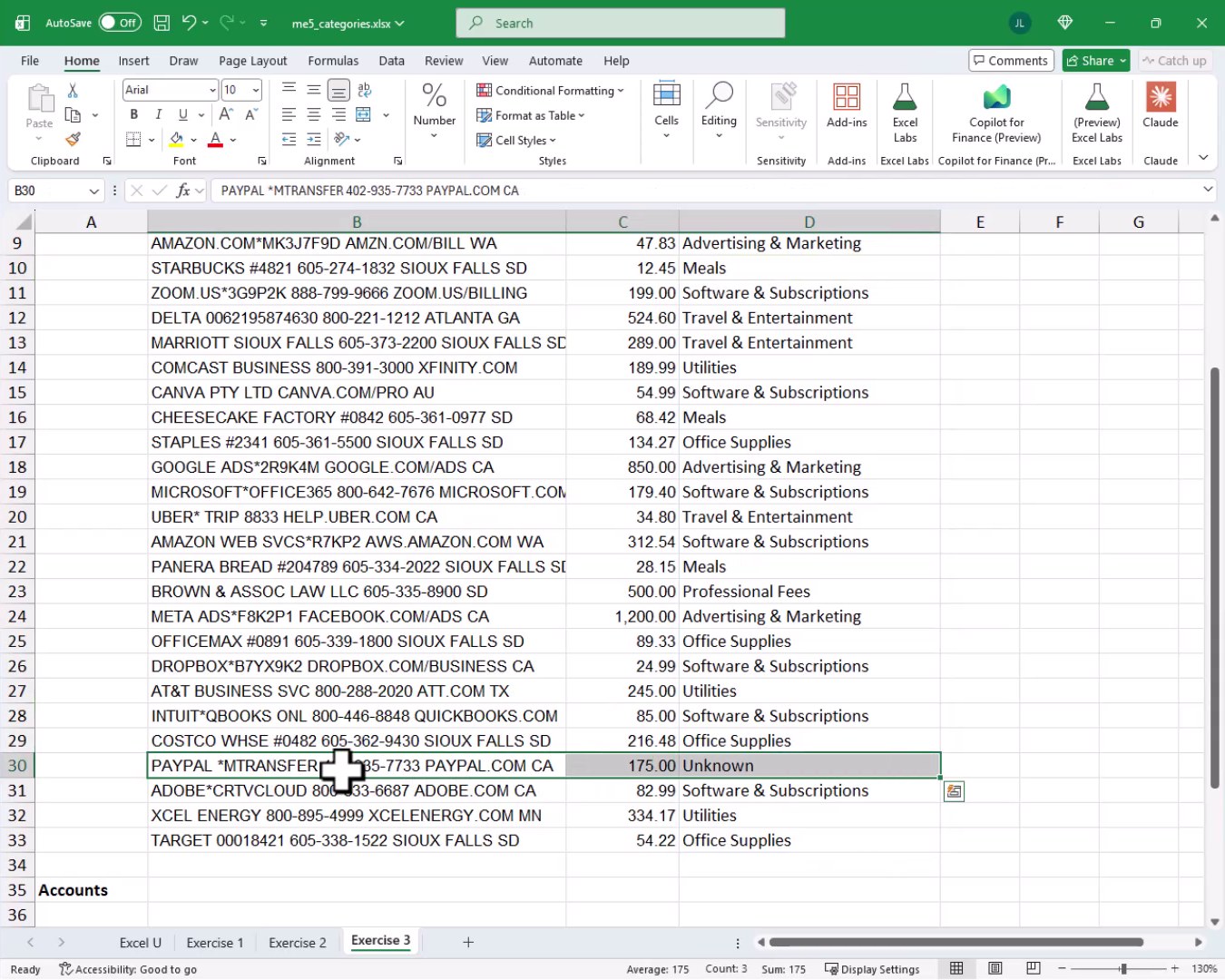
Most charges get a clean GL assignment. But one entry, the PayPal money transfer, comes back as Unknown. That is exactly what we want. Copilot is telling us it is not confident enough to make a call on that one.

Now we can scan the column, filter for “Unknown”, and manually assign the correct account. The rest of the list is handled. This is a practical, low-risk workflow. If Copilot miscategorizes something, a reclass journal entry fixes it. The manual effort saved far outweighs the occasional correction.
Summary
In this tutorial, we used the COPILOT function to automatically categorize credit card charges in three progressively more useful ways. Exercise 1 showed the basic prompt-and-context approach for quick categorization. Exercise 2 added our own GL account list so results align with our chart of accounts. Exercise 3 added a confidence threshold that flags ambiguous entries as Unknown, giving us a built-in audit trail. All three approaches are easy to write AND maintain, and they turn a tedious month-end chore into a fast, repeatable process.
If you have any suggestions, improvements, alternatives, or questions, please share by posting a comment below … thanks!
Sample File
FAQs
What license do I need to use the COPILOT function in Excel?
The COPILOT function requires a separate Microsoft Copilot license in addition to your standard Microsoft 365 subscription. It also requires a current version of Excel with the latest updates applied. If the function is not available, check with your IT group about licensing options.
Does the COPILOT function work in older versions of Excel like 2019 or 2021?
No. The COPILOT function is a Microsoft 365 feature and is not available in Excel 2019, Excel 2021, or other perpetual-license versions. It requires a current Microsoft 365 subscription with Copilot enabled.
How does the COPILOT function handle the context ranges we pass to it?
The COPILOT function accepts alternating prompt and context arguments. When we pass a range like B10:B24 followed by a label string like “based on my accounts here” and another range B30:B36, Copilot uses all of that information together to generate its response. The context ranges give the AI the data it needs to act on our instructions.
Can we use the confidence threshold approach with any subject matter, not just GL accounts?
Yes. The confidence instruction is just plain English inside the prompt string. We can apply the same pattern to any classification task where we want Copilot to flag low-confidence results rather than guess. For example, we could categorize expense types, classify customer feedback, or tag products, and instruct Copilot to return Unknown whenever it is unsure.
What happens if the COPILOT function categorizes a charge incorrectly?
The risk is relatively low because any misclassification can be corrected with a reclassification journal entry. The key is to review the results before posting. Using the confidence threshold from Exercise 3 reduces the number of surprises by flagging the entries Copilot is least sure about, letting us focus our review time where it matters most.
Does the COPILOT function output change every time we recalculate the workbook?
Potentially, yes. Because Copilot is an AI, results can vary between calls. If we need stable, repeatable output, it is a good idea to copy the results and paste them as values once we are satisfied with the categorizations. That locks the categories in place so a recalculation does not change anything.
How many charges can we categorize in a single COPILOT formula?
There is no hard-coded row limit published for the COPILOT function, but very large context ranges may hit token limits imposed by the underlying AI model. In practice, the approach works well for typical month-end credit card volumes. For very large datasets, we could break the list into smaller batches and use multiple formulas.
Can we change the confidence percentage to something other than 90%?
Absolutely. The percentage is just part of our plain-English prompt string, so we can set it to whatever threshold makes sense for our situation. A higher threshold, like 95%, will flag more entries as Unknown. A lower threshold, like 75%, will let more categorizations through. We can tune it based on how cautious we want to be.
Can we use the COPILOT function to categorize charges in multiple languages?
The COPILOT function relies on the underlying Copilot AI, which supports multiple languages. We can write our prompt in the language that matches our data or our preference. Results may vary depending on how well the AI recognizes the merchant names and descriptions in a given language.
Is it possible to nest COPILOT inside other Excel functions like IF or IFERROR?
Yes. We can wrap COPILOT inside IFERROR to handle cases where the function returns an error rather than a result. We can also use IF to apply additional conditional logic on top of Copilot’s output. Combining COPILOT with other functions lets us build more robust, production-ready workflows.

Excel is not what it used to be.
You need the Excel Proficiency Roadmap now. Includes 6 steps for a successful journey, 3 things to avoid, and weekly Excel tips.
Want to learn Excel?
Our training programs start at $29 and will help you learn Excel quickly.