
How to Become a Millionaire with this Simple Formula (PMT)
Ever wondered how much you need to save each month to reach a financial goal, like becoming a millionaire? The PMT function in Excel can help you calculate that with just a few simple inputs. While the PMT function is traditionally used to calculate loan payments, we can also use it to determine how much we need to save each month to hit a specific target.
In this guide, we’ll walk through the PMT function step by step. Whether you’re calculating monthly loan payments or creating a savings strategy, Excel makes financial math easy!
Video
Step-by-step Guide
The PMT function in Excel calculates periodic payments for loans or savings based on a constant interest rate and a set number of periods. The syntax for the function is:
=PMT(rate, nper, pv, [fv], [type])
Here’s what the arguments mean:
- rate – The interest rate for each period.
- nper – The total number of payment periods.
- pv – The present value, or the loan amount.
- [fv] – The future value, or how much you want to have at the end (optional).
- [type] – When the payment is due: 0 for end of the period (default), 1 for beginning.
Now, let’s apply this to different financial scenarios.
Exercise 1: Calculating a Loan Payment
First, let’s use the PMT function to calculate a monthly loan payment in cell C10. Assume:
- C6 stores the loan amount: $20,000
- C7 stores the annual interest rate: 5%
- C8 stores the term in years: 5 years
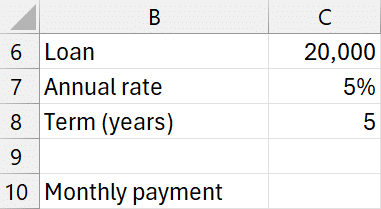
Since we’re calculating monthly payment, we need to:
- Convert the annual interest rate to a monthly rate by dividing by 12.
- Convert years to months by multiplying by 12.
We can write the following formula into cell C10:
=PMT(C7/12, C8*12, C6)

The result: $377.42 (negative because it’s an outgoing payment).
We can easily flip the sign in a number of different ways, including inserting a leading – in front of the PMT function or by wrapping the ABS function around the PMT function:
=ABS(PMT(C7/12,C8*12,C6))
Exercise 2: Adjusting for a Balloon Payment
If we still owe $5,000 at the end of the loan term (a balloon payment), we adjust the PMT function by adding the future value argument as a negative value:

We can use the following formula in C11:
=PMT(C7/12,C8*12,C6,C9)
The monthly payment drops because we’re postponing some of the debt.
Exercise 3: Using PMT for Savings Goals
Now, let’s switch gears and use PMT for saving money instead of paying off loans.
Say we want to have $1,000,000 in 30 years and estimate an average annual return rate of 10%. How much do we need to save each month to hit our goal?

We compute it with the following formula in C10:
=PMT(C7/12,C8*12,0,C6)
The result: $442.38 per month.
This means that if you save about $442 per month and earn an average of 10% interest, you’ll hit the $1 million mark in 30 years!
Summary
The PMT function is more than just a loan payment calculator—it can help us determine how to reach savings goals as well. The key takeaways:
- Ensure rate, nper, payment are expressed in the same time unit (monthly, annual, quarterly).
- Use negative signs for cash outflows.
- Adjust the future value argument for loans with balloon payments or savings targets.
Mastering the PMT function can help us understand loans, savings plans, and how to achieve financial independence. Happy calculating!
Download Example File
To practice using the PMT function, download our sample Excel workbook:
Frequently Asked Questions
1. Why is my PMT result negative?
By default, PMT represents outgoing payments as negative cash flows. You can make it positive by adding a minus sign before the function: =-PMT(...).
2. Can I use PMT for annual payments instead of monthly?
Yes! Just ensure the interest rate and number of periods match. For annual payments, use the annual interest rate directly and set the number of periods to years.
3. How do I account for inflation when saving for a future goal?
Adjust your expected return to an inflation-adjusted rate. For example, if your expected return is 7% and inflation is 3%, use a rate of 4%: (1.07/1.03) - 1.
4. What happens if I set the type argument to 1?
This means payments are made at the beginning of each period.
5. Can PMT handle irregular payments?
No, PMT assumes fixed, periodic payments. For irregular payments, consider using Excel’s NPV or IRR functions.
6. What if my savings account compounds weekly or daily?
Adjust the rate and periods accordingly. For daily compounding, divide the annual rate by 365.
7. How do I calculate biweekly mortgage payments?
Divide the annual interest rate by 26 (biweekly periods per year) and multiply the years by 26.
8. Can I use PMT to calculate retirement withdrawals?
Yes! Set the present value as your retirement savings and the future value to zero.
9. Does PMT consider taxes?
No, PMT does not factor in taxes or other deductions. You may need to adjust your expected interest rate accordingly.
10. Is PMT available in Google Sheets?
Yes! The syntax is the same in Google Sheets.

Excel is not what it used to be.
You need the Excel Proficiency Roadmap now. Includes 6 steps for a successful journey, 3 things to avoid, and weekly Excel tips.
Want to learn Excel?
Our training programs start at $29 and will help you learn Excel quickly.