
Dynamic Zip Code Lookups
Working with ZIP code data in Excel just got easier. With Power Query and a free web service, we can automatically retrieve city, state, and country details associated with any U.S. ZIP code. This approach is extremely helpful for users managing form inputs, mailing lists, or regional datasets who want to automate the lookup process without manual copy-paste routines.
Video
Overview of the Solution
In this post, we’ll walk through how to use Power Query to dynamically retrieve details for a list of ZIP codes via a free web API, convert that into a repeatable function, and load the data back into Excel where it can be refreshed with new values at any time.
The steps to create our dynamic ZIP code lookup using Power Query are:
- Connect to a free ZIP code API via Power Query
- Convert the query into a custom function
- Apply the function to a list of ZIP codes
Step-by-Step Walkthrough
Step 1: Use Power Query to Connect to ZIP Code API
We’ll use a public API from Zippopotam.us that returns location details for a given ZIP code in JSON format.
Open Excel and navigate to Data > Get Data > From Other Sources > From Web
Paste this example URL into the dialog box to retrieve the primary city for the 90210 zip code:
https://api.zippopotam.us/us/90210
Click OK and Connect to open the Power Query Editor.

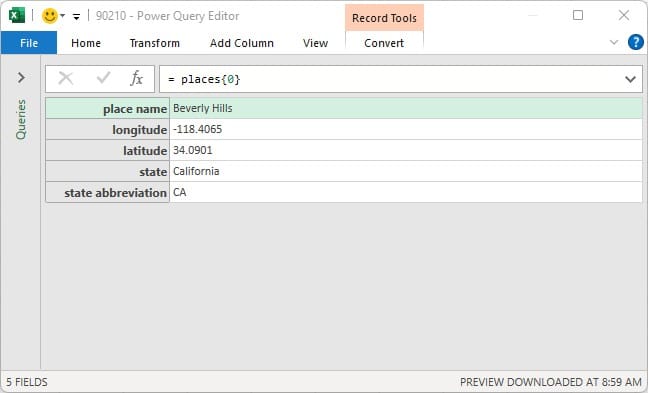
In Power Query, we’ll see a hierarchy of records. Click the places list:

Click the first record inside:

This will reveal the available fields:
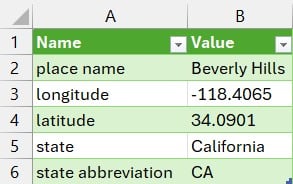
To return these values back to Excel, click Home > Close & Load To… and choose Table > Existing worksheet.
Now, let’s take that basic query and turn it into a function, so that we can look up zip codes dynamically for each row in a table.
Step 2: Create a Custom Function in Power Query
To make this lookup reusable, we’ll convert the existing ZIP code query into a function.
Right-click on the original query and select Edit to return to the Power Query editor.
Click View > Advanced Editor.

In order to pass in the zip code, we need to add it as a function parameter. To do so, add this at the top:
(ZipCode as text) as record =>

Then, replace the hardcoded ZIP code portion of the URL (e.g., 90210) with the parameter name ZipCode:"https://api.zippopotam.us/us/" & ZipCode

Click Done. This query is now a function you can reuse. Rename it fnZipLookup.

Step 3: Apply the Function to a Column of ZIP Codes
Suppose we have a list of ZIP codes, and we want to lookup the city and state for each:

Select the table and go to Data > From Table/Range.
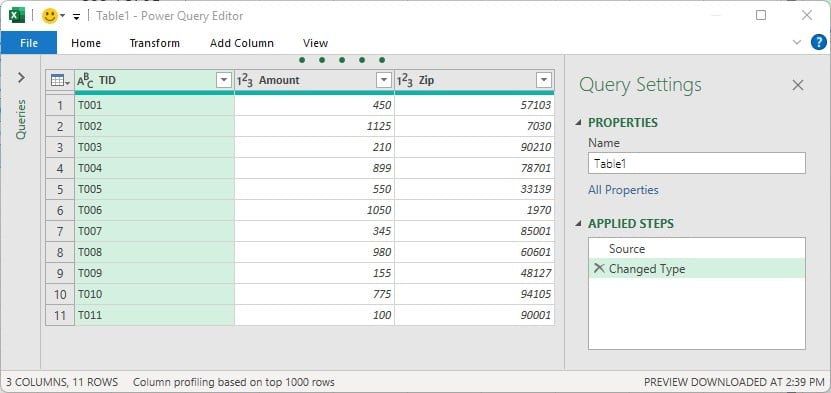
In Power Query, remove the default Changed Type step (click the red x) and then change the data type for the Zip column to text to retain the leading zeros when applicable:

Now, let’s do the zip lookup for each Zip code. Go to Add Column > Invoke Custom Function.
In the resulting dialog, enter your desired new column name (like ZipData), select fnZipLookup from the function query drop down, and set the ZipCode parameter to the column Zip:

In the data privacy warning, click Continue and then check the Ignore box:

This will yield a column containing “Record” values. These contain the API results. Click the Expand button:

Select fields to return: city name, state, state abbreviation, etc.

The columns will populate with their respective values. Choose Home > Close & Load To… and load it to a worksheet.

Our report is now linked dynamically to the API.
If there are new rows added to the source data table, just right-click the green results table and select Refresh. The new row is added along with the looked up values 🙂
Summary
By combining Excel’s Power Query with a public web API, we created an automated and dynamic ZIP code lookup table. The real power of this solution is its flexibility … just add new ZIPs, hit refresh, and all the associated location data is retrieved seamlessly.
This approach eliminates repetitive manual lookups and ensures ZIP data is always up to date. For those managing regional sales, logistics, shipping, or form entry validation, this method can be a huge time-saver.
Download the File
Frequently Asked Questions
- 1. Is the API used in this post free?
- Yes, the API from Zippopotam.us is completely free and public, but it has rate limits you should keep in mind for large datasets.
- 2. Can I use this for non-U.S. ZIP codes?
- The API supports international formats. Adjust the URL prefix accordingly, e.g.,
/de/10115for German postal codes. - 3. What happens to ZIP codes with leading zeros?
- When importing into Power Query, ensure ZIPs are treated as text to preserve leading zeros.
- 4. How do I handle errors or missing data?
- You can add error handling by using
try...otherwisein the M code or filter out null results after function execution. - 5. Can I automate this without clicking refresh?
- Yes. You can enable auto-refresh on file open via Query Properties.
- 6. Are there limitations to batch size?
- Yes. The API may throttle requests if you exceed rate limits. For best results, test with smaller batches (under 100 records).
- 7. Can I customize the output fields?
- Definitely. When expanding the query, select only the fields you’re interested in or clean/rename the columns afterward.
- 8. Is this method better than using XLOOKUP/VLOOKUP with pre-loaded data?
- Using XLOOUP/VLOOKUP locally is faster and doesn’t use online connections. The solution presented is nice when you don’t have a full zip code lookup data source inside your Excel file.

Excel is not what it used to be.
You need the Excel Proficiency Roadmap now. Includes 6 steps for a successful journey, 3 things to avoid, and weekly Excel tips.
Want to learn Excel?
Our training programs start at $29 and will help you learn Excel quickly.