
Cumulative Principal CUMPRINC
Understanding the principal portion of your loan payments over time is a key step in financial modeling and reporting. Fortunately, Excel makes this process easy with the CUMPRINC function. In this blog post, we’ll take a detailed look at how the CUMPRINC function works, build a cumulative principal schedule, and ultimately construct a simple dynamic loan schedule.
Video
This guide covers everything from basic usage to creating a simple loan schedule, including the remaining balance at each period — all with responsive formulas powered by Excel’s CUMPRINC and SEQUENCE functions. Let’s walk through it step-by-step.
What Is the CUMPRINC Function?
The CUMPRINC function calculates the cumulative principal paid on a loan between two periods. It helps us isolate the total principal repaid over any range of installments.
Syntax:
CUMPRINC(rate, nper, pv, start_period, end_period, type)
- rate — Interest rate per period.
- nper — Total number of payment periods.
- pv — Present value (loan amount).
- start_period — The first period in the desired range.
- end_period — The last period in the range.
- type — 0 = end of period, 1 = beginning.
Step 1: Set Up the Loan Parameters
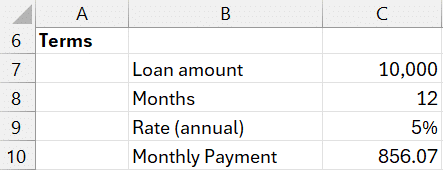
To begin, let’s define the loan terms in our worksheet:
- Loan Amount: 10,000 (
C7) - Number of Months: 12 (
C8) - Annual Interest Rate: 5% (
C9)
We calculate the monthly payment using the PMT function, which we won’t go into here (details in these PMT posts).
Step 2: Calculate Cumulative Principal Manually
Let’s calculate the principal paid through any month we enter in C14:
= -CUMPRINC(C9/12, C8, C7, 1, C13, 0)
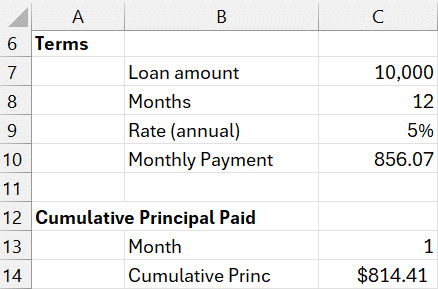
This reveals that the total amount of payment applied to principal after the first month (that is, the first payment) is $814.41.
Note: The negative sign is optional and flips the value to positive, because Excel’s financial functions treat cash outflows as negative by default.
Step 3: Dynamic Schedule with SEQUENCE Function
Rather than inputting each month manually, we can automate a full schedule.
Start by generating a month sequence in B15 with the following formula:
=SEQUENCE(C8)

This creates a sequential list of months (1 to 12, in this case) and updates dynamically as the loan term changes.
Now calculate the cumulative principal for each month with the following formula in C15:
= -CUMPRINC(C9/12, C8, C7, 1, SEQUENCE(C8), 0)

This spills values downward, giving us the cumulative principal paid at each point. Confirm accuracy by ensuring the final value equals the total principal (i.e., loan amount).
Step 4: Calculate Remaining Loan Balance
Once we have the cumulative principal, calculating the balance at any point is simple with a formula like this in D15:
= C7 - C15#

Validate results by checking that the last balance value is 0 — which signals the loan is paid off.
Final Model Overview
With all components in place, our simple loan schedule includes:
- Month sequence (via
SEQUENCE) - Cumulative principal (via
CUMPRINC) - Remaining loan balance (simple subtraction)
Now, by changing the loan parameters (amount, term, interest), your entire schedule updates instantly.
Mastering CUMPRINC offers powerful insight into loan payment structures, helps in budgeting, and unlocks dynamic dashboard capabilities. Happy modeling!
Download the Sample File
Feel free to download the sample file to use as a base for your own financial models or dashboards.
Frequently Asked Questions (FAQs)
- What does the CUMPRINC function calculate?
It returns the cumulative principal paid on a loan between any two periods. - Why is the CUMPRINC result negative?
Excel financial functions treat outflows (like loan payments) as negative values. Prepend a minus sign to flip it. - What’s the difference between CUMPRINC and PPMT?
CUMPRINC gives the total principal over a period range; PPMT gives the principal for a single period. - How do I change the loan type to “beginning of the period”?
Set thetypeargument inCUMPRINCto 1 instead of 0. - Why use SEQUENCE instead of manual entry?
SEQUENCE creates dynamic and scalable formulas — a best practice for flexible models. - How can I check my schedule’s accuracy?
Ensure the final cumulative principal equals the loan amount and that the ending balance is zero. - Does this apply to variable interest rate loans?
Not directly — CUMPRINC assumes a fixed rate. For variable rates, you’ll need custom logic.

Excel is not what it used to be.
You need the Excel Proficiency Roadmap now. Includes 6 steps for a successful journey, 3 things to avoid, and weekly Excel tips.
Want to learn Excel?
Our training programs start at $29 and will help you learn Excel quickly.