
APR vs APY in Excel: What the EFFECT Function Reveals
When evaluating loans or investments, we’re often presented with a nominal interest rate commonly known as the APR (Annual Percentage Rate). But what we really care about is how much we’ll actually earn or pay over time, and that’s where the effective annual rate (APY) comes in. Fortunately, Excel offers the EFFECT function to convert APRs into APYs, allowing us to make smarter financial decisions by accounting for compounding interest.
Video
Overview
In this guide, we’ll take a hands-on approach and walk through three practical scenarios using the EFFECT function in Excel. By the end, we’ll not only understand the math behind effective rates, but also use it to spot the most (and least) favorable loan or investment terms even when APRs seem similar on the surface.
What Does the EFFECT Function Do?
The EFFECT function calculates the effective annual interest rate based on a given nominal rate and compounding frequency. While the APR is the stated interest rate, the APY accounts for how often the interest is compounded (monthly, quarterly, daily, etc.), making it a more accurate measure of cost or return.
=EFFECT(nominal_rate, npery)- nominal_rate: The annual interest rate (APR)
- npery: Number of compounding periods per year (e.g., 12 for monthly, 4 for quarterly)
Exercise 1: Calculate the APY of a Monthly-Compounding CD
Let’s say we’re looking to invest $10,000 in a 1-year Certificate of Deposit (CD) with a 4% APR compounding monthly. We’ll use the EFFECT function to calculate the APY and, from there, determine the actual interest earned.
Step-by-step:
Enter the following values in cells:
C10 = $10,000 (Investment amount)
C11 = 0.04 (Nominal APR)

In C14, enter:=EFFECT(C11, 12)
This returns the APY: 4.07%
To calculate interest earned:=C10 * C14 → Returns $407.42

This shows how to compute interest earned while taking into account compounded interest.
Exercise 2: Compare Multiple CDs with Different APR and Compounding
In this example, we’re comparing multiple CD products with varying APRs and compounding frequencies. While the surface rates may seem close, compounding can significantly affect the actual returns.
Step-by-step:
We document the basics of each CD, like this:

To make the formula easier to enter for all CDs, we simply enter in the number of periods per year based on the compounding period like this:
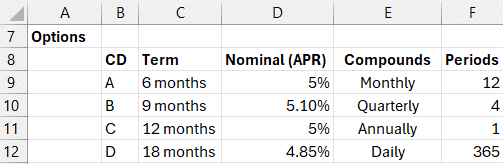
We can then compute the APY in Column G with a formula in G9, like this:
=EFFECT(D9, F9)
By computing the effective rate, we can make apples-to-apples comparisons of investment returns despite differences in compounding frequency.
Exercise 3: Compare Loans—The Loan with the Lower APR Isn’t Always Better
Now let’s switch to the borrower’s shoes. We’ve got 4 loan options with similar nominal rates but different compounding rules. Which one actually costs more?
Step-by-step:
We enter the basic terms of each loan like this:
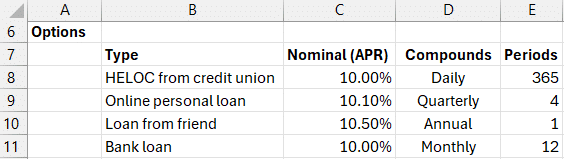
For column F, we’ll write the following formula into F8:
Use =EFFECT(C8, E8)
Fill the formula down to analyze all loans
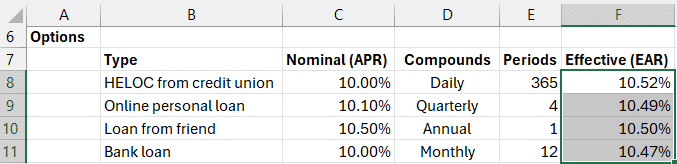
Interesting insight: The Online Personal Loan has an APR of 10.1% (nominal), yet its Effective rate is lower than the HELOC which has a 10% APR. This is because of how often interest is compounded. This reinforces the importance of examining effective rates before choosing a loan.
Summary
Whether we’re investing or borrowing, comparing interest rates can be tricky due to compounding effects. Excel’s EFFECT function gives us a powerful, transparent way to make better financial choices by converting nominal rates to effective annual rates.
By incorporating this one formula into our Excel workflow, we bring clarity to both investment returns and loan expenses that would otherwise remain hidden behind nominal figures.
By understanding and leveraging Excel’s EFFECT function, we gain deeper insight into how interest works—setting the stage for more confident and informed financial decisions.
Download the Excel File
FAQs
- What is the difference between APR and APY?
- APR is the nominal or stated interest rate, while APY is the annual percentage yield that accounts for compounding over time.
- What does the Excel EFFECT function calculate?
- The
EFFECTfunction calculates the effective annual rate (APY) based on a given nominal rate (APR) and the number of compounding periods in a year. - How is EFFECT different from NOMINAL?
EFFECTconverts a nominal rate to an effective rate, whileNOMINALdoes the opposite—it converts an effective rate to a nominal rate.- Why do some loans with lower APRs cost more?
- It’s due to compounding frequency. More frequent compounding increases the actual cost of borrowing even if the APR seems lower.
- How do I know how many compounding periods to input?
- This depends on the compounding frequency: monthly = 12, quarterly = 4, daily = 365, annually = 1.
- Can EFFECT handle non-annual time periods?
- The effect is always annualized; to analyze partial year scenarios, convert your time assumptions to annual equivalents before using EFFECT.
- Can I use EFFECT for savings, not just loans?
- Absolutely! EFFECT works for any scenario involving interest—both for earning and paying.
- Does the EFFECT function support compound intervals like semi-annually?
- Yes, just use the appropriate value for
npery. For semi-annually, that’s 2. - Can I use EFFECT with Excel Online?
- Yes, the EFFECT function is available in Excel for desktop, Mac, and Excel Online.

Excel is not what it used to be.
You need the Excel Proficiency Roadmap now. Includes 6 steps for a successful journey, 3 things to avoid, and weekly Excel tips.
Want to learn Excel?
Our training programs start at $29 and will help you learn Excel quickly.